This article explains the following about altering pages and views in Microsoft Word:
View tab
Under the View tab you can change how to view the document content in various ways depending on what you want to do. There are also zoom tools including how pages are shown on screen.

Zoom
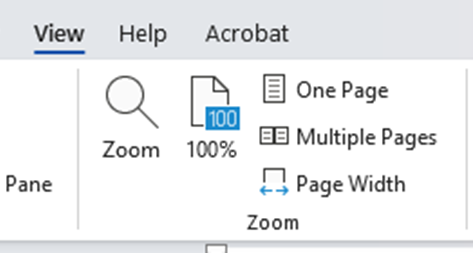
Before thinking about using Zoom options under the View tab, first consider these methods for zooming:
- The fastest and easiest way to zoom in and out is via Ctrl + sliding mouse wheel up/down. This is what I use and recommend.
- Second preference is the zoom slider on the status bar in the far bottom right corner.

- Following this there are also some useful shortcuts to be aware of:
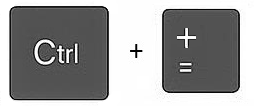
- Ctrl and + to zoom in
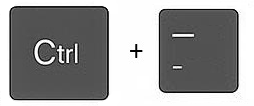
- Ctrl and - to zoom out
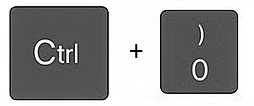
- Ctrl + 0 (zero) will reset zoom level to 100%
Zoom options
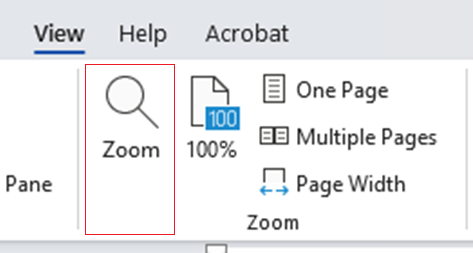
Now if you click on Zoom in the View tab you get a dialog of Zoom options. Most of these are pretty self-explanatory and allow you to be specific if you want to.
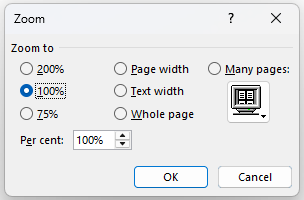
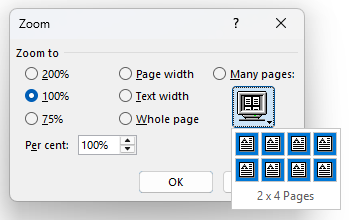
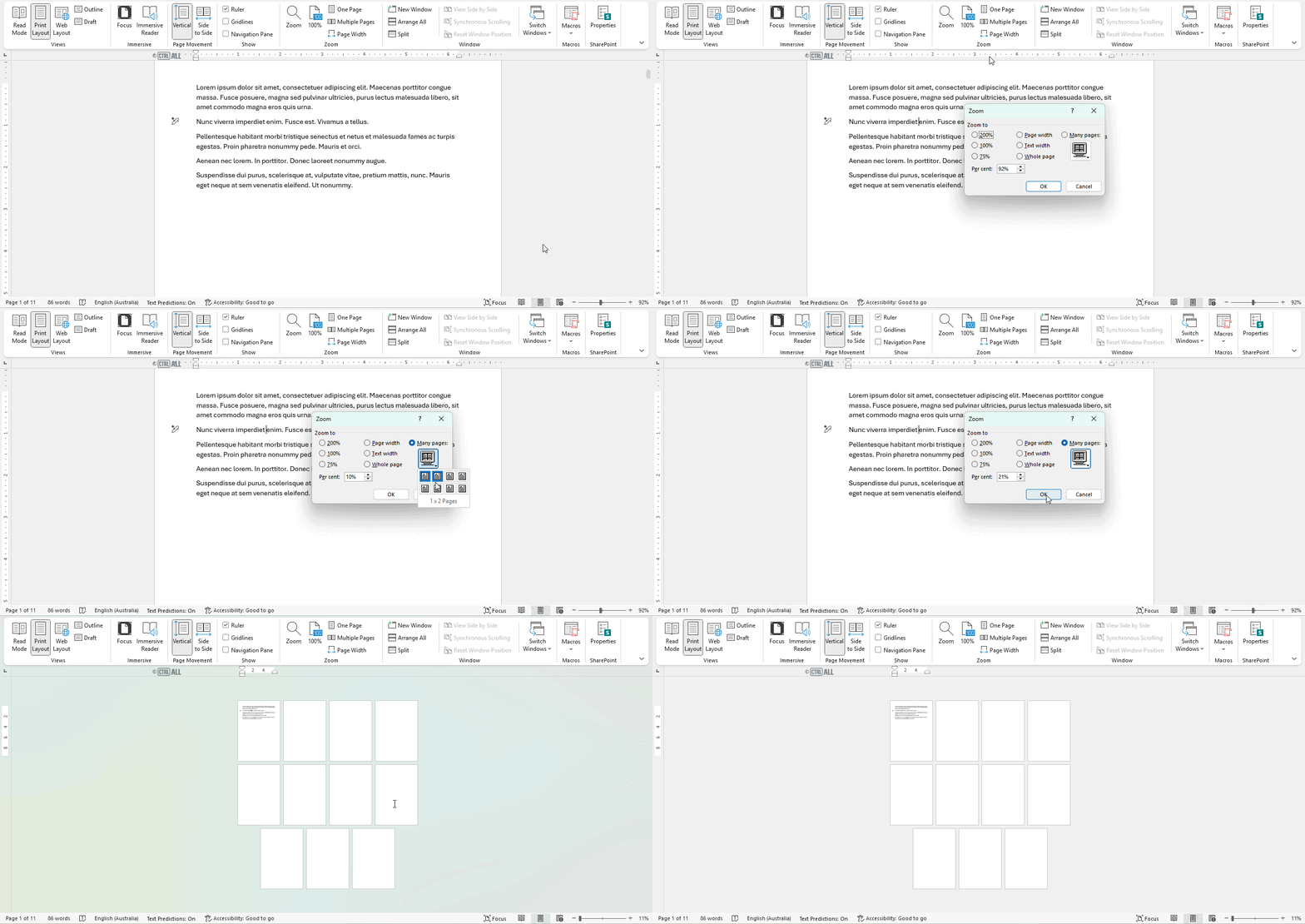
One that needs a little explanation is the Many pages option on the right. Once selected click the monitor icon drop down and you get a small menu to choose a limited number of multiple pages to have displayed. In the example below I've chosen 2 x 4 Pages, so Word will show me 8 pages.
Note: You can see more pages if you zoom out further. It's debatable how useful this is when you can just hold Ctrl and slide your wheel mouse to the number of pages you want shown.
Page views
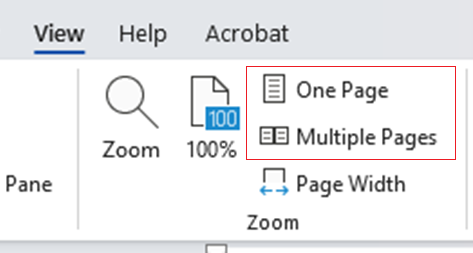
One page view: One page shown no matter how much you zoom in or out.
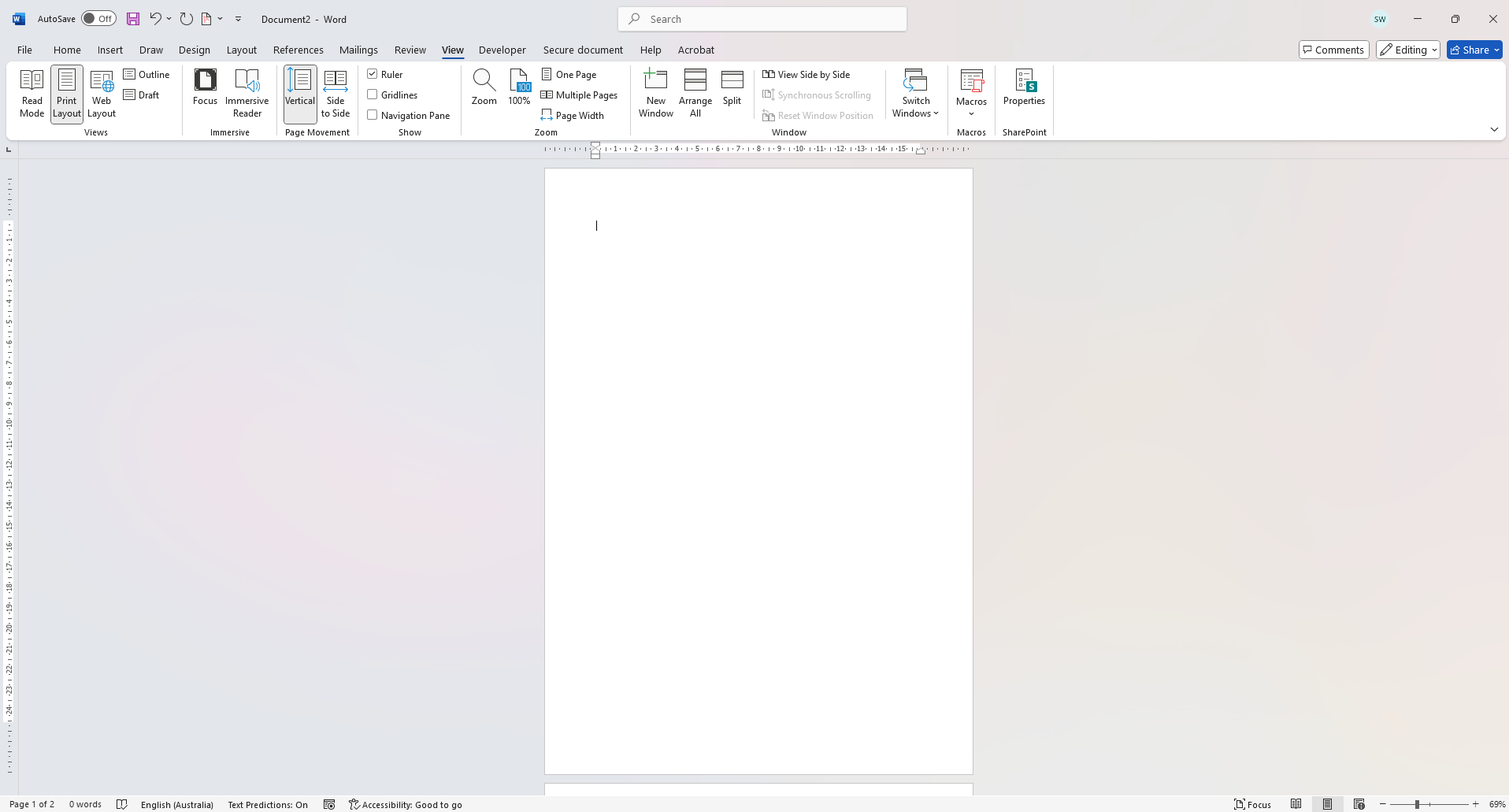
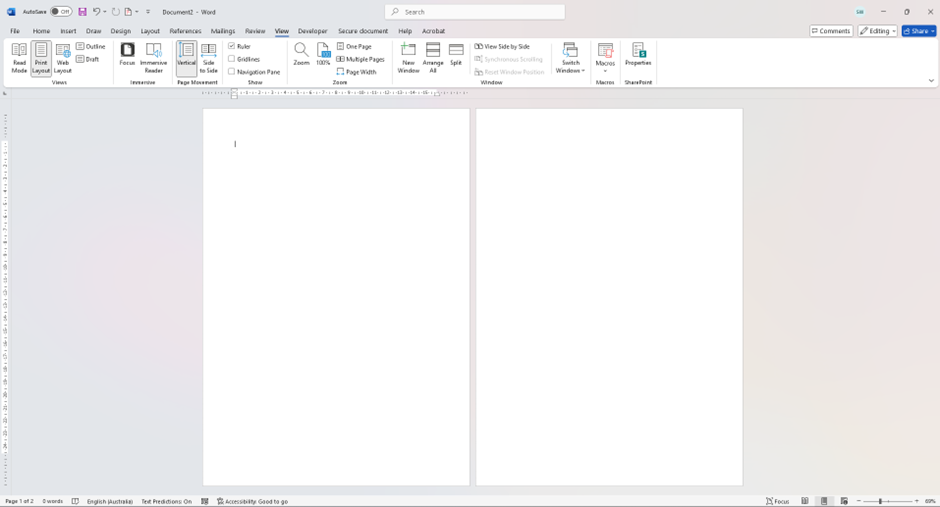
Multiple pages view: At higher zoom level shows multiple pages side by side which can be useful for longer structural editing. If you zoom into a page, the view will snap to a one page view to show more detail. On zooming out again it will show multiple pages.
Views
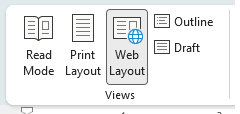
Microsoft Word has different views you can switch to in order to view your document content in different ways for various purposes. The default view is called Print Layout.
Print Layout
This default view shows you how the document will look when printed. It features the page layout and layout elements such as margins, the headers and footers, images and page breaks. Above the page you have the quick access toolbar and ribbon and below the status bar. All the tools are at your disposal in this view.
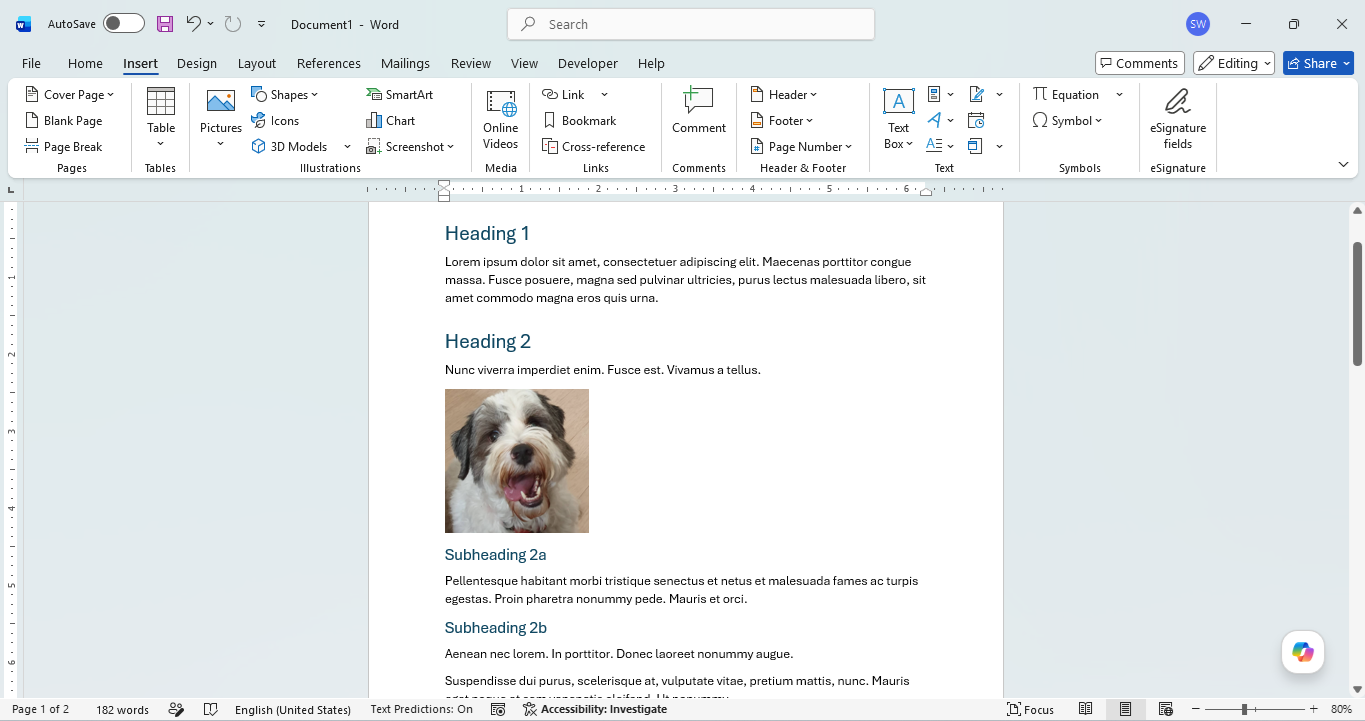
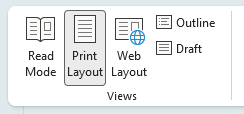
If you're in another view, Print layout can be found either on the ribbon via View > Views or via the Print layout button on the status bar at the bottom right of the screen:
Read mode
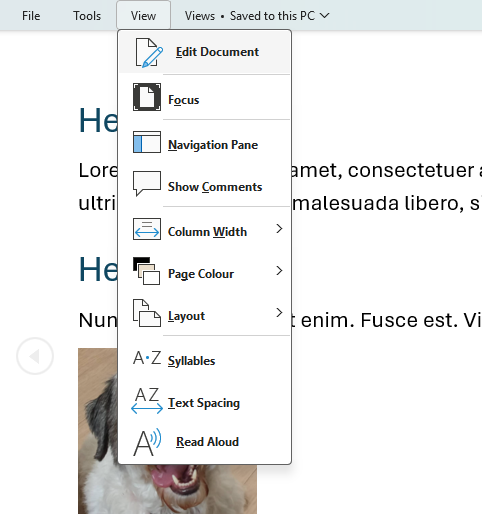
Read mode is set up to allow content to be read-only. Content cannot be edited in read mode and the ribbon is hidden with few view-only options provided like page colour, column width and layout that only apply to the Read mode view. There are view-only tools as well: Find, Navigation pane and Show Comments (Note: you can't add comments only view them).
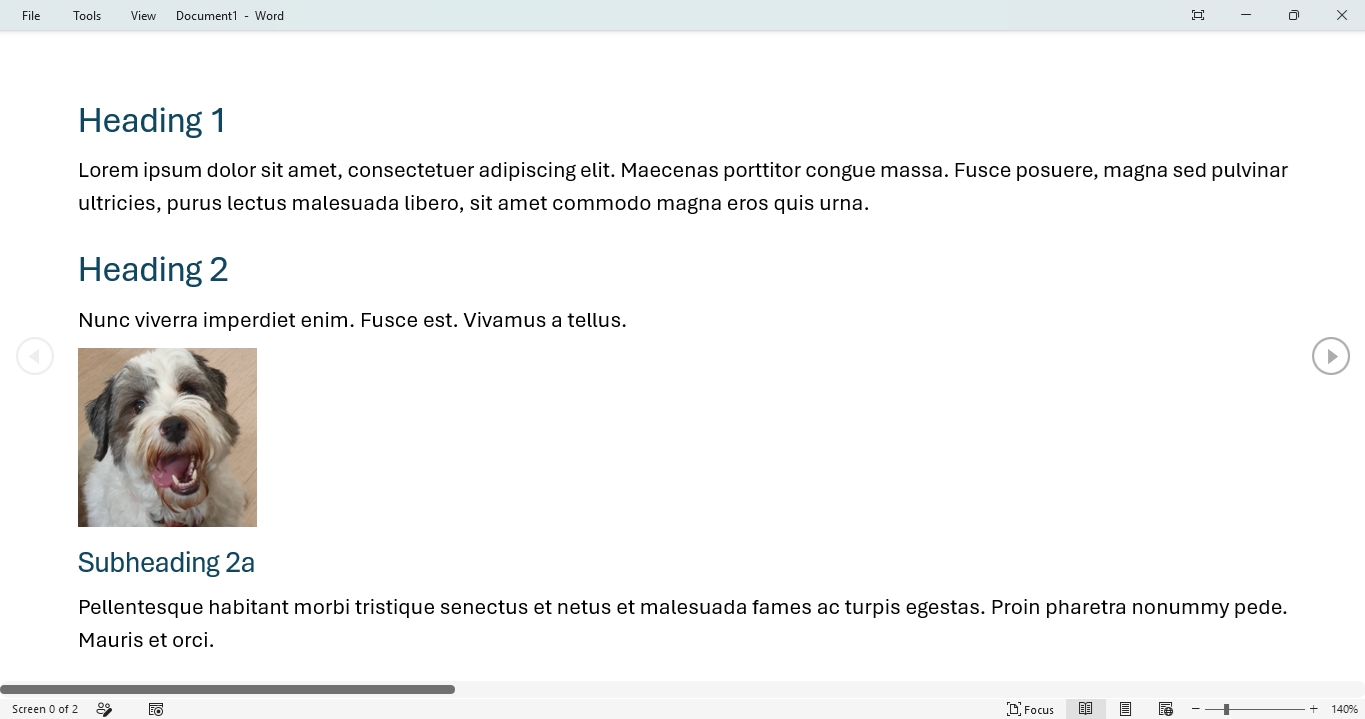
To exit Read mode either press Esc, select View > Edit Document or click the Print Layout button on the status bar bottom right.
Outline view
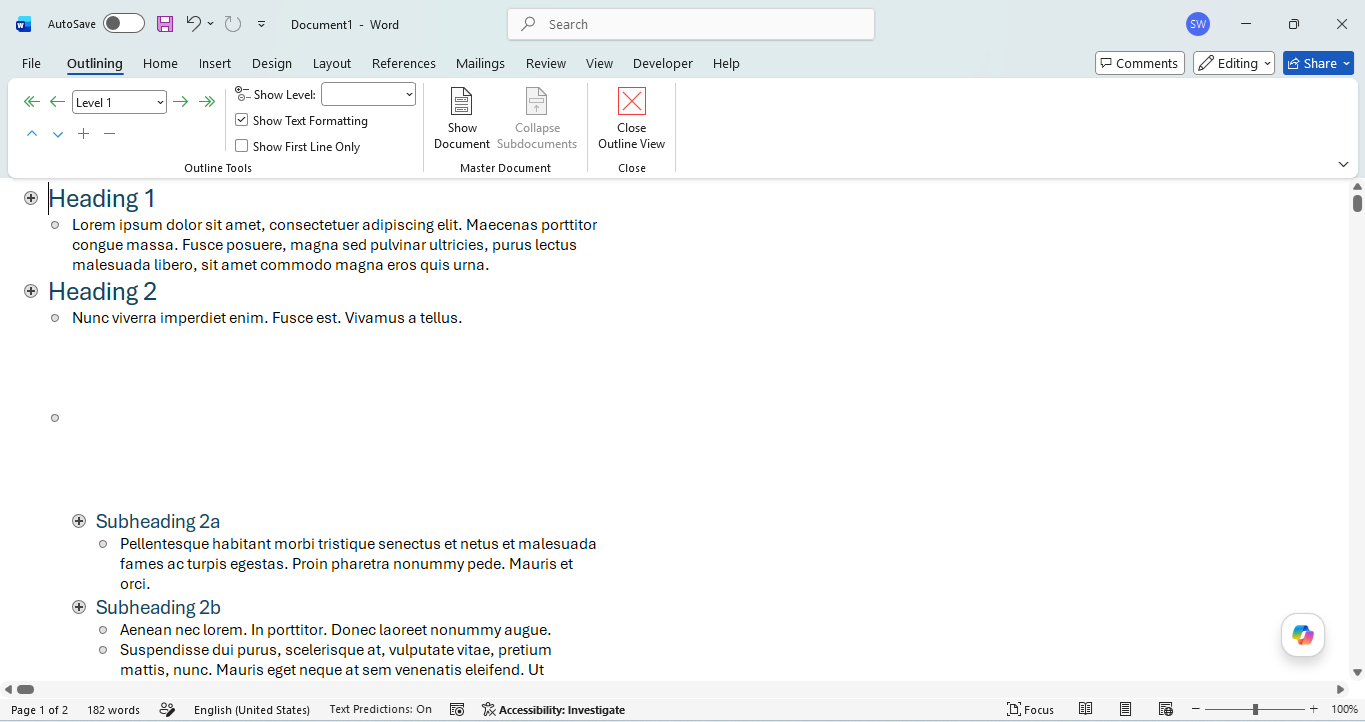
Outline view displays the document's content in a structured, hierarchical layout based on outline levels. Layout elements such as margins, headers and footers, page breaks and images are hidden in order to focus on structural editing of the text. You can collapse and expand sections, promote and demote headings, and drag sections to reorder them.
This is especially useful to fix headings if their outline levels are out of place or inconsistent in a document and it is affecting how your table of contents appears.
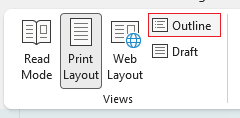
Turn on outline view on the ribbon: View > Views > Outline
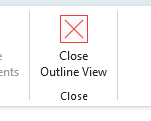
To exit outline view, click the Close Outline View button on the ribbon or press the Print layout button on the status bar bottom right.
Draft view
Draft view displays the document's content in a simplified, text-focused layout. It hides most of the layout elements visible in the default Print layout view such asmargins, headers and footers, page breaks and images. Unlike Read mode, Draft view allows editing, so it can be a useful tool for quickly writing and editing text without having to consider layout.
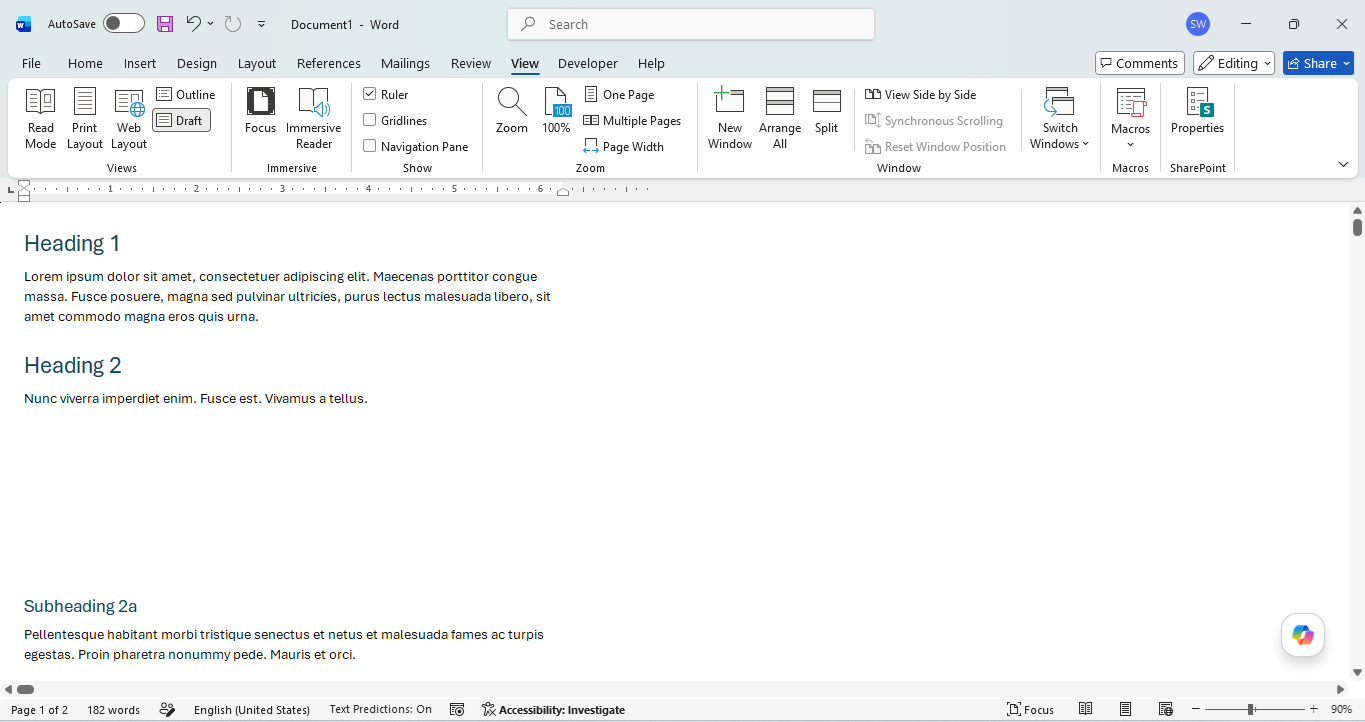
Web layout
Web layout is one you're unlikely to use. In the late 90s and early 2000s, Microsoft tried to make Word a WYSIWYG HTML editor allowing you to build webpages in Word. It was a terrible idea but people still did it. The web layout view was created to preview document pages as if they were webpages in a browser, i.e. with a continuous, fluid layout rather than fixed page boundaries, margins, or page breaks that you get with the default Print layout view. Text and images automatically reflow to fill the available width.
The option is kept available today as some organisations still use Word for intranet content, but it also gives a view with continuous scrolling and has accessibility applications.
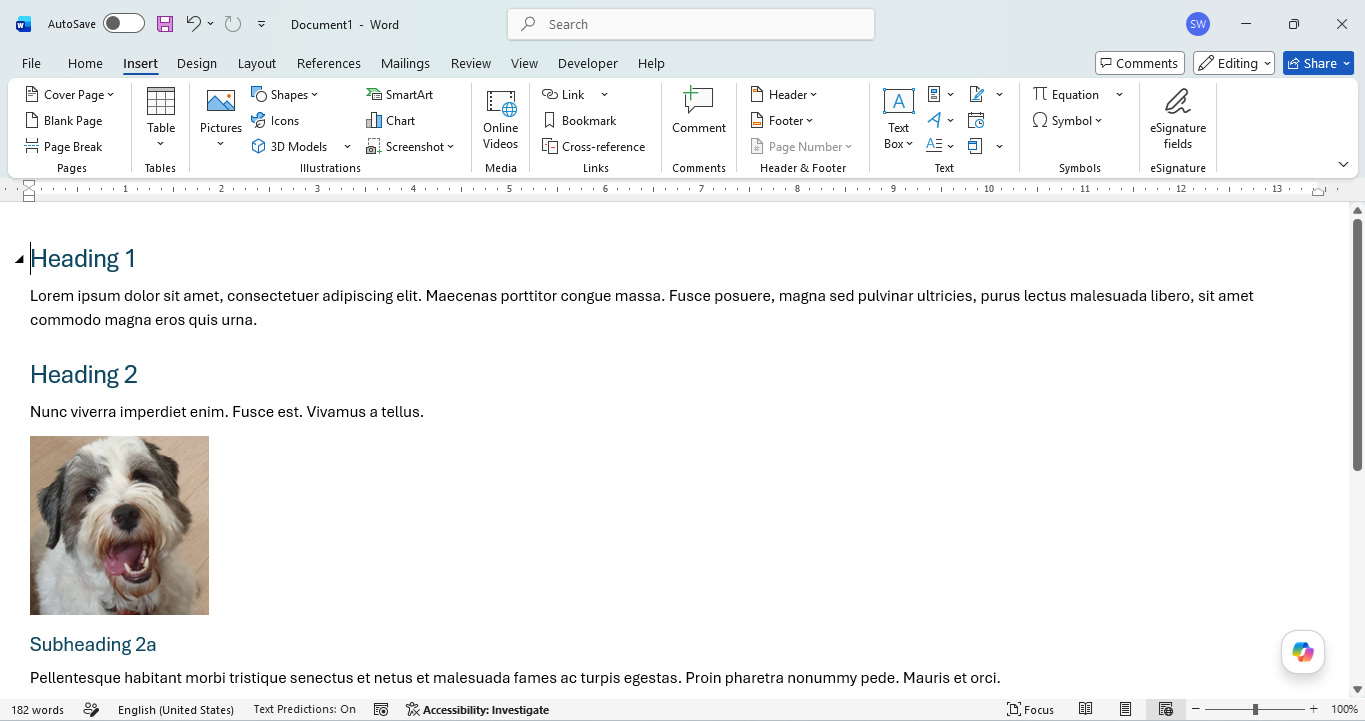
Access web layout via the ribbon View > Views > Web layout
To exit web layout and return to the default view, on the ribbon click View > Views > Print Layout or click the Print layout button on the status bar bottom right.
Layout tab
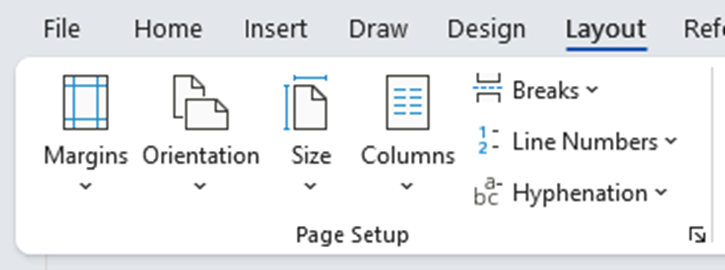
Under Layout you can change the size and orientation of a page. You can also alter margins, columns and other specific layout options like breaks, hyphenation and line numbers.
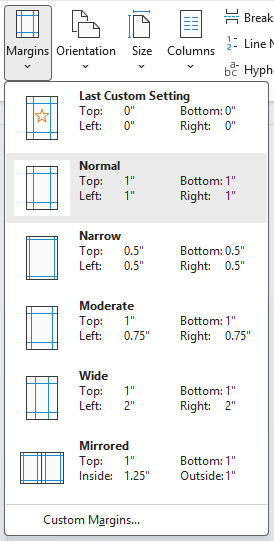
Margins
The page margins determine the space between the edge of the page and the editable area. The options on this menu let you decide how narrow or wide. You can set your own via Custom Margins... at the bottom, this is explored in this article: Page setup options
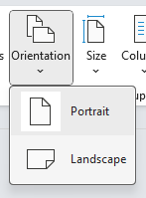
Orientation
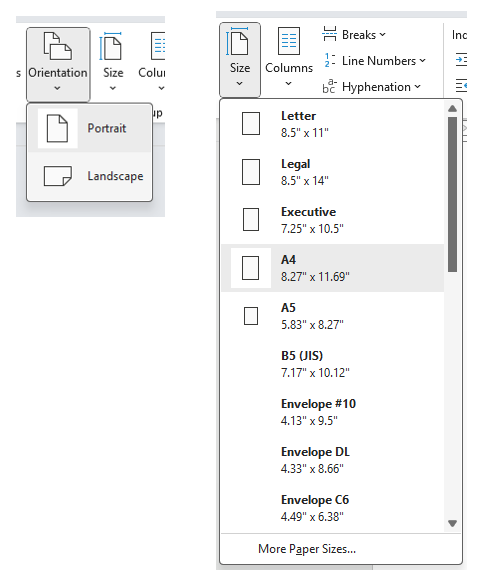
Changing from portrait to landscape has its benefits where required, for example when your table needs more horizontal space for columns or placing large landscape images. Headers and footers still apply but will be longer and sometimes you may need to adjust content with indent markers which are explored in this article: Indents.
What if I want a mix of portrait and landscape?
To split the orientation of pages between portrait and landscape you'll need to use section breaks. This is demonstrated in the Section breaks article.
Size
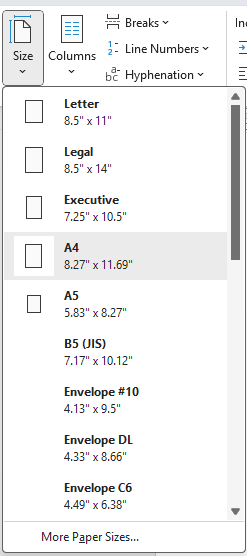
Size gives you a choice of common paper sizes to choose from. You can also customise the page size via More paper sizes... at the bottom, doing so will bring up the Page setup dialog which is explored in this article: Page setup options.
Columns
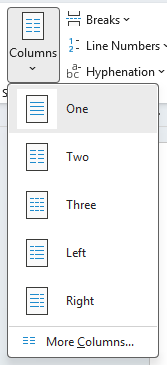
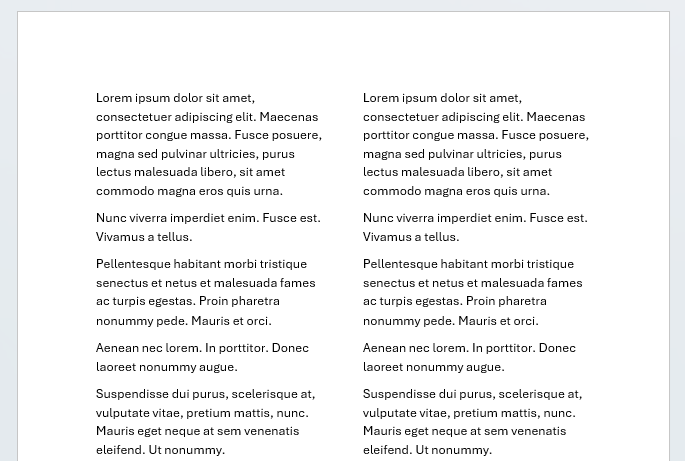
This lets you set the document's content into columns in Word, useful for resumes/CVs, newsletters & bulletins, brochures & leaflets, dictionaries, glossaries & indexes. Choose the layout you need from the list or set your own via More Columns....
Breaks
Page breaks and section breaks are explored in these articles:
Line numbers
Line numbers are explored in this article: Line numbering.
Hyphenation
By default Word disables hyphenation for ease of reading. The Hyphenation menu gives you a few options to choose from. Note: Normally for hyphenation to work you'd need to set the text alignment to Justified first.
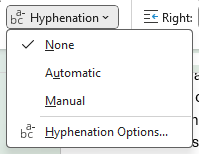
It's set to None by default, but if you select Automatic then Word applies hyphenation to the whole document, here's an example:

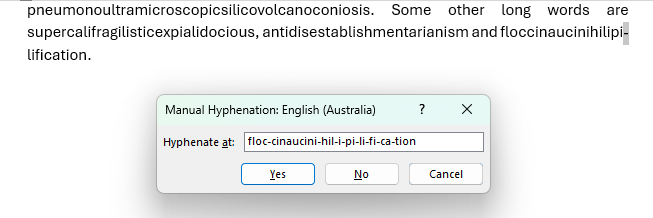
If you select Manual, Word gives you the option of exactly where to hyphenate a word more specifically:
Select Hyphenation options and you can determine some greater control.
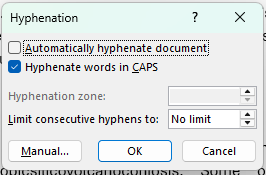
- Hyphenate words in CAPS (all capitals)
- Limit consecutive hyphens to a set number — this prevents too many lines in a row from ending with a hyphenated word. E.g. If you select '2' Word won't allow more than 2 consecutive lines to end with a hyphen. If a third line would need one, Word adjusts spacing instead.
- Hyphenation zone: Ignore this one, it's a legacy option from Word 2010 and earlier. This is to do with the amount of white space allowed between the end of the last word and the right margin before a hyphen was inserted. Modern versions of Word manage this automatically.