Page setup options
The page set up options can be found by going to Layout > Page Set-up and then clicking the bottom right button.
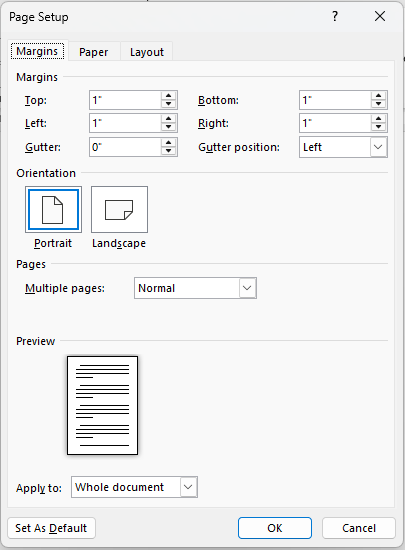
Each of those three tabs can be accessed directly via the following Layout > Page Set-up menu paths as well:
- Select Margins > Custom Margins... for customising margins.
- Select Size > More Paper Sizes... for customising paper sizes.
Let's look at each one.
Margins
Here you can set custom margins, gutters amongst other options. See the hotspots below for mor detail.
Paper
The paper tab focuses on the physical reality of printing the document. If you have intended paper you want the document printed on then this set of options is cruical for the finished physical product.
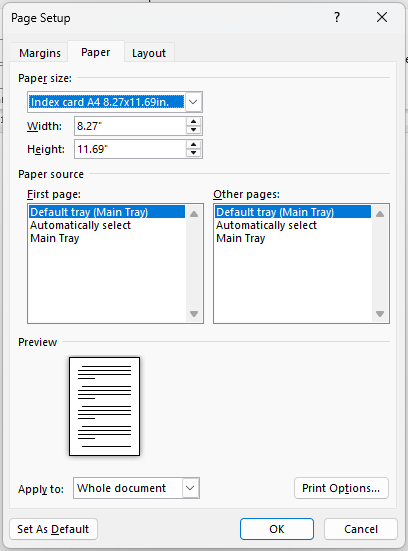
Paper sizes
Typically you might opt for one of these:
- Letter (8.5" × 11") — standard in the US
- A4 (210 × 297 mm) — standard internationally
- Legal (8.5" × 14") — used for contracts and legal documents
- Envelope sizes — for printing addresses directly onto envelopes
- Custom size — posters or labels
If you need others, here are all the paper size options available from the dropdown menu:
| Letter | Legal | Executive |
| A4 | A5 | B5 (JIS) |
| Envelope #10 | Envelope DL | Envelope C6 |
| Japanese Postcard | A6 | Japanese Envelope Chau #1 |
| Japanese Envelope Chau #2 | Japanese Envelope Chau #3 | Japanese Envelope Chau #4 |
| 2L 127x178mm | 3.5x5in./L 89x127mm | 4x6in./10x15cm |
| 5x7in./13x18cm | 8x10in. | B5 (ISO) 176x250mm |
| Index card 4x6in. | Index card 5x6in. | Index card A4 8.27x11.69in. |
| Index card Letter 8.5x11in. | Custom size |
Print options (Word Options > Display)
Clicking the Print options button brings up this screen where you can choose whether editorial features and marks should be printed on the page or not. These are pretty self-explanatory but some are particularly useful Printing options down the bottom to be aware of (see below image).
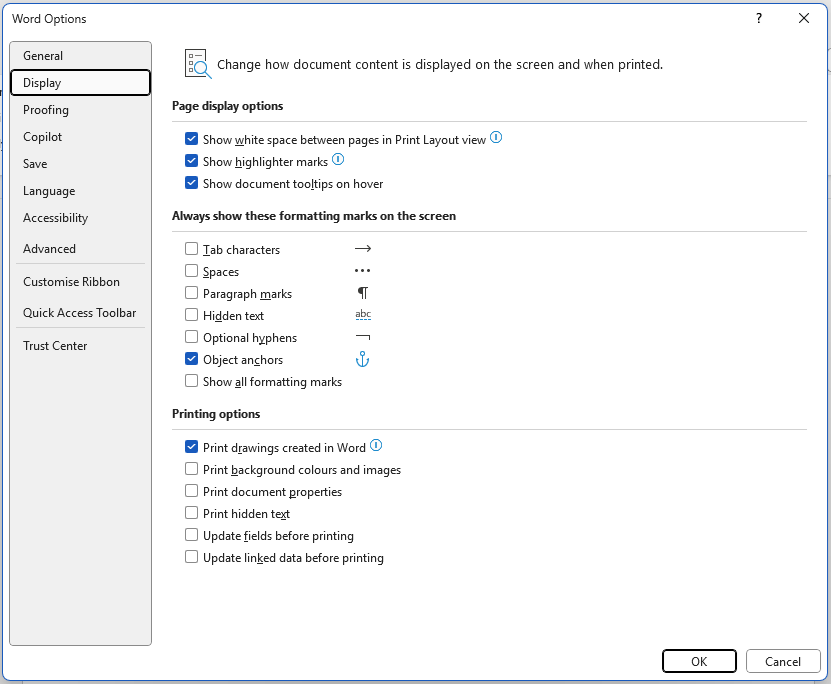
- Print background colors and images: By default this is switched off to save on printer ink/toner.
- Print document properties: Should you need it this will print out metadata about the document on a separate page e.g. Author, Title, Last Modified, Revision Number, Total Editing Time, Creation Date etc. Legal documents for example may require this.
- Update fields before printing: This forces Word to automatically refresh fields like dates, page numbers or a table of contents before sending to the printer. Particularly cruicial for ensuring the final tables of contents is up to date rather than having to remember to do it manually.
- Update linked data before printing: This fores Word to refresh data from external sources like Excel charts or linked OLE objects. Useful if the sourced data is live and you need to reflect the most up to date changes at time of print.
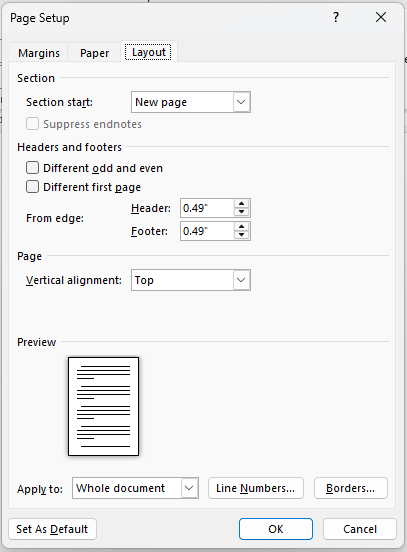
Layout
The Layout tab has several options
Found this useful? Share it with others.