Section breaks
We’re in advanced territory here so proceed with caution. Section breaks can get extremely messy if you don’t configure them properly or if your document has several section breaks with unique formatting.
If you consider yourself a beginner to Word then you’re likely here looking for how to get rid of a section break, if so see here: How do you remove a section break?
Section breaks are similar to page breaks but slightly more complex. If you just want content to appear from the next page you need a page break.
What is a section break?
Section breaks allow for advanced-level formatting of documents; they divide a document up into sections to which you can then apply differing formatting, styles, headers and footers, page size, orientation and layout, and more, without affecting the rest of the document outside that section.
One common use for section breaks is when you need one or two pages to be landscape in a document of portrait pages, e.g. a report where you need to fit a large table, diagram or graph lengthways.
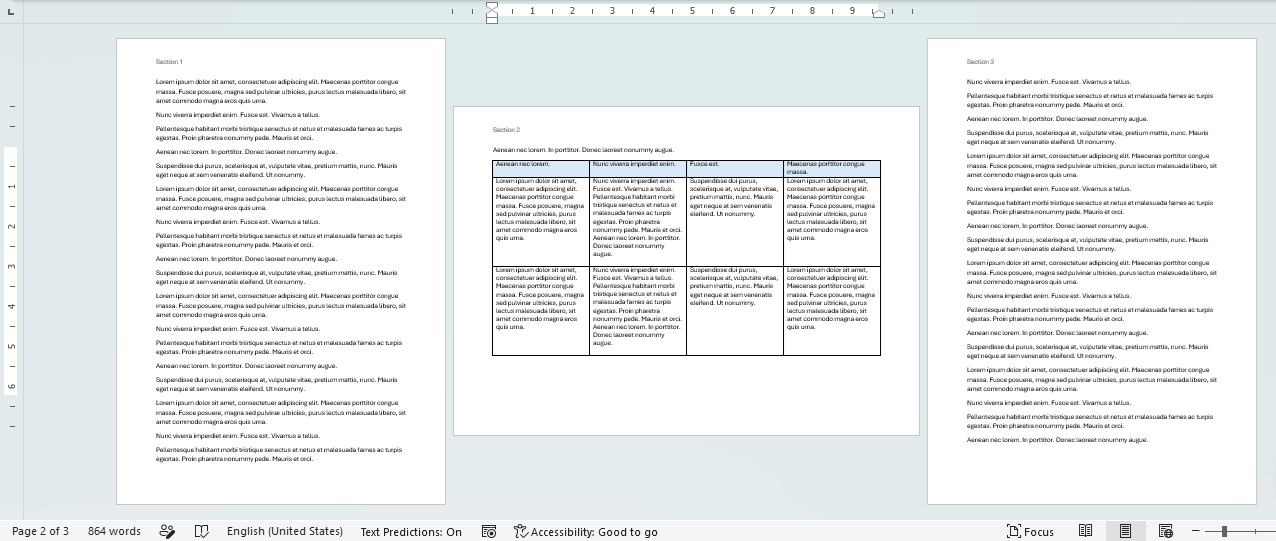
I can’t find any section breaks
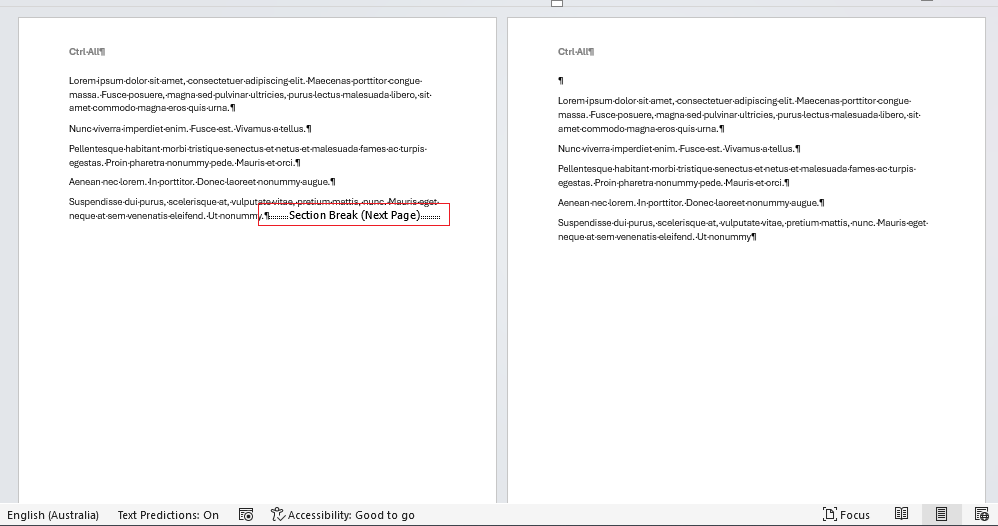
That’s because they’re hidden by default. To make formatting marks like these visible go to Home > Show/Hide ¶ and the section break will appear on the page.
How do you remove a section break?
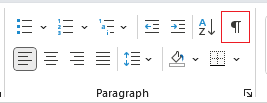
First make formatting marks visible (Home > Show/Hide ¶):
Then locate the section break and either select it by dragging, or click just before it, then delete.
Note: The content will respond based on the type of section break you have and where the content was. For example if you had a 'Next Page' type section break content will shift up from the following page.
However this is actually where things can get a bit tricky. If you have more than one section break in your document then the next section will take on any formatting the section after it has, which could include anything e.g. all pages suddenly switch to landscape orientation. Typically if you’ve got a document laden with section breaks you may need to do some surgery removing certain section breaks and fixing the formatting, or maybe even remove all of them and start again with a clean slate.
How do you insert a section break?
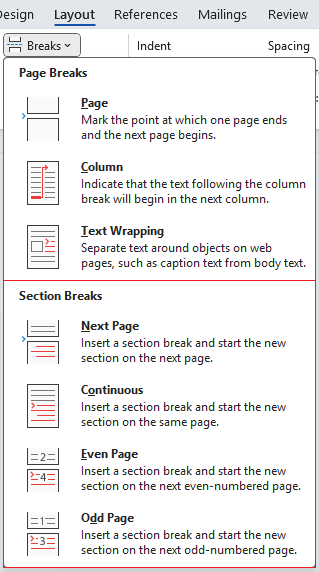
Go to the Layout > Breaks drop down menu and you’ll see four section break options listed there.
| Function | Action |
|---|---|
| Next Page | Inserts a section break on the next page. The new section will start on that next page. |
| Continuous | Inserts a section break where you’ve put the insertion point. This one’s a bit more finicky, so we’ll look into it a little more in depth below. |
| Even Page | Inserts a section break on the next even-numbered page. |
| Odd Page | Inserts a section break on the next odd-numbered page. |
Choose the one that’s right for your document. Next Page tends to be the simplest to use.
Continuous section breaks
Continuous section breaks are a little different, some features work immediately after the section break on the page, others work on the next page after it.
Features that apply immediately after a continuous section break (on the same page)
- Columns (change layout mid-page from single column to two-column layout)
- Margins
- Line numbering (example below)
- Language settings
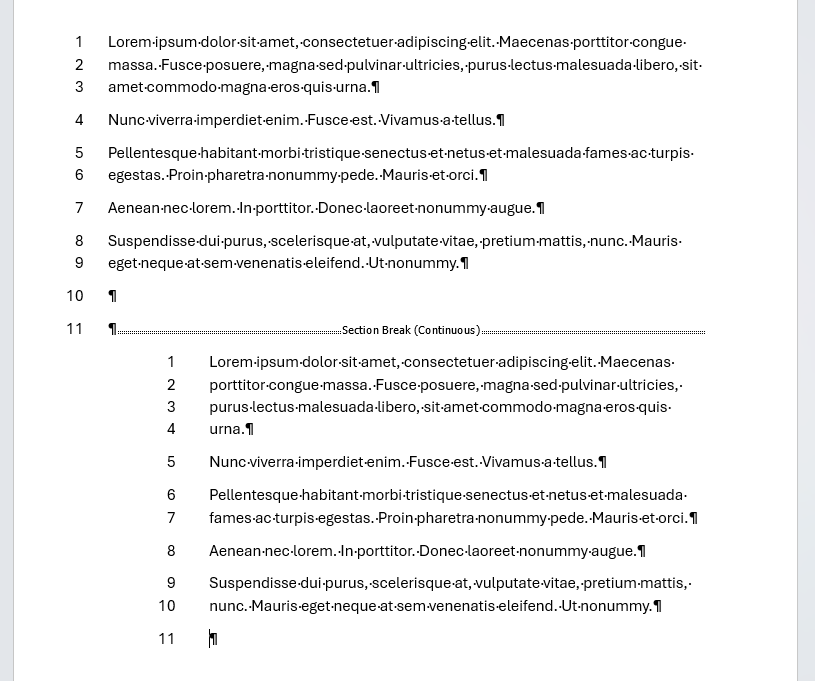
Features that apply from the next page after a continuous section break
- Page orientation (e.g. change to landscape, example below)
- Page size
- Headers (examples below)
- Footers (e.g. page numbering)
- Footnote and endnote layout (numbering, position)
- Page backgrounds
- Page borders
- Document protection / editing restrictions
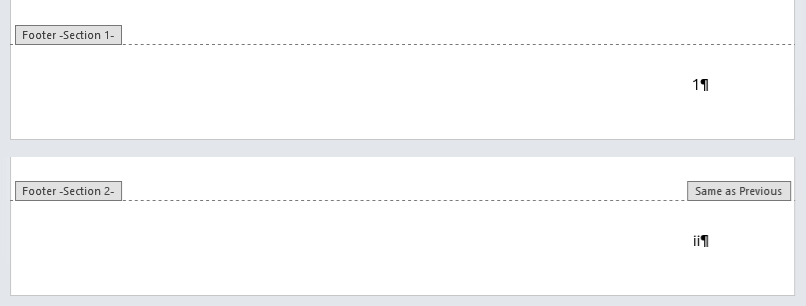
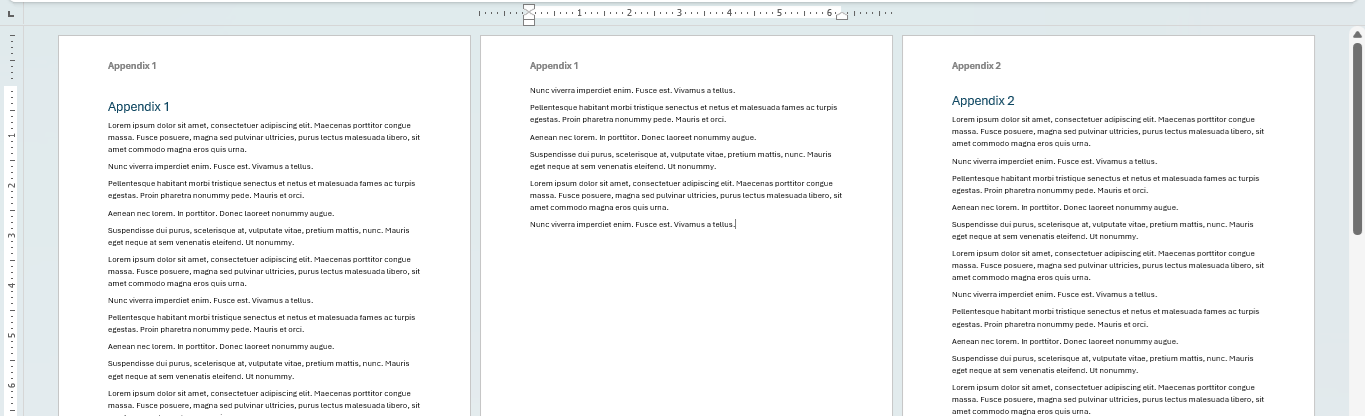
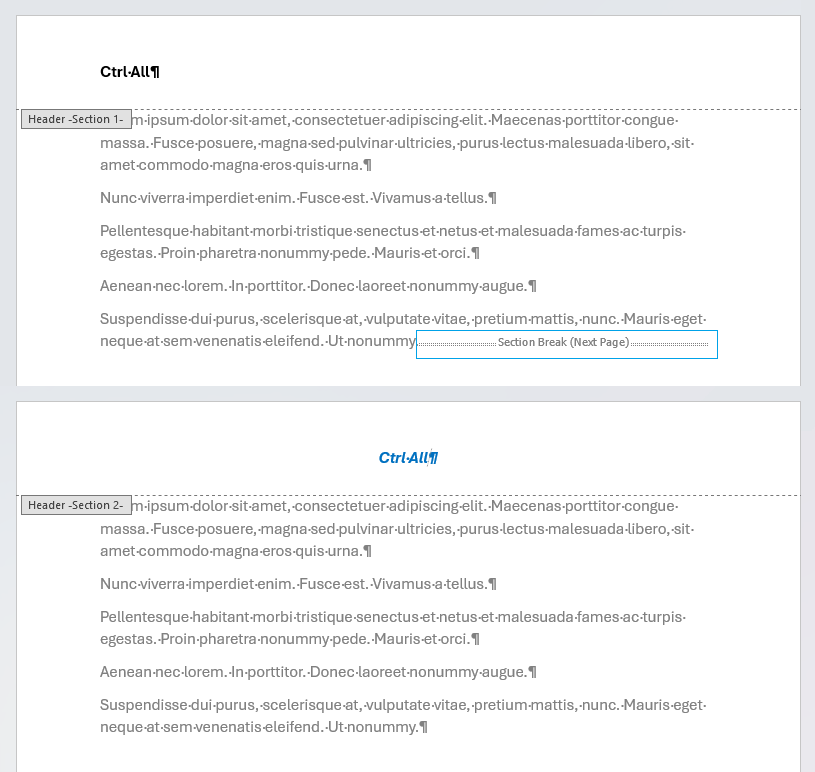
Always proceed with caution when editing existing section breaks in a document as they can be unforgiving.
Found this useful? Share it with others.