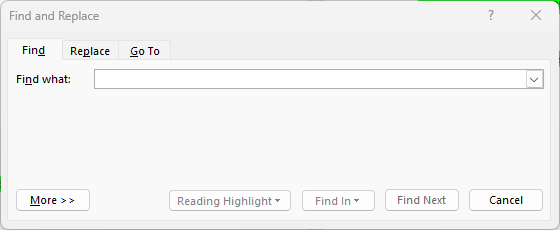
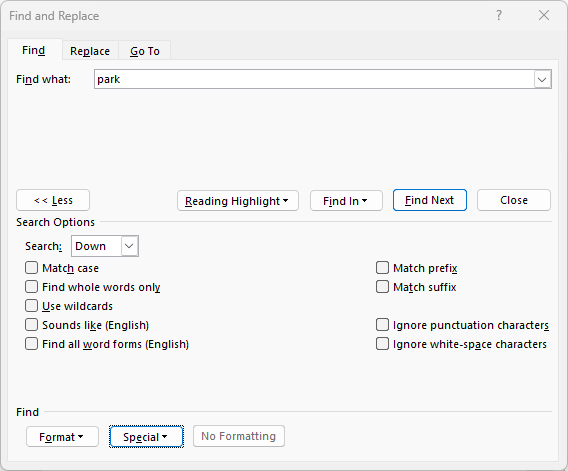
This beginner article looks at the Find tool in Word. If you're after Find & Replace this is explored in the intermediate version of this article.
Find & the navigation pane
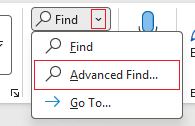
You can search for words or phrases in a document with the Find function which is found on the far right of Home tab on the ribbon:
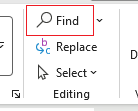
Alternatively you can also use the keyboard shortcut Ctrl + F:

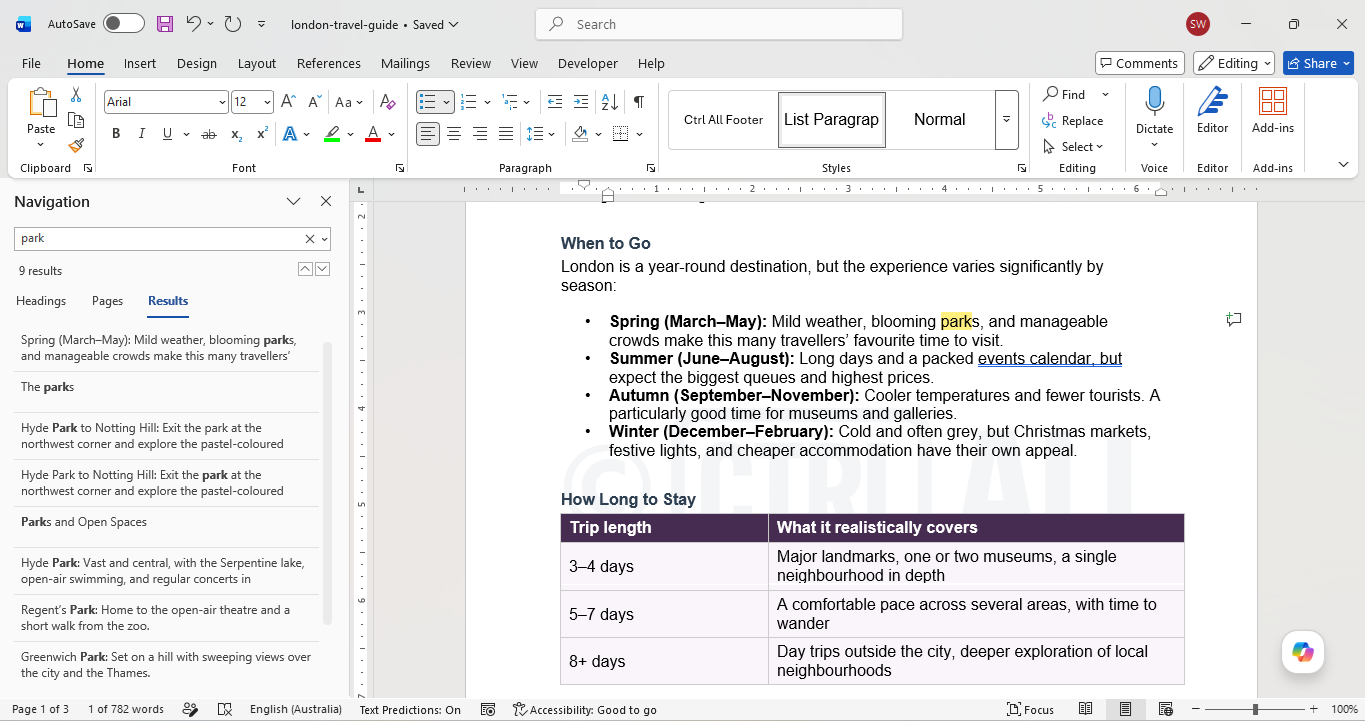
This will bring up the navigation pane where you can type in a word or phrase in the text box. Word will show matching entries below in the navigation pane and highlight the matching word(s) on the page throughout the document. The navigation pane can be moved by dragging it, you can also dock it to the right side of the screen.
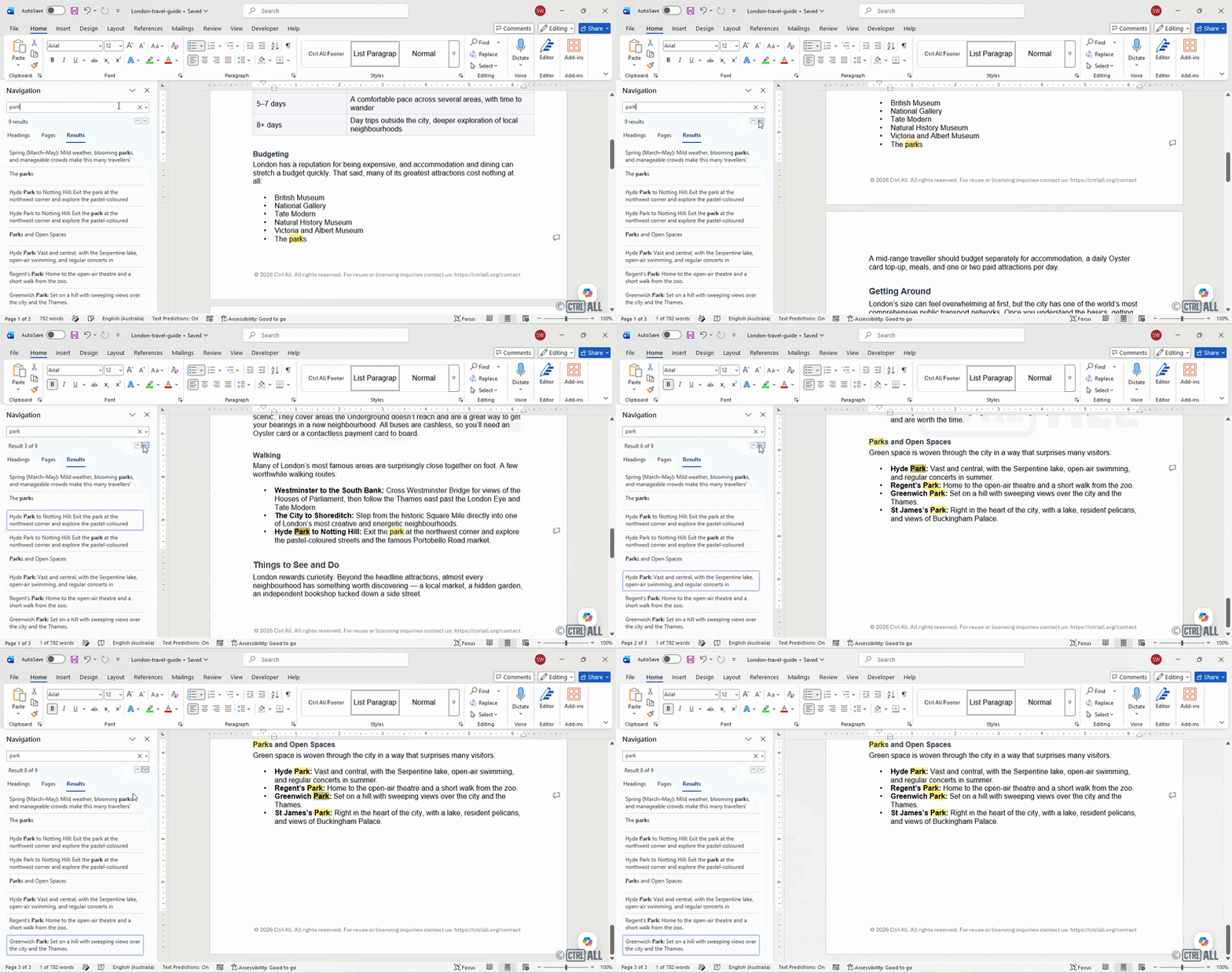
You can cycle through the matching results by pressing Enter or clicking the arrow buttons below.
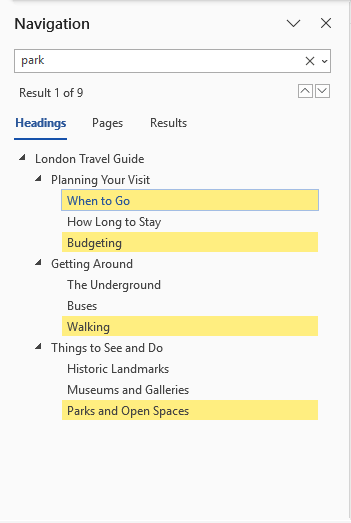
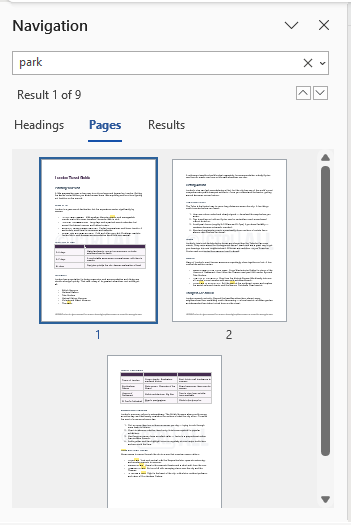
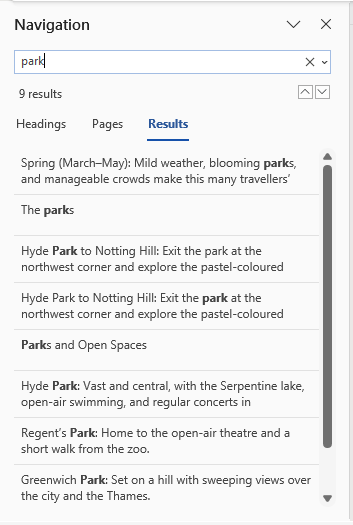
The navigation pane has three tabs showing the location of the match:
- Headings: Indicates what headings or subheadings the results belong to, this can be useful to locate specific text within a large or complex document with several sections.
- Pages: Gives a preview of pages where the matching results are located. If the document pages are easily discernable then this method may be of use.
- Results: Shown by default, will list the individual matching results and surrounding text which provides a short snapshot of context. In most cases this is the most useful.
Find and replace
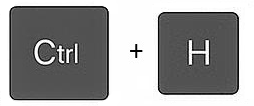
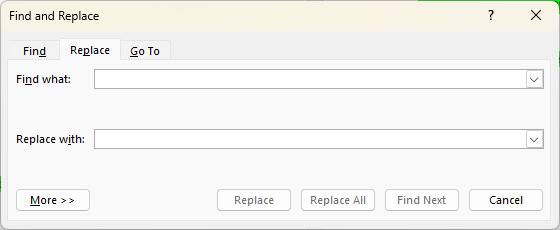
You can search for terms and replace individual matches or all instances in a document. This is explored in the intermediate version of this article.