Views for track changes
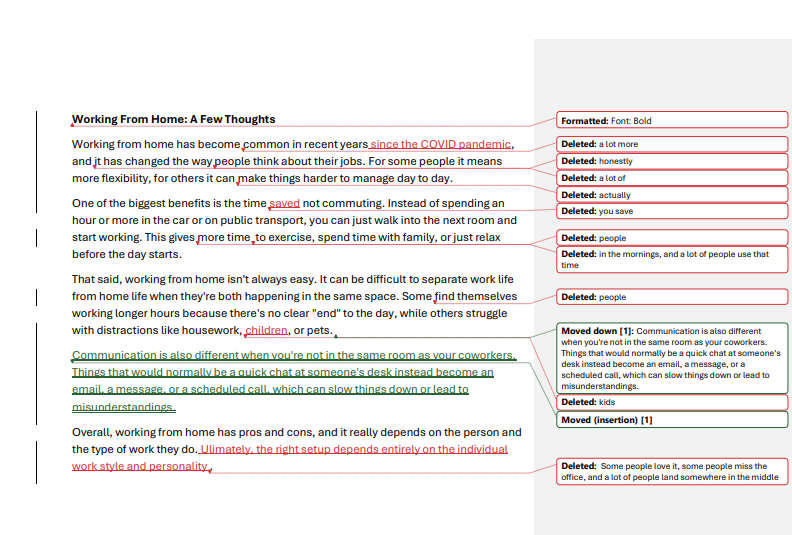
Word gives you 4 view displays for review options which are found on the ribbon via Review > Markup > top right drop down menu:
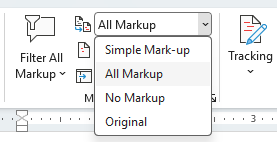
- Original – Previews the document as if all changes were rejected, without rejecting them.
- No Markup – Previews the document as if all changes were accepted, without accepting them.
- All Markup – Every change shown inline (underlines, strikethrough, moves) with full comment balloons.
- Simple Markup – Final text with change bars in the margin; comments as icons only. Word's default view.
View track changes in the Reviewing pane
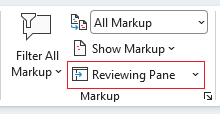
You can review all track changes with the Reviewing pane found on the ribbon under Review > Markup that will display track changes that appears on the left by default. You can dock this any side of the page if you prefer (left/right of the page, above/below the page).
This will show you who has made what edits in the order they appear on the page. It's useful to see all the edits together than scrolling through a document, especially if it's a large document.
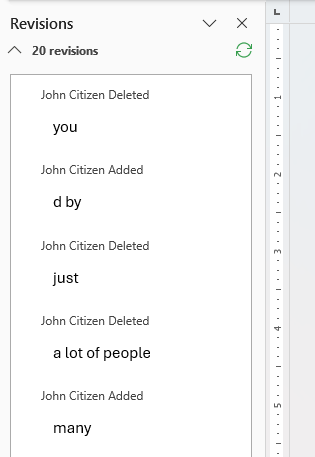
- Left click on an edit in the pane and Word will take you to its location.
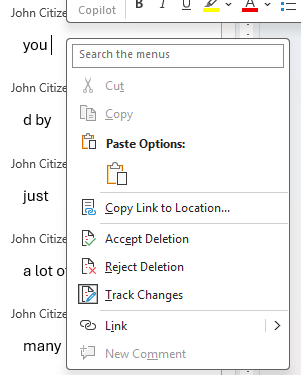
- You can also right click on an edit and from the right click menu choose to Accept or Reject it.
- There is also the option to Copy Link to Location if you need to share it.
Accepting and rejecting track changes
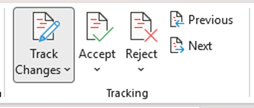
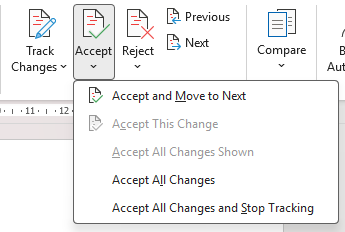
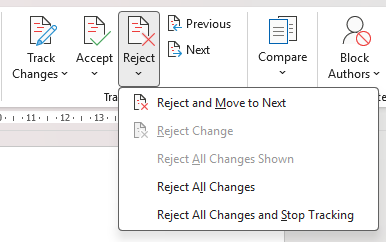
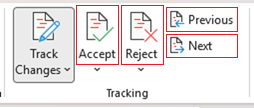
Once edits have been made in track changes, they can be accepted or rejected. Using the tracking tools on the ribbon you can cycle through all the edits in the document with the Previous and Next buttons and choose to Accept or Reject each one.
Alternatively you can right click on an edit to bring up the right-click menu and choose the applicable Accept or Reject option for that individual edit. This is quicker for specific changes rather than having to cycle through all the edits in the document.
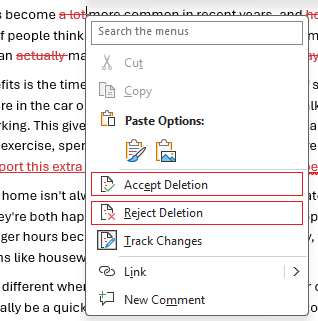
Let's take a look how accepting and rejecting edits works.
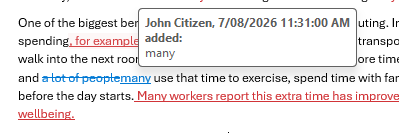
In this paragraph below, track changes has been enabled. The first edit made has been to delete ‘a lot’ from the first line:

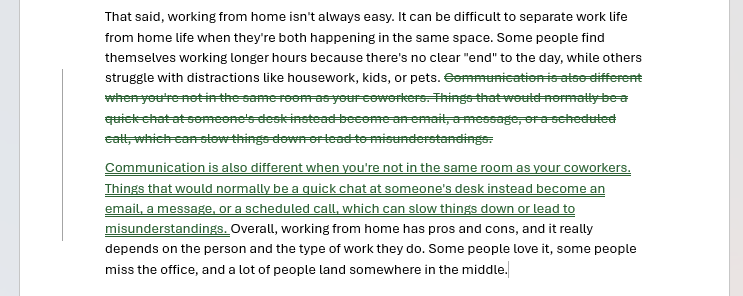
If we accept the deletion, the content will be deleted on the page:

Or we can reject the deletion edit which will be removed and the content remains unchanged:

Accept All / Reject All changes
You can also choose to accept or reject all the track changes in a document in one action. To do this go to the the ribbon and click on the Accept or Reject drop down menu and select Accept All Changes or Reject All Changes. There's also the option to do these and stop tracking at the same time.
Lock tracking
You can also lock track changes to stop other users turning it off which would let them then make changes without visibility or approval.
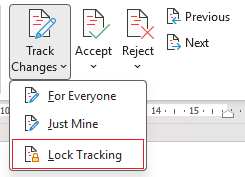
To lock track changes go to Track Changes > Lock Tracking:
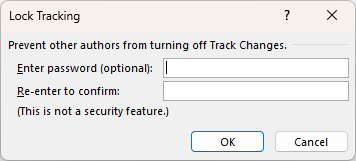
You'll then be prompted to set up a password, enter this in twice. There is a note to say it's not a security feature which is true, it doesn't stop any one accessing or editing the document. Then click OK.
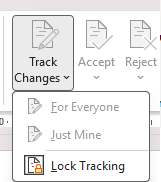
The document will now have track changes locked. No one will be able to accept or reject changes and no one will be able to turn it off. You'll see the options on the Review tab greyed out.
Unlock track changes
To unlock track changes go to the same path: Track Changes > Lock Tracking
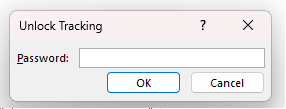
You'll be prompted for the password entered before, once entered press OK and track changes will be unlocked. You'll see the options on the ribbon stop being greyed out.
Note: Track changes will unlocked but will still be turned on.
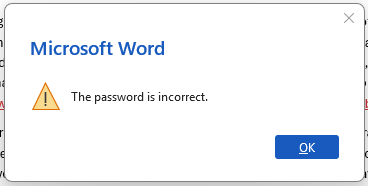
Note: If a user enters the wrong password they will be met with this message and track changes will remain locked.
Deciding what markup should appear
You can also decide what markup appears and how.
On the ribbon click the Show Markup drop down menu and you'll be presented with several options including ones under Balloons. Balloons are the little margin boxes that show tracked changes in a pane off to the side of the page when they're enabled.
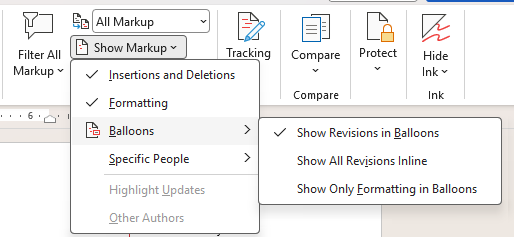
You can determine what appears here or whether the pane does at all. Hover over the red dots to see what each option does.
Note: Insertions always appear inline (underlined on the page) regardless of which balloons option is selected. There's no setting that shows inserted text in a balloon. Deletions and formatting changes are the only edit types that appear in the side pane; that's what Show Revisions in Balloons actually controls.
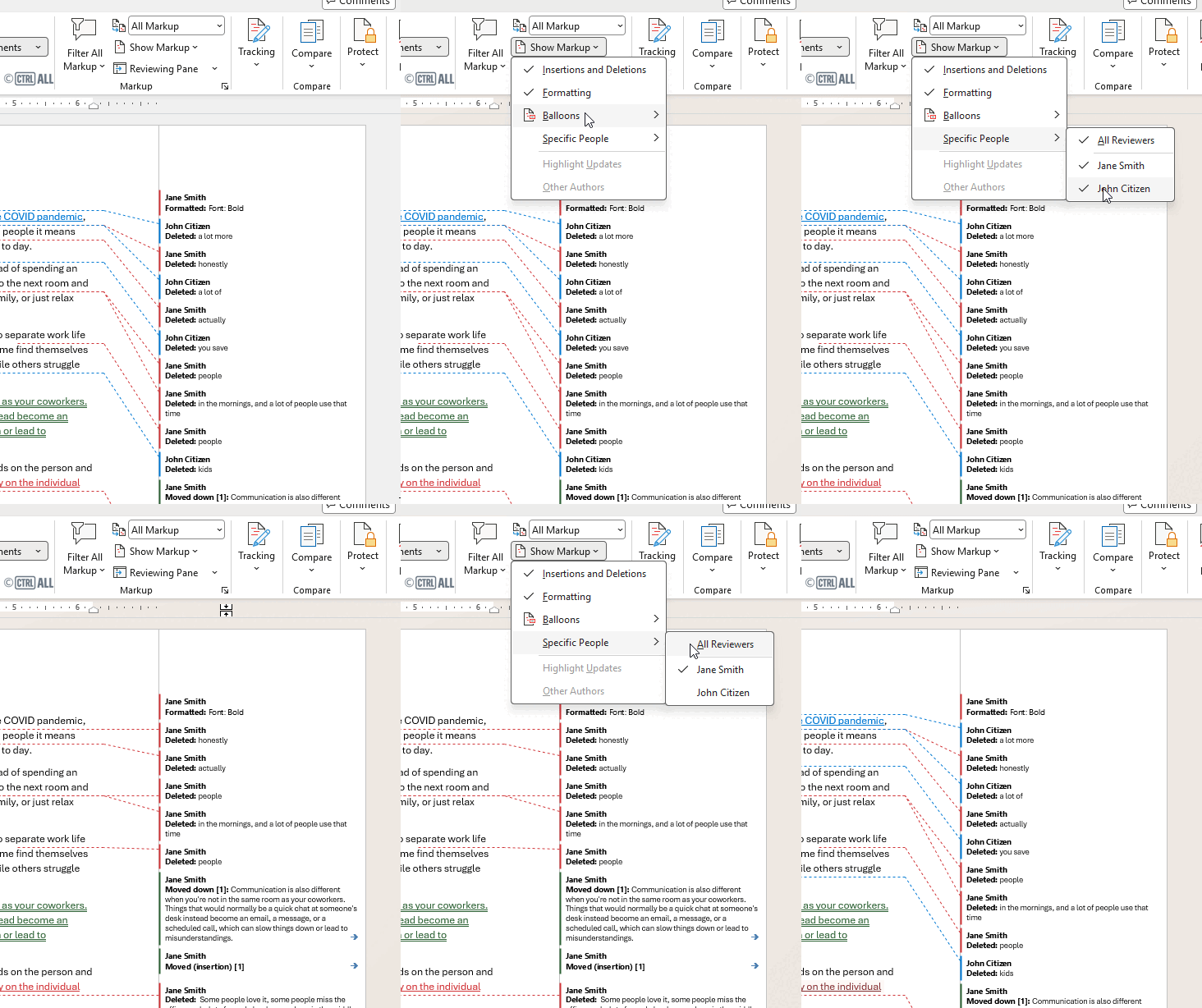
On top of this you can decide who's edits appear too via Show Markup > Specific People:
Saving as a PDF with track changes
When using track changes there's a trap most people fall into when saving the document as a PDF as the comments and track changes show up in the PDF by default.
As you can see it's quite messy. Unless you have editors who insist on annotating on paper you won't want this. To stop track changes and comments appearing PDFs you need to change settings before saving as a PDF. See this article for how to prevent this: Comments/track changes showing in the PDF.