You may or may not have come across a zip file before. A zip file is a special folder whose contents and overall file size have been compressed to make them smaller and easier to share or store. When files are compressed like this, they’re often described as being 'zipped'.
Note: .zip is the most common compressed file format, but there are others such as .rar, .7z and .tar.

When you download a zip file you need to extract — or 'unzip' — the files within it. Here's how:
How to extract ('unzip') a .zip file
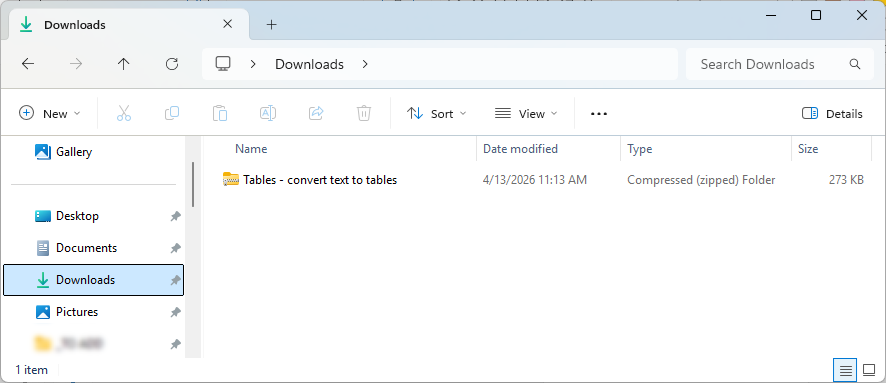
First locate the zip file. Typically you'll have downloaded a zip file from a webpage or an email so it'll be sat in your Downloads folder like this:
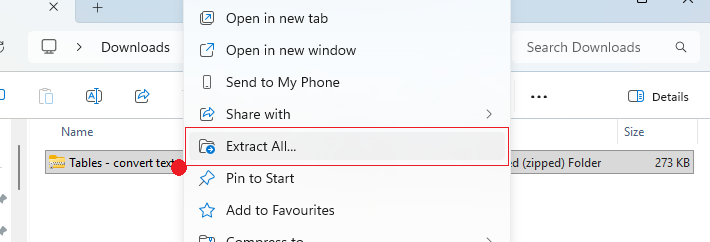
Right click on the zipped file and select Extract All... from the menu:
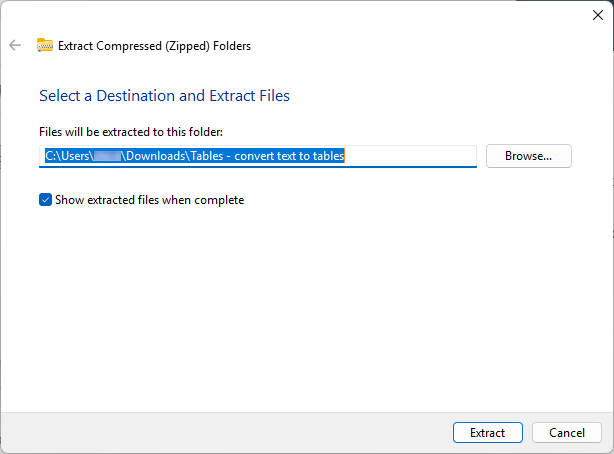
A window pops up asking you where to create a folder with the compressed files inside. By default this will be the same location as the zip file. There is also a checkbox option to open that folder afterwards. Click Extract and the compressed files will be extracted:
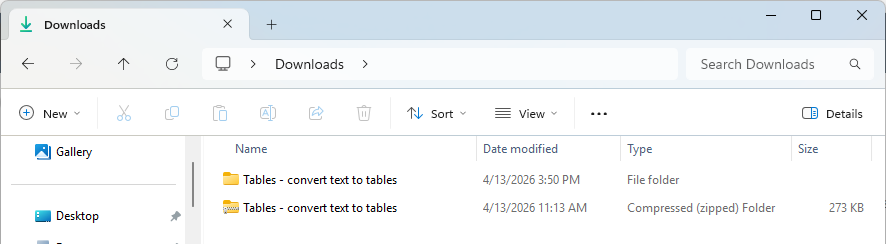
The new folder of extracted files is created:
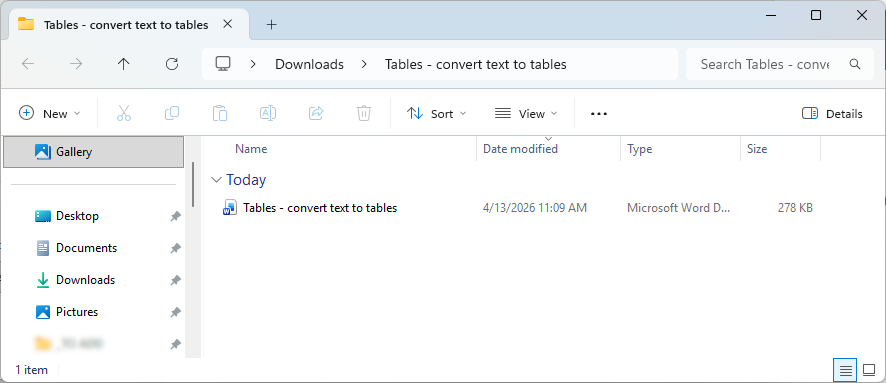
If you go inside this your extracted files will be there ready to use: