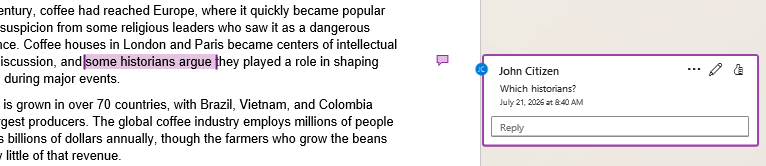
Comments are a useful tool to attach notes, questions, or feedback to content without editing the document itself. Each comment has its author and timestamp displayed. Commenting is typically used in collaborative editing, reviews or approval workflows. They can be edited, replied to with threaded discussions, and marked as 'resolved'.
They can be used alongside Track Changes, another reviewing tool for multiple users to make proposed edits to content. This article focuses on comment themselves.
How to add a comment
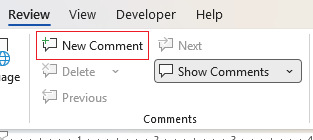
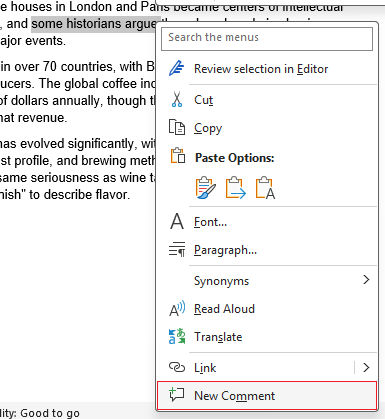
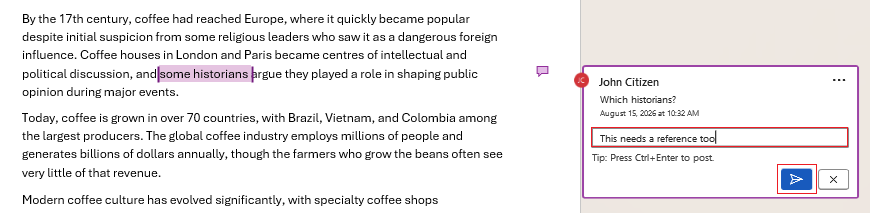
While there is an option on the ribbon under Review, it's quicker to use the right click menu. First select the content you want to add a comment to, then right click and choose New comment from the right click menu.
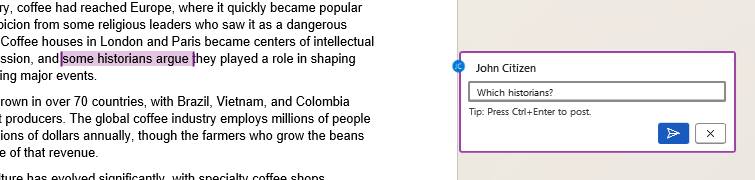
A comment box appears to the right of the page, enter in your comment then click the arrow button button to place the comment, or click the ✖ to cancel.
When placed it will look like this.
How to delete a comment
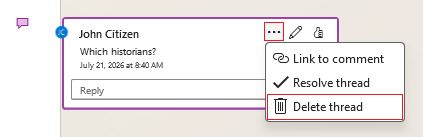
Comments can be deleted via ellipsis (...) > Delete thread. This will also delete any replies made underneath it.
How to resolve a comment
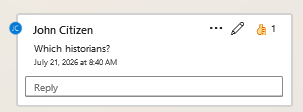
The thumbs up on the comment box lets you mark the comment as resolved with a thumbs up icon like this below. Some users also use this function to show they agree with a comment.
Replying to a comment
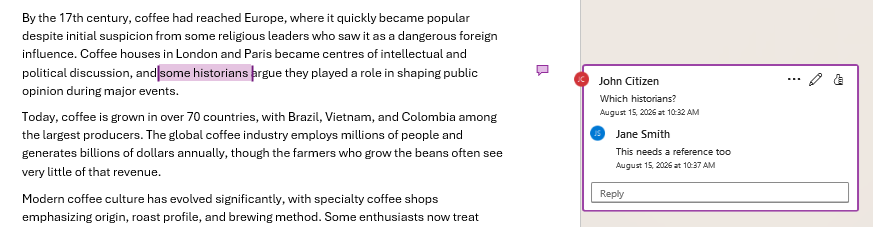
Once a comment has been created, all users will see a text field below it where you can type in a reply then select the arrow button button to insert (or click the ✖ to cancel). Once entered the reply will be shown as a thread.
Navigating between comments
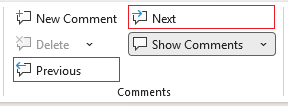
You can move back and forth between comments made via Previous and Next buttons on Review tab of the ribbon.
Comment views
There are two views for comments:
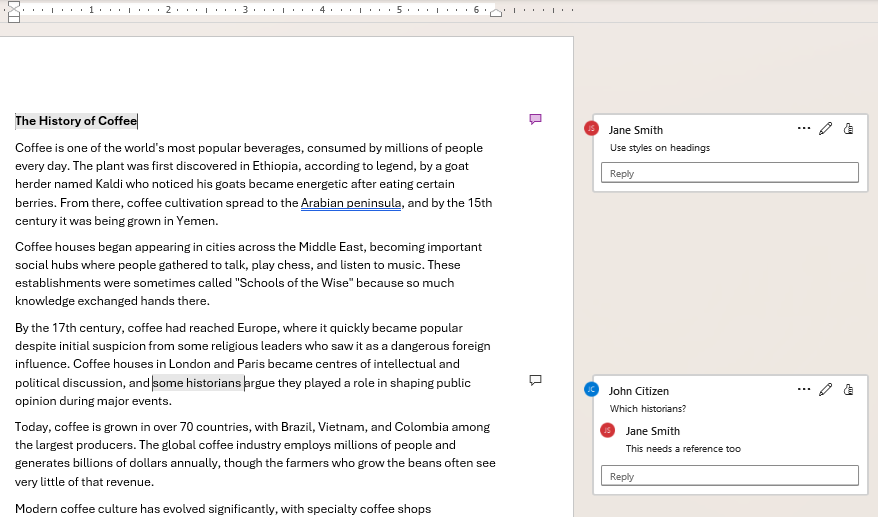
- Contextual: the default view as shown above with a box to the right of the page where it appears in the document.
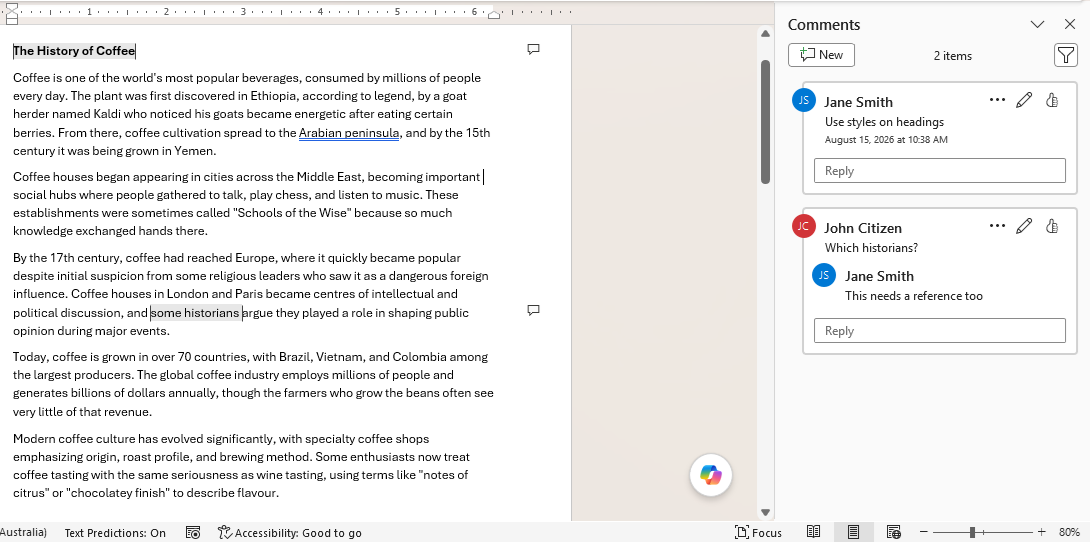
- List: a pane that shows all the document's comments in order. This is useful to quickly find comments in a long document or when many comments have been added.
Contextual view
List view
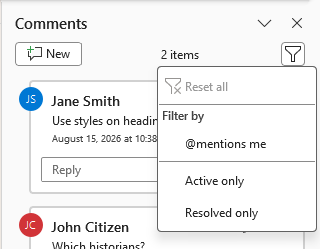
In list view you can also filter comments by whether they're active or resolved or include tagging:
Tagging and assigning in comments
If your Word document is stored on SharePoint or OneDrive, you can tag others in a comment. You can also choose to assign a comment to someone as a task to complete.
Note: Both tagging and assigning features require the document to be stored on SharePoint or OneDrive or these features won’t appear. SharePoint/OneDrive is what powers the modern comments/co-authoring layer in Word, Excel, and PowerPoint.
@mention (tagging)
Tagging a user in a comment sends a notification (email or Teams, depending on setup) to let that person know they were mentioned in a comment with a link to the document. It’s useful to draw attention to content, ask for input/advice or share ideas.
There are several reasons you may want to tag someone in a comment thread related to a section of the document, for example:
- Pulling in a subject matter expert
- Redirecting a question to the right owner/department
- Chasing an overdue query or action in the comment thread
- Looping in a manager/superior for sign off or approval
- Highlighting or querying further editing required
- Flagging gaps in content
To tag someone in a comment, type @ into the text box followed by the person’s name in the global address book associated with the SharePoint/OneDrive you’re connected to. A list of matched suggestions from that address book will pop up to choose from. Here I’ve typed 'Smith' and it’s bringing up a list of suggestions.
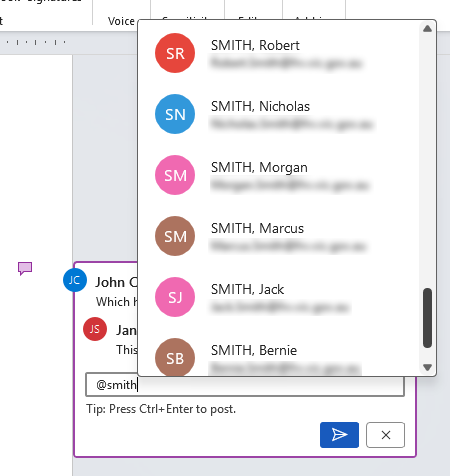
Note: Remember, this feature won’t appear unless the file is stored on SharePoint or OneDrive. If it is and you don’t get the feature appearing then you need to make sure you’re connected to SharePoint or OneDrive first.
Select the intended user from the list and they will appear as a link in the text box like this:
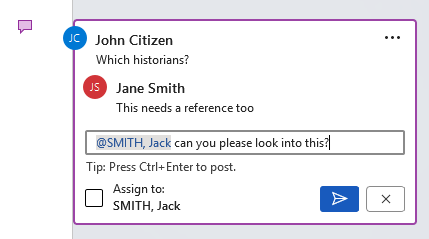
Press the arrow and the tag will be placed with the message. The tagged person will now receive an automated email titled ‘[X] mentioned you in “[document]”’ with a link to the document.
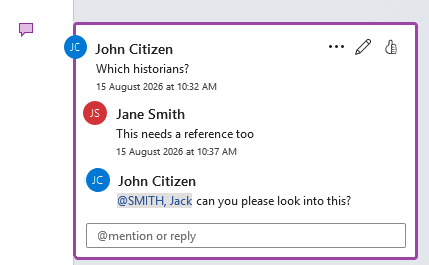
Assigning tasks in a comment thread
Once you’ve tagged someone, an Assign to checkbox appears below the text box where you can assign the comment as an actionable task for the tagged person to complete.
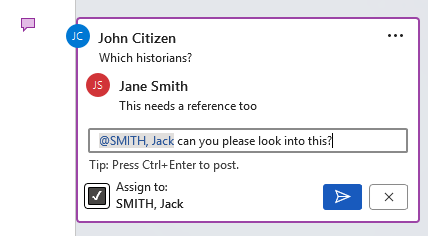
When you check the box, a small ‘Assigned to [X]’ radio button appears at the top of the comment to show it's an actionable item rather than a note. Press the arrow to execute it and it will look like this:
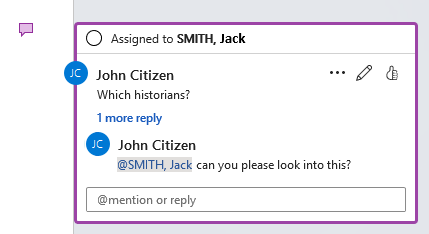
The assigned person will then receive an automated email titled ‘[X] assigned you a task in “[document]”’ with a link to the document.
When the assignee opens the document they will get a notification from the Catch up feature in the top right of the ribbon:
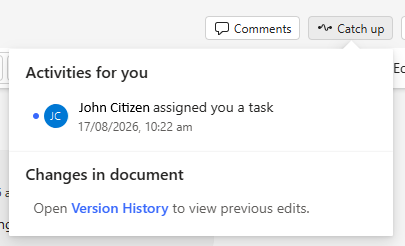
At the same time the comment itself will show the task’s radio button at the top as Assigned to you.
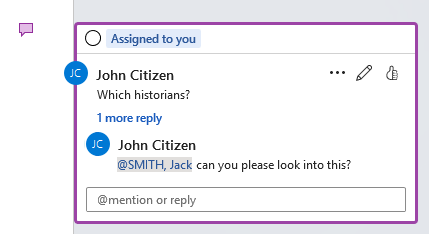
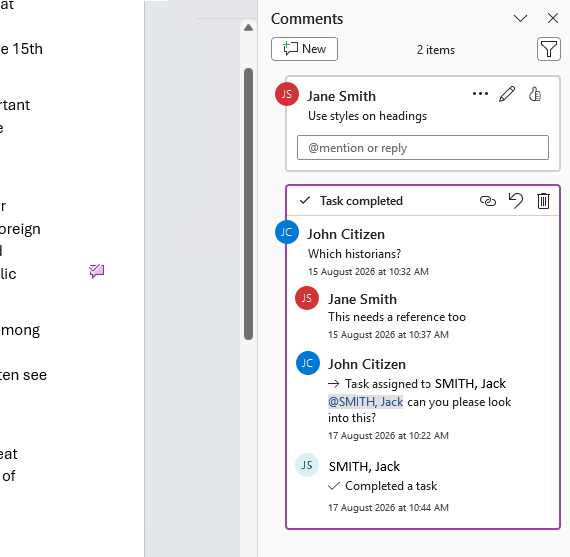
Once the task is complete the assignee checks the radio button and the task is marked as complete. The comment thread collapses and this ticked comment icon is left on the page:
Clicking on the ticked comment icon will show the comment thread in the list view marked ✓ Task completed at the top, with a timestamp of when the assignee completed it in the thread.
Saving as a PDF with comments
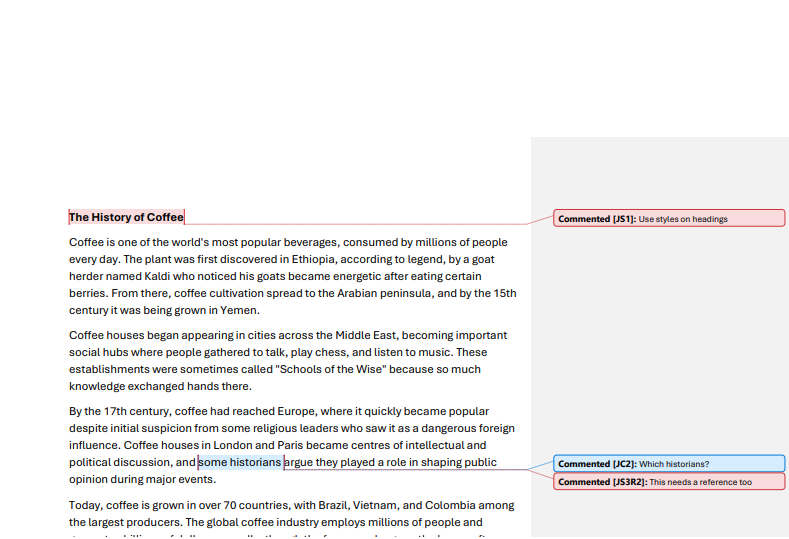
There's a common trap with comments most people fall into when saving as a PDF. By default Word will show markup like comments and track changes. If you don't want comments showing in your PDF then the markup needs to be turned off before saving as a PDF. If you don't switch this off the comments will appear on your PDF like this:
See this article for how to prevent them appearing in PDFs: Comments/track changes showing in the PDF.