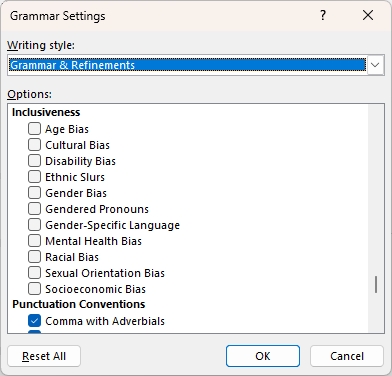
Word features automated tools to review all the content in your document. While you should always read through a document you’ve written, these tools provide a quality standard checker of the spelling and grammar in your document before you publish and distribute it.
In Word 365 and newer Word versions the Review tab on the ribbon has two reviewing tools: Editor and Spelling and Grammar.
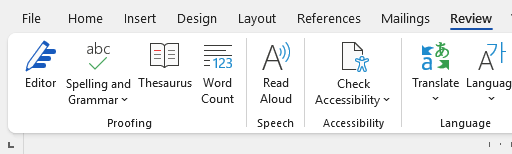
Editor is the new tool while Spelling and Grammar is an older version. The major difference is that the latter works offline. Use Editor if you can as it has more features.
How to use Editor
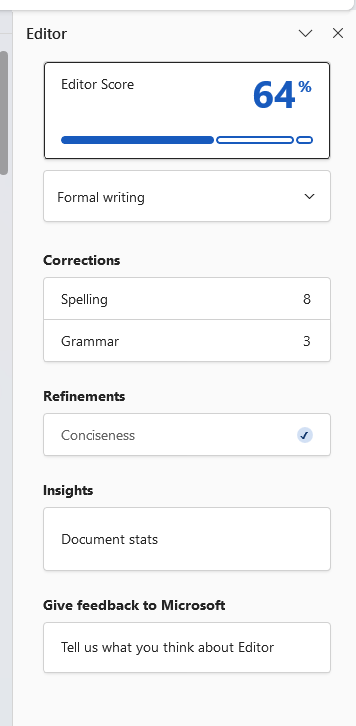
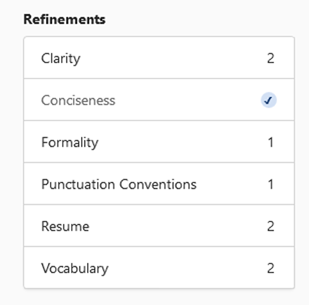
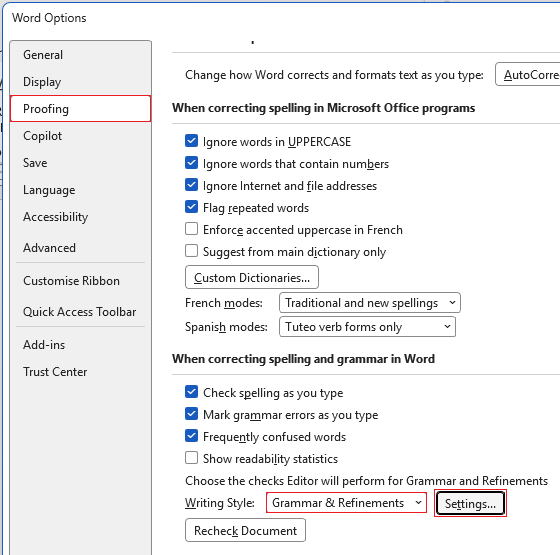
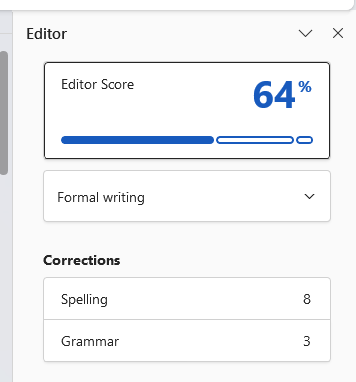
In the Review tab click on Editor and a pane appears on the edge of the app screen. Here you can choose the writing style and check the spelling and grammar in your document. There are other features as well which are explored in the intermediate version of this article.
Hover over the red dots below to learn what each option does:
Spelling checker
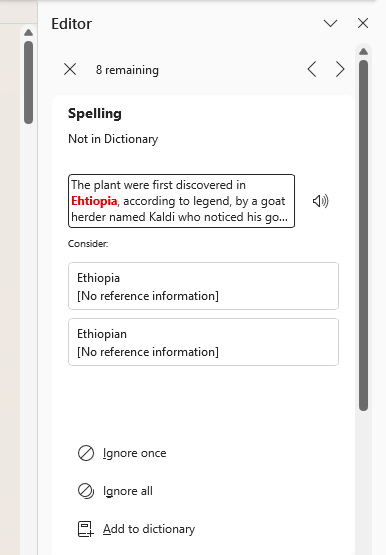
Click on Spelling and Editor will now go through all the spelling errors it has identified in your document one by one. For each it'll present you with the queried spelling in red in a preview box; below the preview under Consider: it will suggest potential correct spellings to change it to. There's an audio button to the right to have Editor read out what it thinks is wrong and the sentence it sits in.
If you click on a suggested spelling it will be updated to that on the page.
Note: You don't have to take the suggestion. You can tell Word to ignore what it's querying and click Ignore once further below. If you don't want Editor to keep highlighting that spelling throughout the document you can click Ignore all.
Another option is to add that queried spelling to Word's dictionary via Add to dictionary. If you have a term commonly used in your work/field you might want to add this to the dictionary so Word stops querying it.
Grammar checker
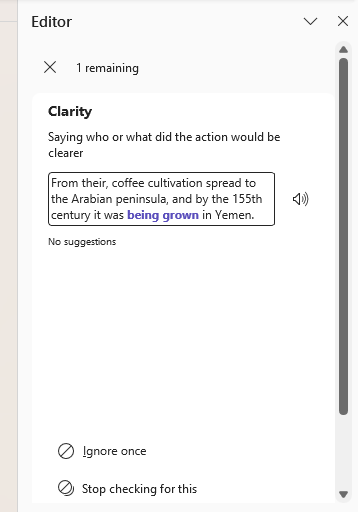
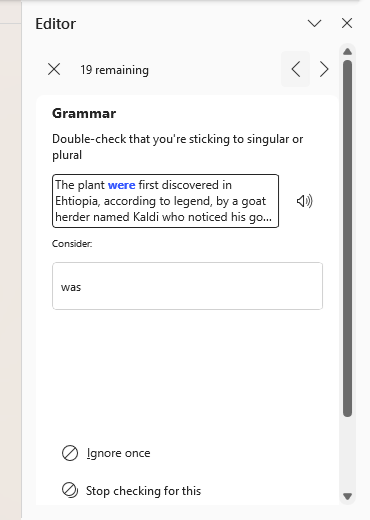
Click on Grammar and Editor will do the same bringing up grammatical queries one by one. Each instance queried is shown in the preview in blue and you can use the audio button to have Editor read out what it thinks is wrong grammatically with the sentence.
Below the preview it will give suggestions for you to decide on. Click on it to make the change or choose Ignore once to disregard that instance it has queried. If you want it to disregard the grammar rule through the document click Stop checking for this.
Limitations – What Editor can’t do
You can't rely on a spell checker to do all the work for you. Editor is good at picking up on spelling errors and most grammatical slip ups but it isn't going to pick up everything. It can't really detect an issue with something that requires context to understand or fix.
Personally I always re-read what I've written to make sure it makes sense. Always read through a document yourself before you call it finished.
Some examples of Editor's limitations are listed in the intermediate version of this article.