Formatting means changing the appearance and layout of your text and document. Formatting tools are found on the Home tab of the ribbon and are there to help you make your content more readable. This article explains what each one does.
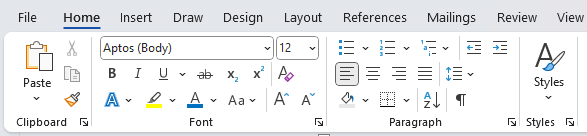
Clipboard tools
These tools are to do with copying and moving content such as a cut, copy and paste.
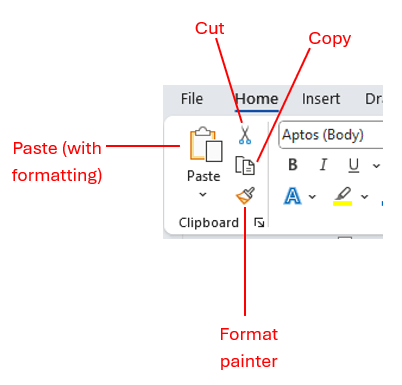
Cut, copy and paste
These are tools to copy and/or move content.
- Cut: This removes the content from the page and places it on the clipboard which acts as Word's short term memory. You can then paste it elsewhere. It's a way of moving content around your document.
- Copy: This copies the content to the clipboard so you can paste it elsewhere, letting you duplicate it.
- Paste: This duplicates content copied to the clipboard by cutting or copying it first. There are different types of paste options depending on what you cut or copy which are explored more in the intermediate version of this article.
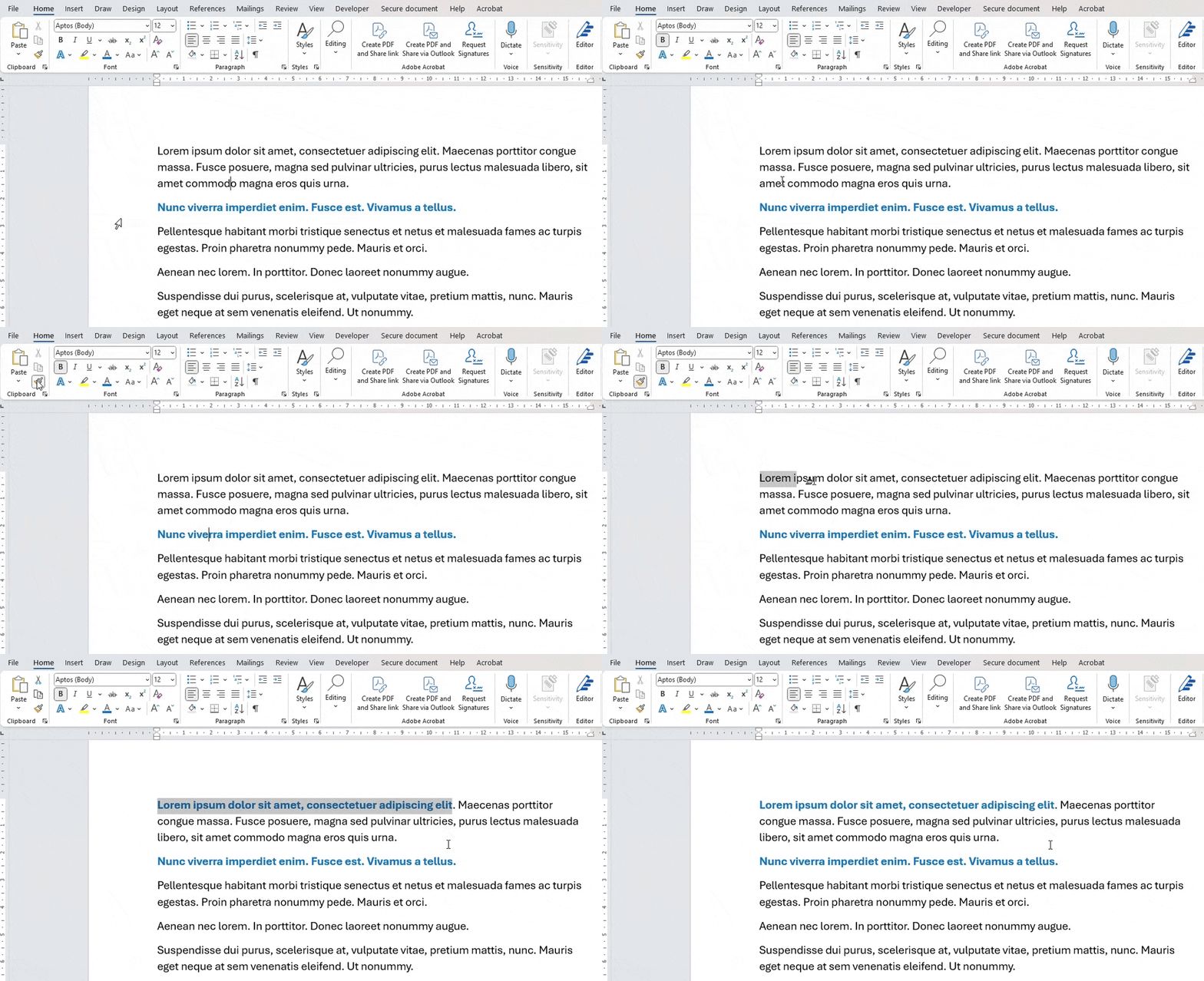
Format Painter

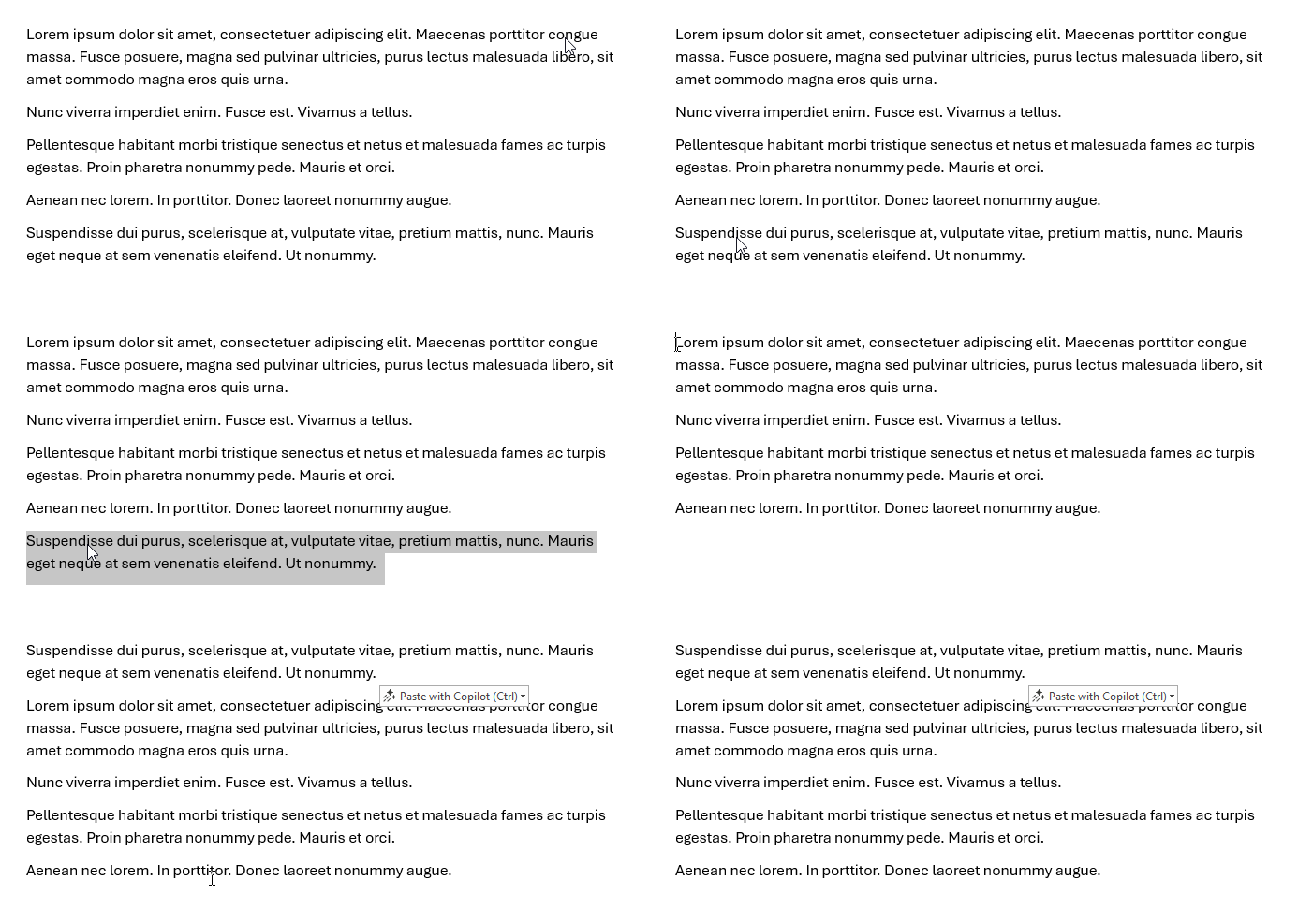
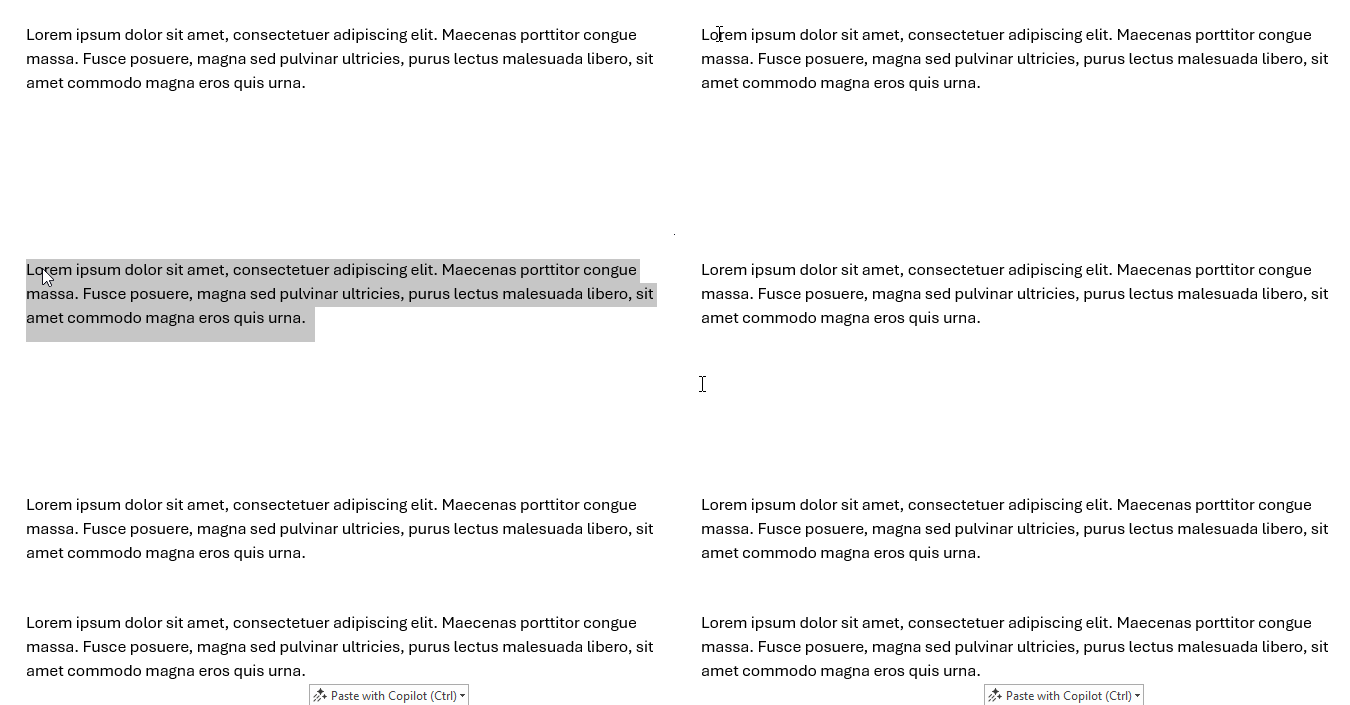
This is a really useful tool which lets you apply the formatting/look of some selected text onto other text in your document. This is much faster than manually applying the same formatting each time.
Note: If you're wanting to format headings you should use styles (explored here: Styles). With heading styles you can use the format painter to apply it to other text to make it a recognised heading in Word.
Font tools
Word gives you standard formatting tools for text on the ribbon under Home > Font to help format your text in various ways. Take a look at the examples below.
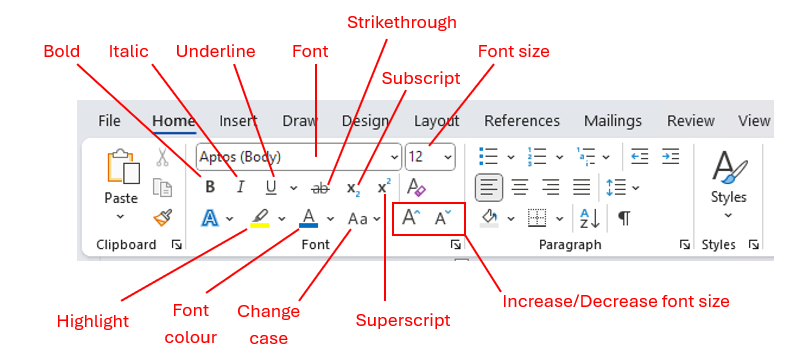
| Standard Font tools on the ribbon | Example |
|---|---|
| Bold | Bold |
| Italic | Italic |
| Underline | Underline |
| Strikethrough | |
| Font | Lorem ipsum dolor sit amet. |
| Font size | Font size |
| Font colour | Font colour |
| Highlight | Highlight |
| Change case |
Change sentence case Change Sentence Case CHANGE SENTENCE CASE |
| Subscript | H2O |
| Superscript | E = mc2 |
You can click the bottom right corner button to bring up further Font options.
Paragraph
Paragraph formatting tools let you change the look of content on the page. Take a look at the examples below.
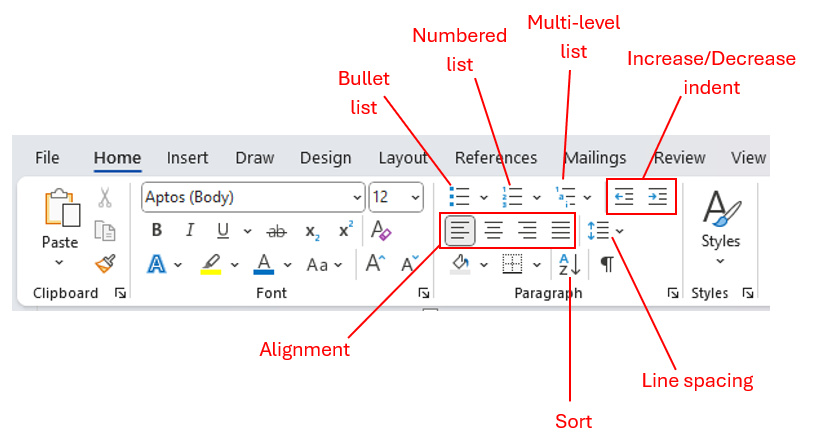
| Formatting Type | Example |
|---|---|
| Bullet list |
For a general guide on lists go here: lists |
| Numbered list |
For a general guide on lists go here: lists |
| Multi-line list |
|
| Indents | Lorem ipsum dolor sit amet |
| Align left | Lorem ipsum dolor sit amet |
| Align centre | Lorem ipsum dolor sit amet |
| Align right | Lorem ipsum dolor sit amet |
| Align justified | Lorem ipsum dolor sit amet, consectetuer adipiscing elit. |
| Sort | Sort is useful to order text in different ways in lists and tables: alphabetically A-Z, reverse alphabetically Z-A, by number, by date, ascending/descending, and multiple levels of sorting orders. |
| Line spacing |
Lorem ipsum dolor sit amet, consectetuer adipiscing elit. Maecenas porttitor congue massa. Fusce posuere, magna sed pulvinar ultricies, purus lectus malesuada libero, sit amet commodo magna eros quis urna. |