Fixing irregular spacing
Text in your document a disaster? These fixes can get you out of trouble:
- Irregular line spacing in text
- Irregular spacing between words
- Remove multiple blank lines
- Remove duplicate punctuation
- Remove spaces before punctuation
- Hyphens, en dashes and em dashes
- Replacing unspaced hyphens with spaced hyphens
Irregular line spacing in text
If you ever have a document with irregular line spacing in your text usually this is either Word applying paragraph formatting you don't want or if it's pasted text it may have brought some external formatting over with it.
The quickest tool to fix it is Format Painter. Here's an the example of some non-matching text which I've coloured blue:
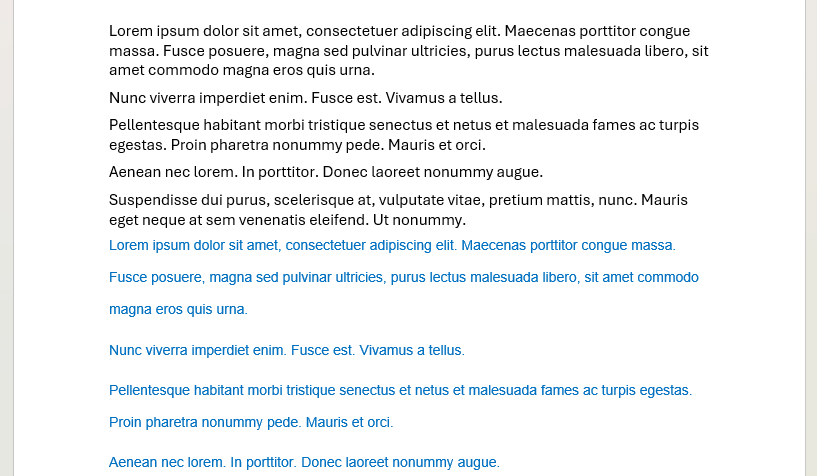
Here's how it works:
- First, click on the text you want it to look like (i.e. the formatting that you will apply to the text with irregular line spacing).
-
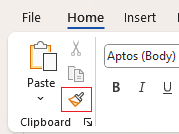
Then select the Format Painter tool on the ribbon via Home > Clipboard, it's the one with the paintbrush icon:
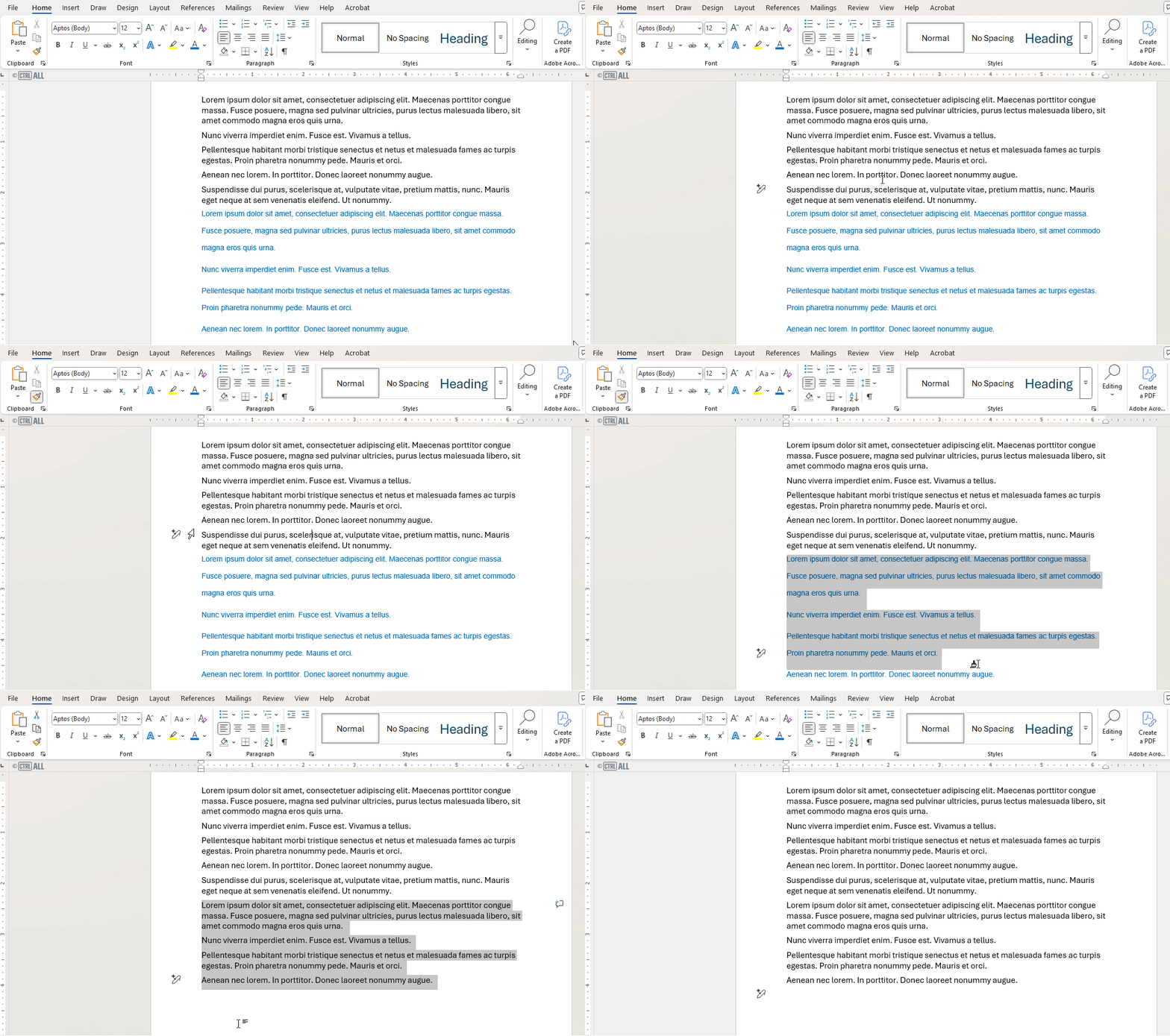
- Once selected, drag over the text with spacing you want to fix and it will format it accordingly.
Here's an example of it:
Irregular spacing between words
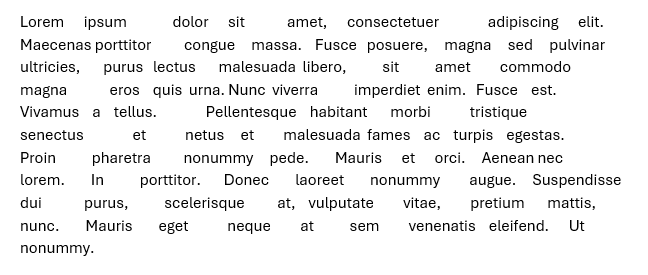
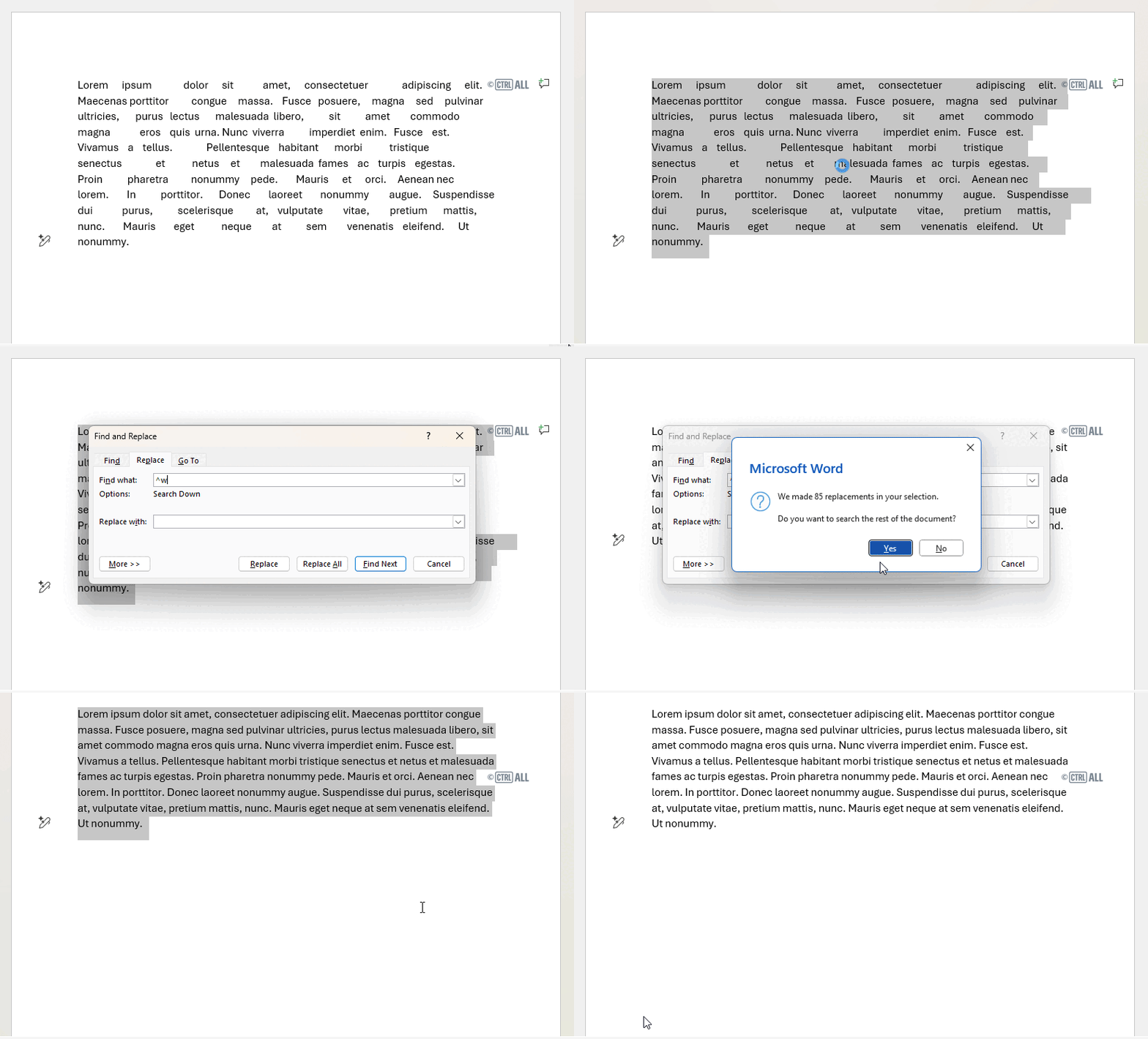
If you ever get text with irregular spacing between words like this below it could be some formatting issues with the file or even pasted text that's brought along odd formatting with it.
Luckily there's a nice Find and Replace trick to fix it all in one go.
- Select the paragraph(s) affected, then open up the Find and Replace tool with Ctrl + H.
-
In the Find what field: type ^w
Note: On most keyboards ^ is found as an alternative character on a number key. You'll need to press Shift and that number key. On mine it's on the 6 key so I'd press Shift + 6.
(^w is a special wildcard code that essentially means 'any whitespace', such as regular spaces, irregular spaces, non‑breaking spaces or tabs.)
-
In the Replace with field: add a single space.
(So we're taking any white space and replacing it with a uniform single space.)
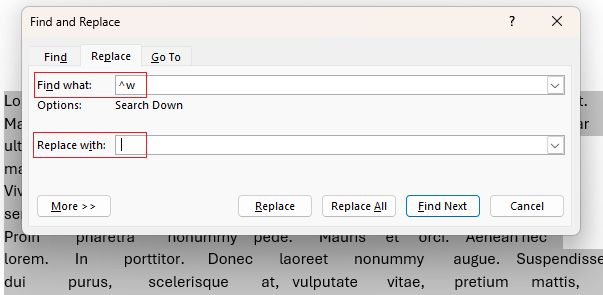
- Then hit Replace All.
The spacing will now be fixed. Here's it in action:
Remove multiple blank lines
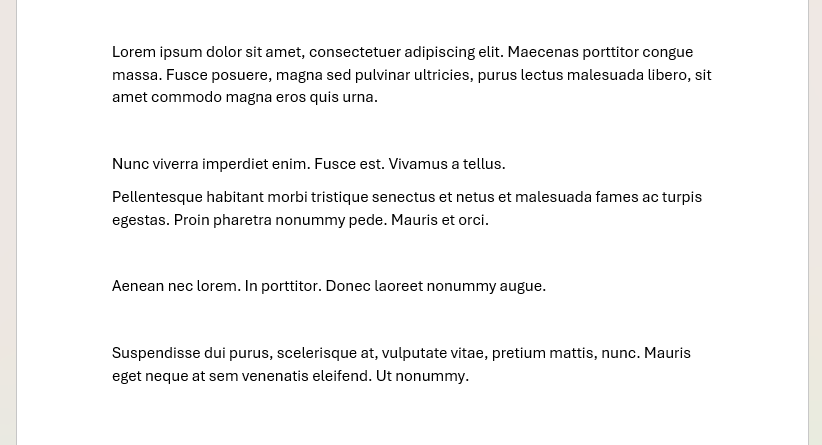
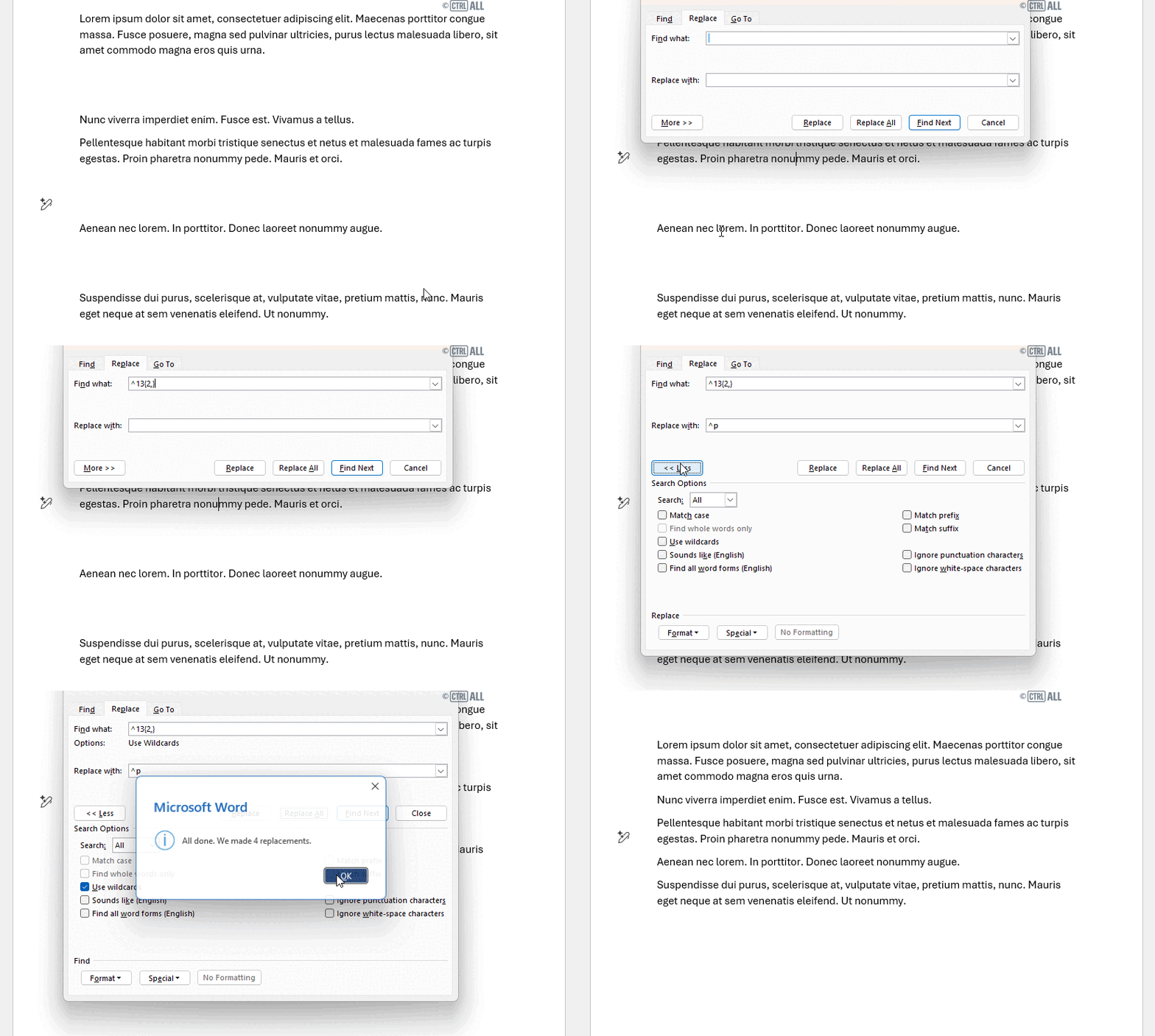
Sometimes you might find multiple blank lines irregularly through inherited formatting when pasting or a lack of housekeeping in a document. You may also find this in older documents as a previously common but now outdated rule used to be doing a double return after each paragraph. Whatever the situation there's a wildcard you can use to reduce multiple blanks lines to just one.
- Select the area in your document with the paragraphs and spaces that needs fixing, or if you need the whole document fixed click anywhere click anywhere selecting nothing in particular.
- Open up Find and Replace with Ctrl + H.
-
In the Find what field: type ^13{2,}
(^13 means paragraph mark or a hard return while {2,} means two or more repetitions).
-
In the Replace with field: type ^p
(^p is standard code for a paragraph mark. So why use ^13 above? It's Word being...Word. Both mean the same thing and normally you'd use ^p, but Word doesn't let you use ^p in the 'Find what' field so we use ^13 instead.)
-
Click the More > > button bottom left which brings up more options, then check Use wildcards.
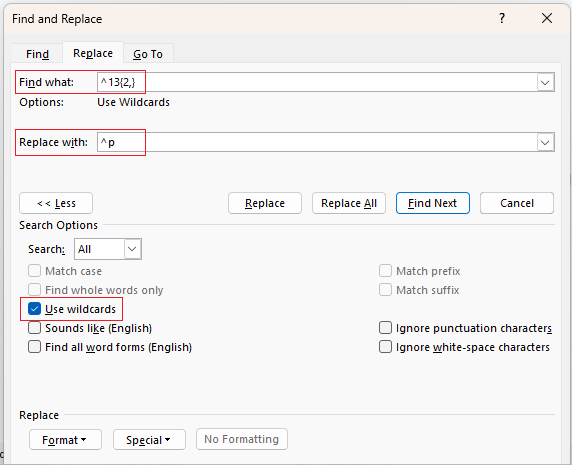
- Lastly click Replace All.
Now all the multiple paragraph marks are reduced to just one per standard digital formatting. Here's a demonstration of the above:
Remove spaces before punctuation
This is less common but you may sometimes find typing errors where a space has been added before punctuation such as . , : ; ? or !

There's a wildcard to get rid of these for all the above punctuation marks:
- Go to Find and Replace (Ctrl + H).
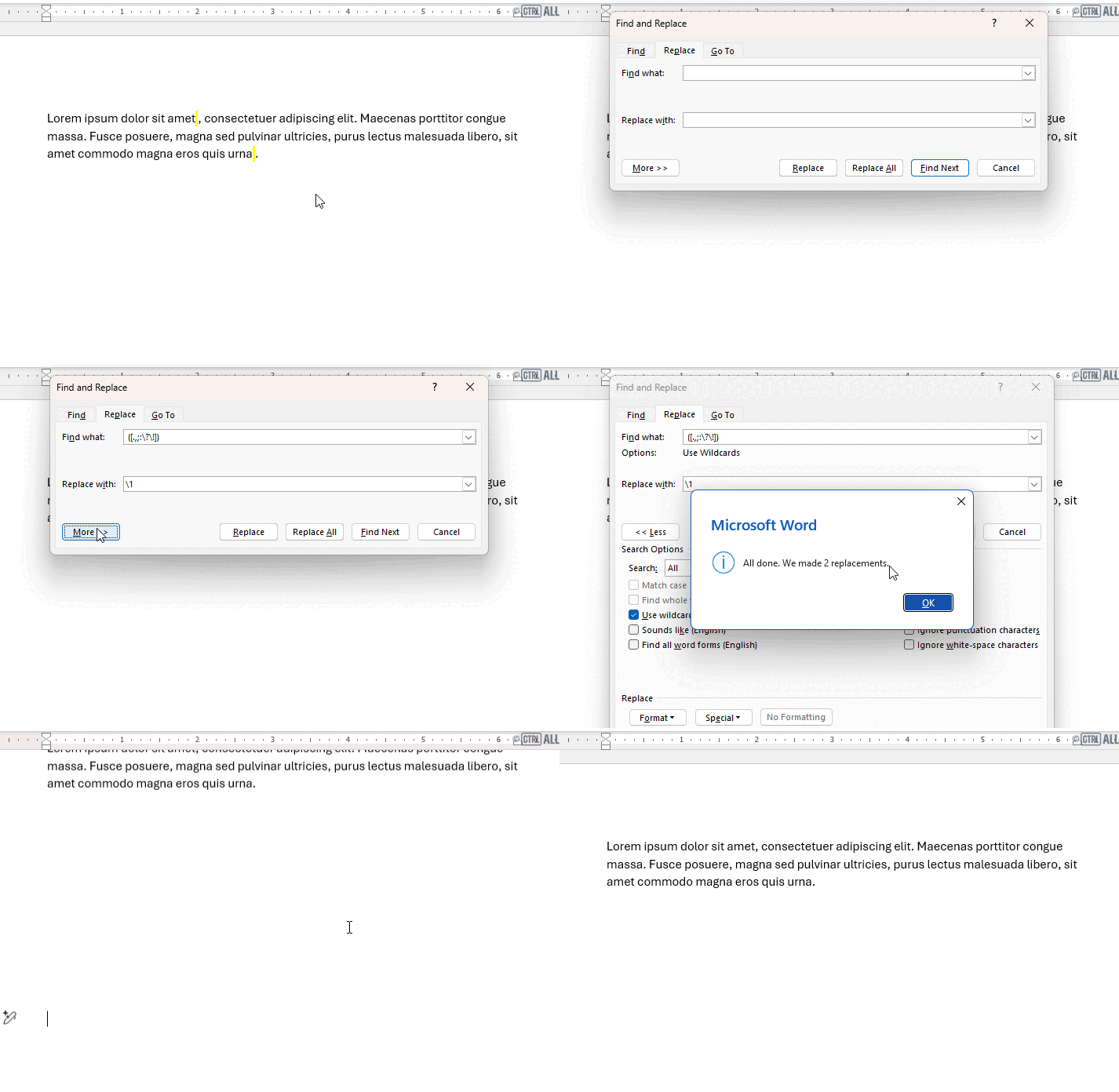
- In the Find what field: type a literal space and then ([.,;:\?\!])
-
In the Replace with field: type \1
(The \1 means whatever was captured in the set of parentheses. So by replacing it just what was in the brackets, the space we added before is not included and effectively elimated.)
(This is basically grouping all the punctuation types.)
Hyphens, en dashes and em dashes
Hyphens are something everyone uses casually but you may need to replace them with en dashes or em dashes. Let's look at the wildcard codes involved:
| Character | Example | Wildcard code |
|---|---|---|
| Hyphen (unspaced) | - | - |
| en dash (unspaced) | – | ^= |
| em dash (unspaced) | — | ^+ |
| Spaced hyphen | " - " | <space>-<space> |
| Spaced en dash | " – " | <space>^=<space> |
| Spaced em dash | " – " | <space>^+<space> |
Using the above you can use Find and Replace (Ctrl + H) to replace what you have with what you need.
Warning: replacing unspaced hyphens with spaced hyphens
Before adding spaces around hyphens, you need to be careful. Word’s wildcard engine can’t tell the difference between a hyphen inside a hyphenated compound word (like long-term or mother-in-law) and a hyphen that should be spaced (word - word). If you blindly replace every hyphen with a spaced hyphen, you’ll break those compound words.
So what do we do here?
If you’re 100% certain your document has no hyphenated compound words then spacing all hyphens is safe to do. Use Find and Replace (Ctrl + H) to replace hyphens with spaced hyphens using the code above.
- Go to Find and Replace (Ctrl + H).
- In the Find what field: -
- In the Replace with field: type <space>-<space>
What if I have compound words throughout my document and I need to space all hyphens?
If your document has compound words and all hyphens are unspaced then Word sees every hyphen like letter-hyphen-letter; it can't distinguish hyphens within compound words from hyphens between whole words. This example below is just one paragraph but if you've got this happening several times over a multi-page document you've got yourself a problem.

This does involves some surgery: you need to find all the compound words in your document first, make a note of them, then replace all hyphens with spaced hyphens, then fix the compounds words after.
Note: There's a few corners of the internet claiming to solve this with particularly clever wildcard code but it either doesn't work or misses what we're trying to achieve. The method below is guaranteed to fix this problem despite being a bit laborious:
- Using the Find tool (Ctrl + F) search for a single hyphen.
- Click the Results tab, look down the list for compound words and make a note of them. If there are too many instances of hyphens to list them in Results, click back to Headings and press Enter to cycle through each of the hyphens in your document, noting down the compound words.
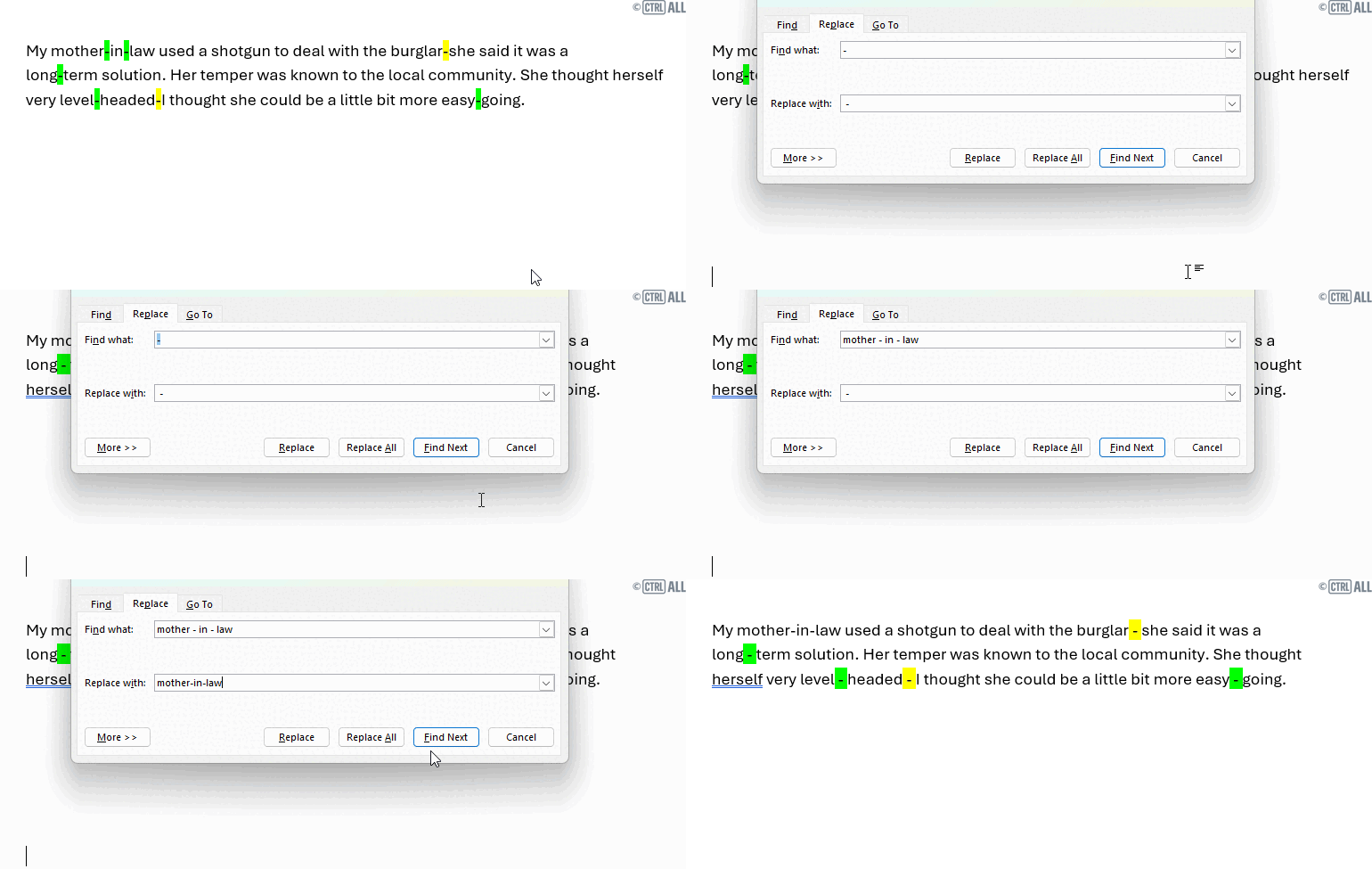
- When you have all the compound words noted down use Find and Replace (Ctrl + H) to replace hyphens with spaced hyphens:
- Find what: -
- Replace with: <space>-<space>
Then repair the hyphenated words with Find and Replace, replacing broken compound words (long - term) with the correct syntax (long-term).
e.g.:
- Find what: long - term
- Replace with: long-term
Here's a small demonstration of it all:
Found this useful? Share it with others.