You can format your text into lists easily in Word. The main two types are bullet lists and numbered lists. Here's how to do both.
Bullet lists
You might hear this referred to as 'bulleted lists' or just 'bullets'. These lists are useful for itemised lists in no order.
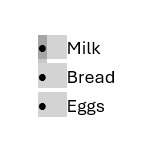
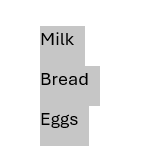
Shopping list:
- Milk
- Bread
- Eggs
- Fruit
Numbered lists
These are sometimes referred to as 'Number lists' as well. These lists are useful for steps, processes and sequences that run in a certain order or for prioritised lists.
Sequential
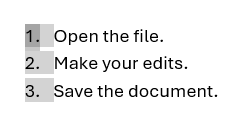
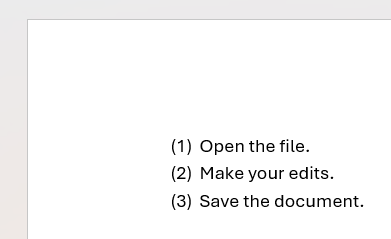
Basic workflow:
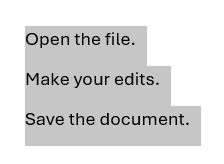
- Open the file.
- Make your edits.
- Save the document.
Priority
Work priorities:
- Complete urgent tasks.
- Reply to important messages.
- Update project notes.
So how do you do these in Word?
Starting a list in Word
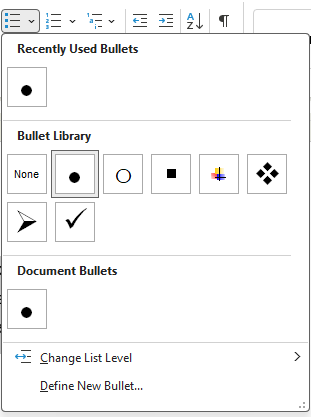
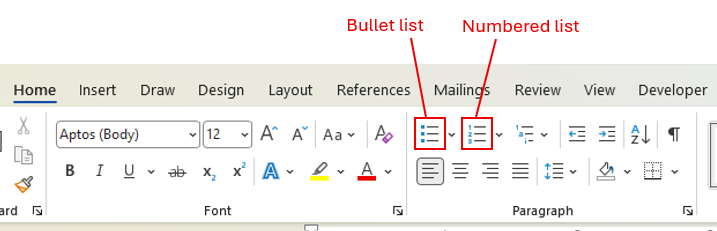
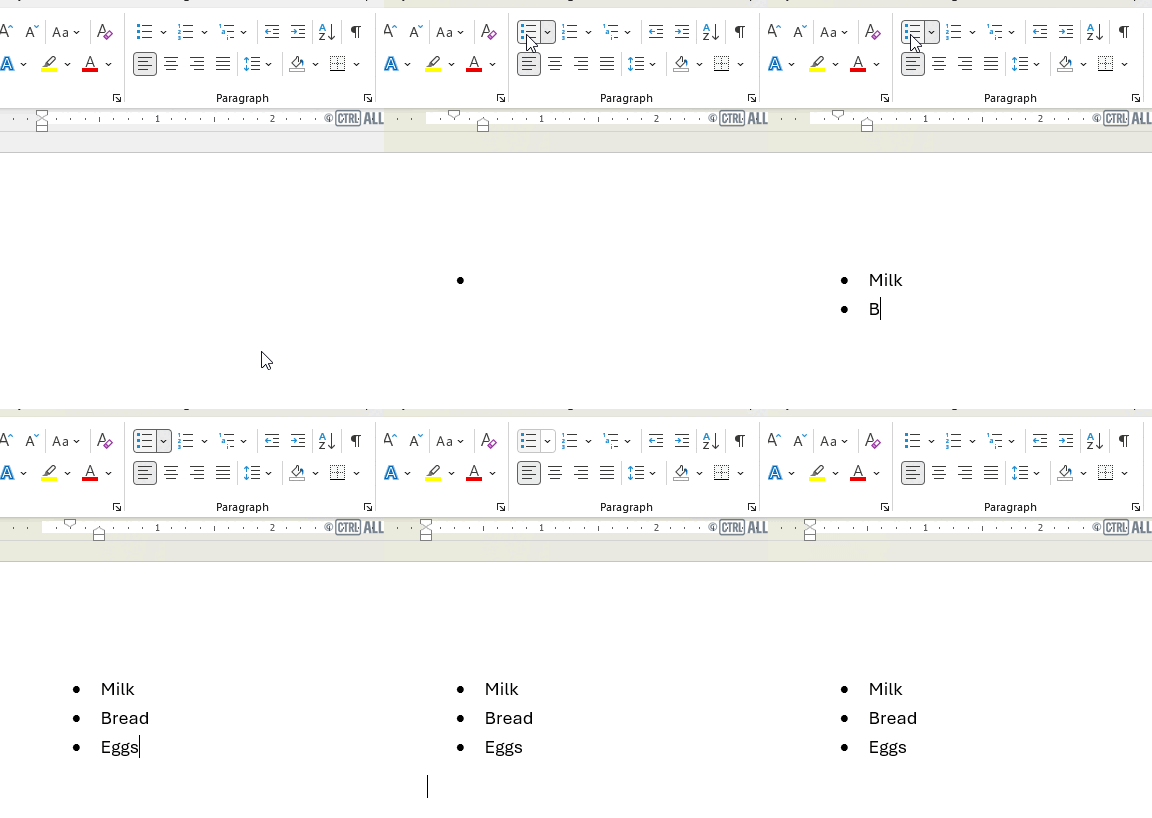
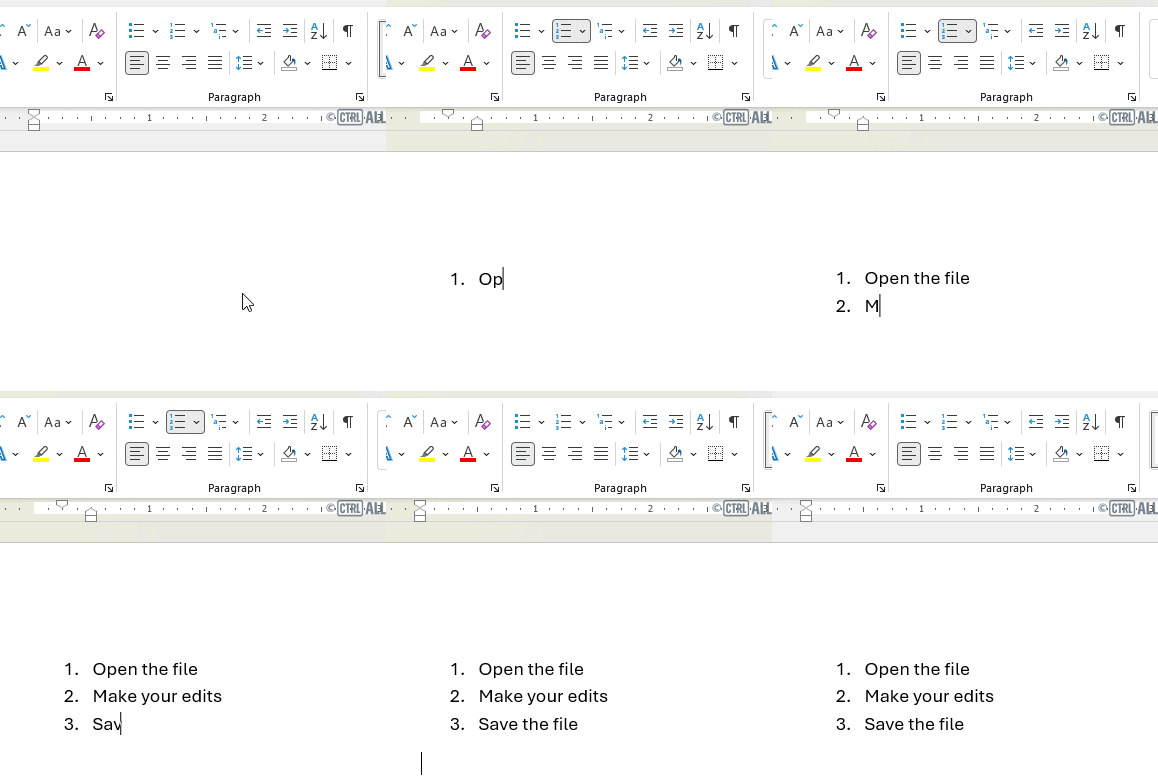
Click the buttons in the Home > Paragraph section on the ribbon:
The first bullet or number list point is created ready for you to type in. Type in text as needed then when ready to add the next point in hit Enter and a new bullet/number will be created.
To end the list hit Enter a second time or click the button to go back to a normal paragraph.
Bullet list
Numbered list
Format text already typed into a list
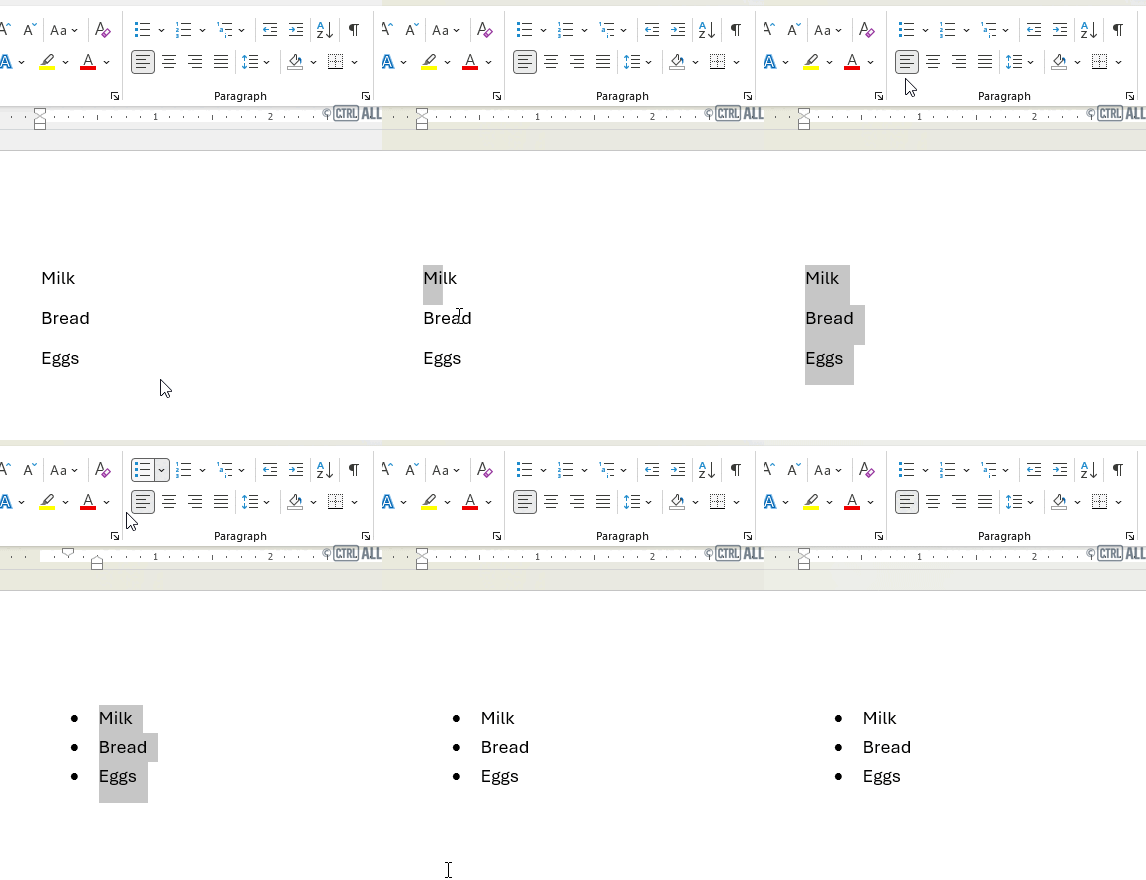
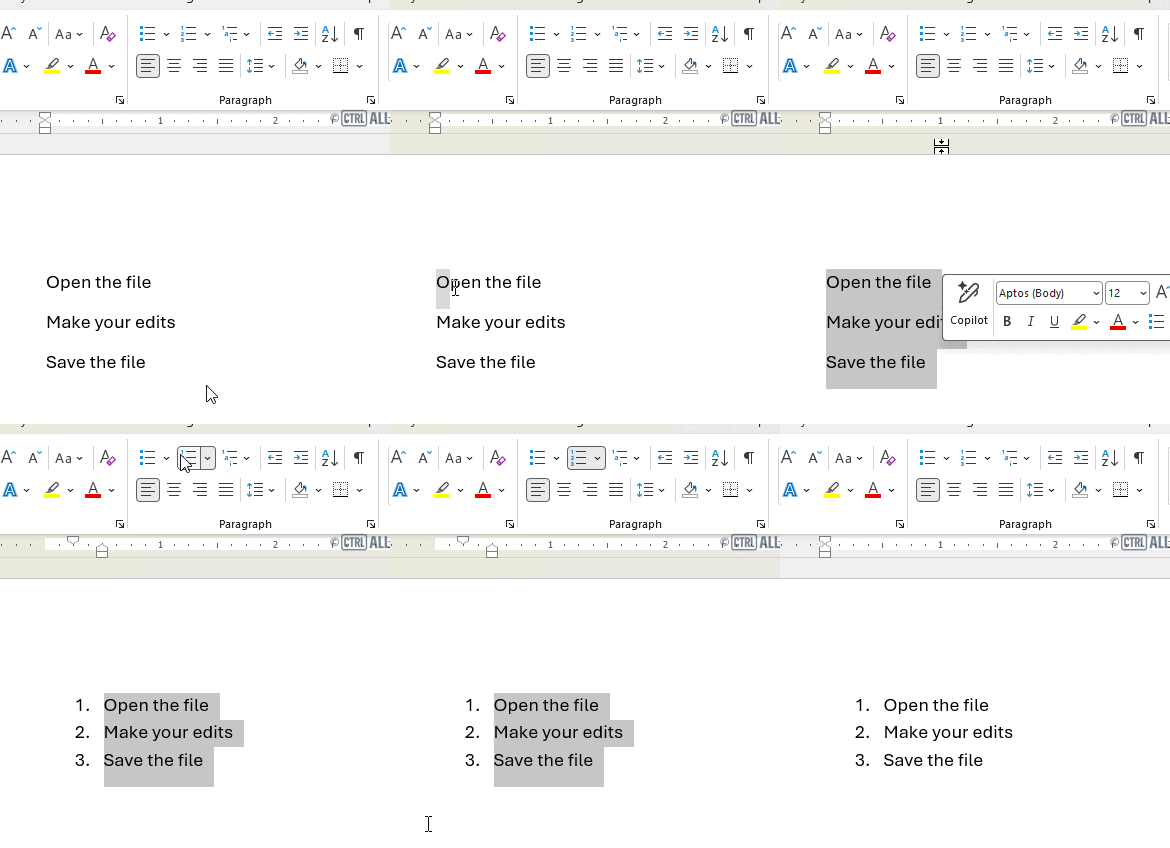
If you want to convert existing text into a list:
-
First select the lines you want to make into a list. (For more on how to select text in different ways see this article: Selecting text)
Note: Each list entry needs to start on a new paragraph line; this is done by applying a hard return after each entry — press Enter after each entry to push the insertion point down to the next paragraph line.
Then click on of the two options above for a bullet list or numbered list
Bullet list
Numbered list
Where to now?
Now you've got the basics of lists try experimenting with them in a document. There are more options you can apply to lists which are explored in the intermediate version of this article:
- Lists (intermediate version of this article): covers bullet/numbering styles and creating your own custom style lists
- Fixing number lists
- Lists: Soft & hard returns