This article explains everything about borders and shading in Word. You can apply borders and shading to different content like tables, text, images and whole pages. Let's look at each one.
Page borders and shading
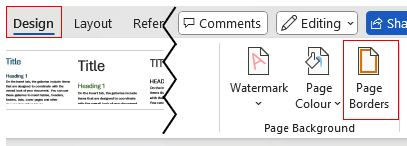
To add or edit borders and shading to a whole page go to the Design tab then on the far right select Page Borders.
This brings up the Borders and Shading window showing the Page Border tab.
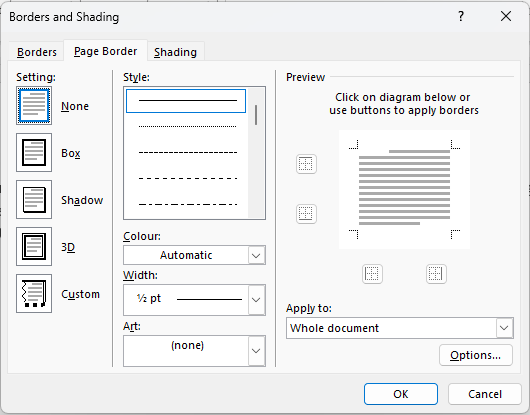
Let's unpack this section by section.
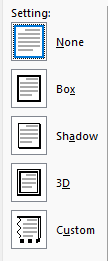 |
- None: Apply no border. If you have a page border that you want to remove select this then click OK in the bottom right of the window.
- Box: Apply a standard box border around the page. this is the most common option you'll for it you want to add a page border.
- Shadow: Similar to the Box border above but this one has extra weight on the right and bottom lines to look like it casts a shadow.
- 3D: This one can be ignore. 3D is supposed to show a slightly double-toned line to give a 3D effect but on modern screens you'll be unlikely to see any difference. On paper you might see a faint difference but it’s still very subtle. This is an old style from when printers and monitors had lower resolutions, so the beveled effect (light edge and dark edge) stood out more. Ignore this one.
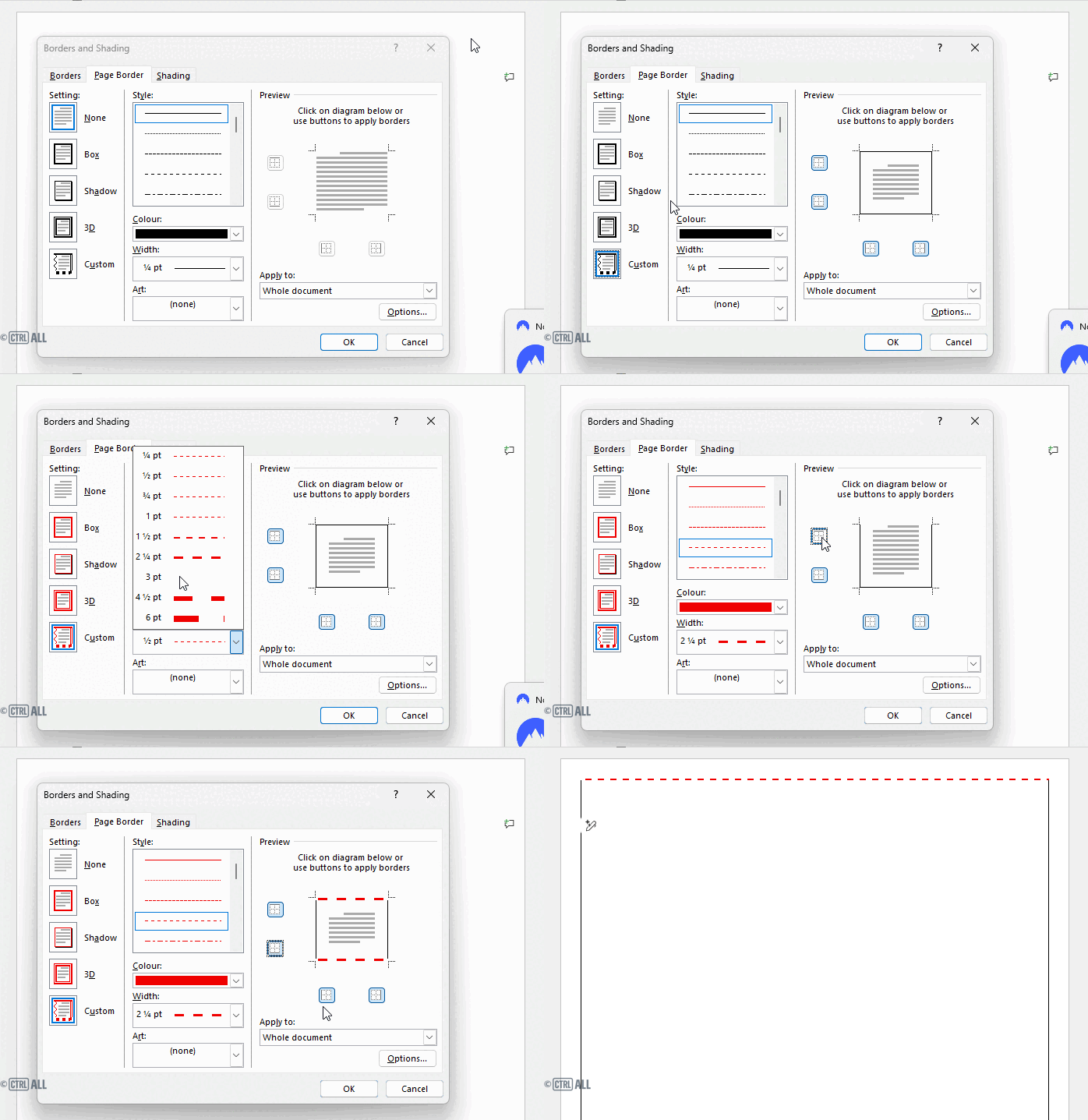
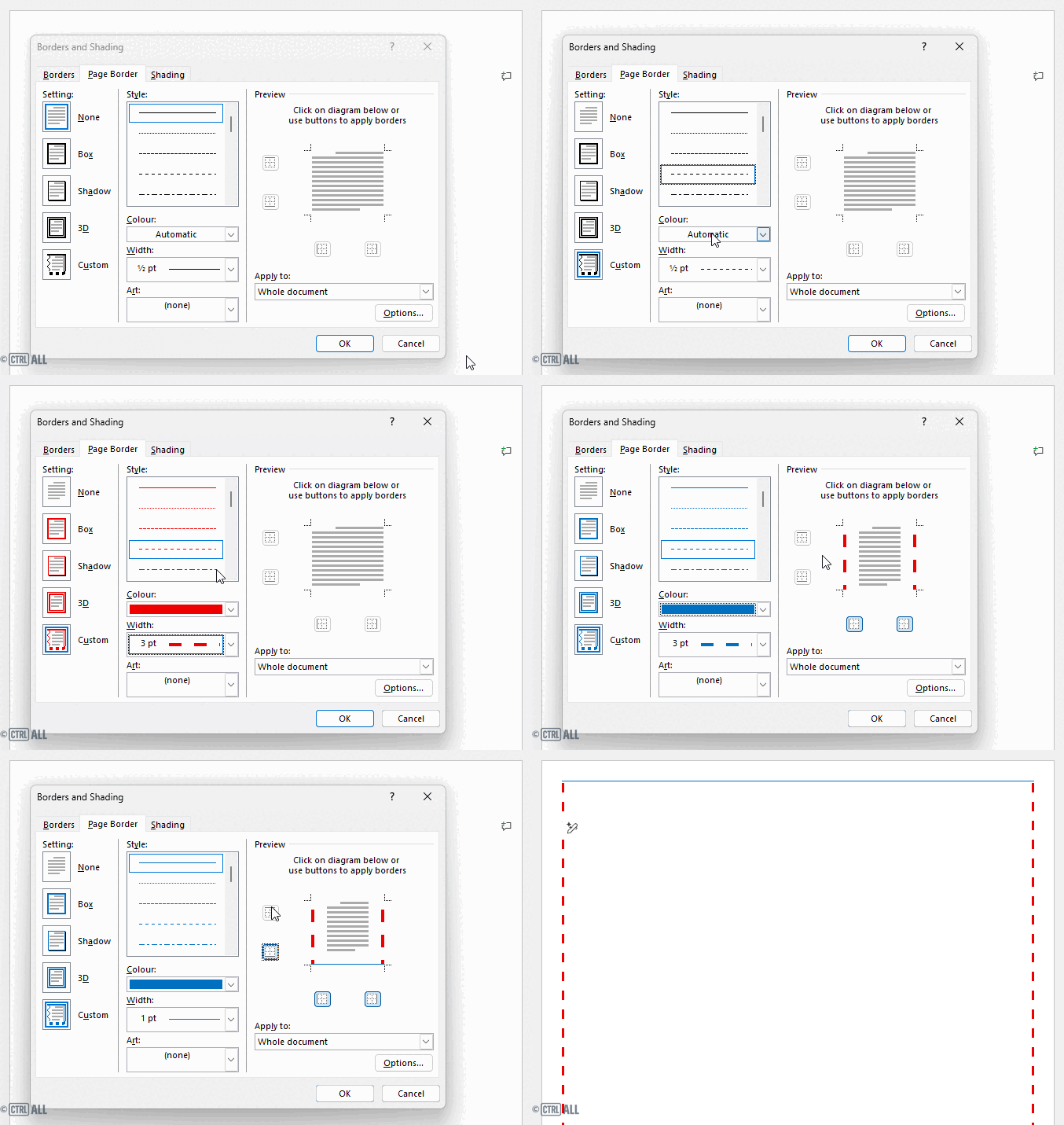
Custom: This lets you build your own border, mixing and matching border styles for each side of the page. You can apply different line thickness, style or colours to the top, bottom, left and right sides individually.
- Select Custom
- In the Preview section click on each edge you want to customise
- Now apply line styles, colours or thickness for those selected edges.
- If you want to style other edges differently
|
Custom continued
Note: If your page has a Box, Shadow or 3D border already or if you've even selected one of those option in the window, the Custom option will pick up those styles. They may not be the ones you want. In order to style each side individually from here you'll need to click each styled side twice, first to unselect it, then again to apply the style you want.