Word has other objects you can insert. Objects are elements in Word that are not part of the normal text flow. They usually come in containers that you can move around, resize and edit. Take a look at some types of objects:
| Object | Example |
|---|---|
| Text boxes | 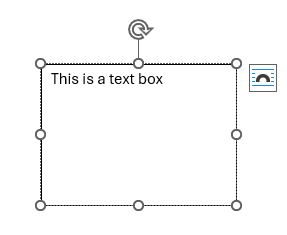 |
| Equations | 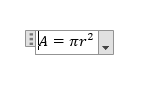 |
Text boxes
Text boxes are frames that can contain text and other content separately from the main document page. You might want to use a text box for a side note, label, caption or just custom layout.
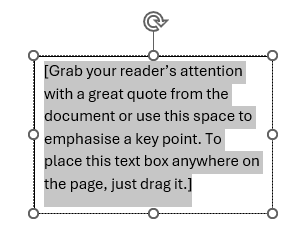
To add a text box go to Insert > Text box. Here you have a series of templated text boxes to choose from. The standard one is top left.

This place a text box on the page with some placeholder text which you can edit as needed. You can freely move, resize and rotate the text box as well. You can also insert images into a text box, it's like a minature page within the selection frame.
Draw text box
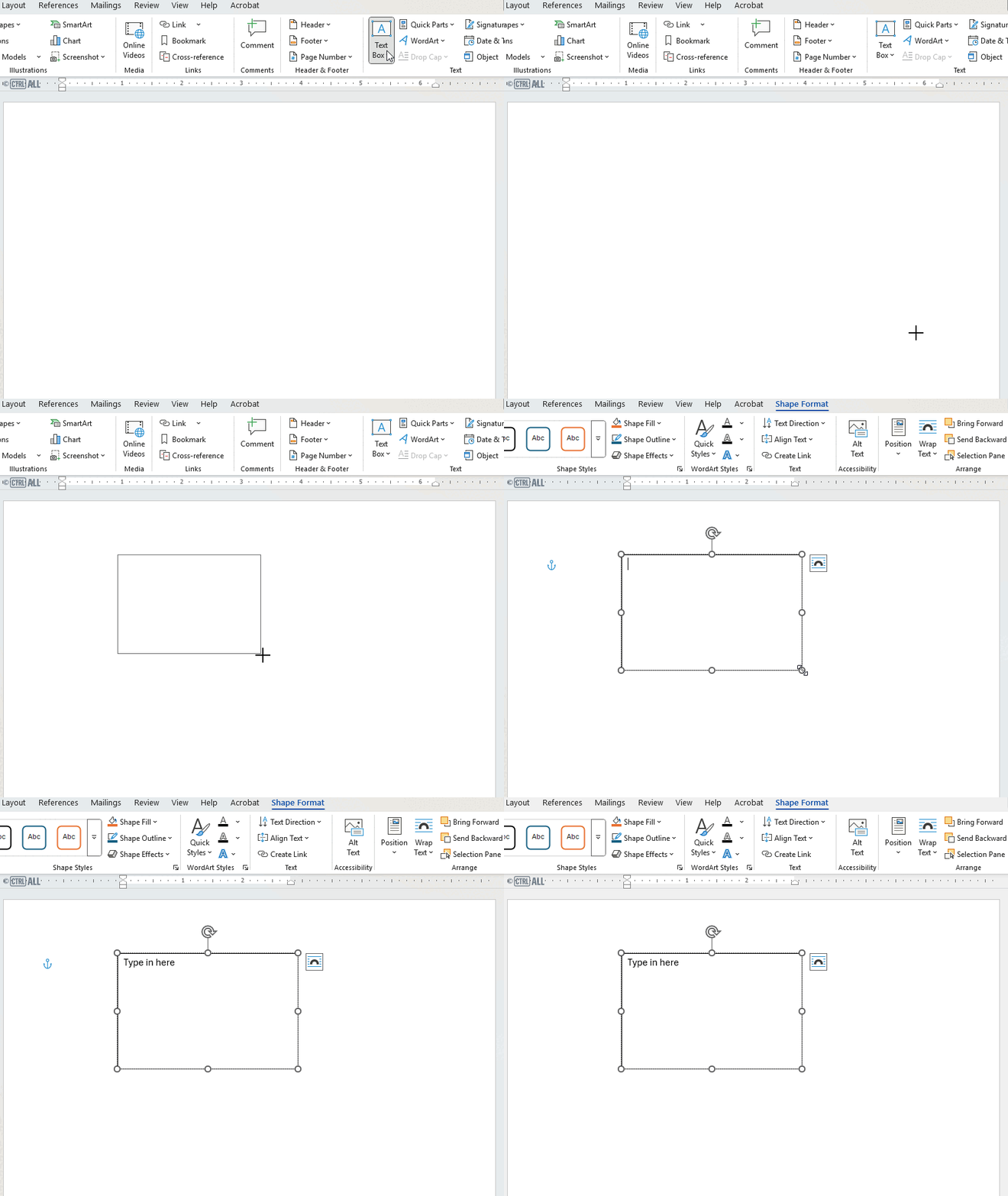
Draw your own text box to create a custom blank one. To do this go to Insert > Text box > Draw Text Box. Another way that's slightly quicker is via the Shapes menu; go to Insert > Shapes and click the icon with the rectangle with the 'A'.
Now your cursor will change to a cross hair and you can click and drag out a blank text box to the size you want.

Equations
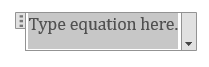
Insert an equation via Insert > Equation. This places an equation field on the page for you to type into:
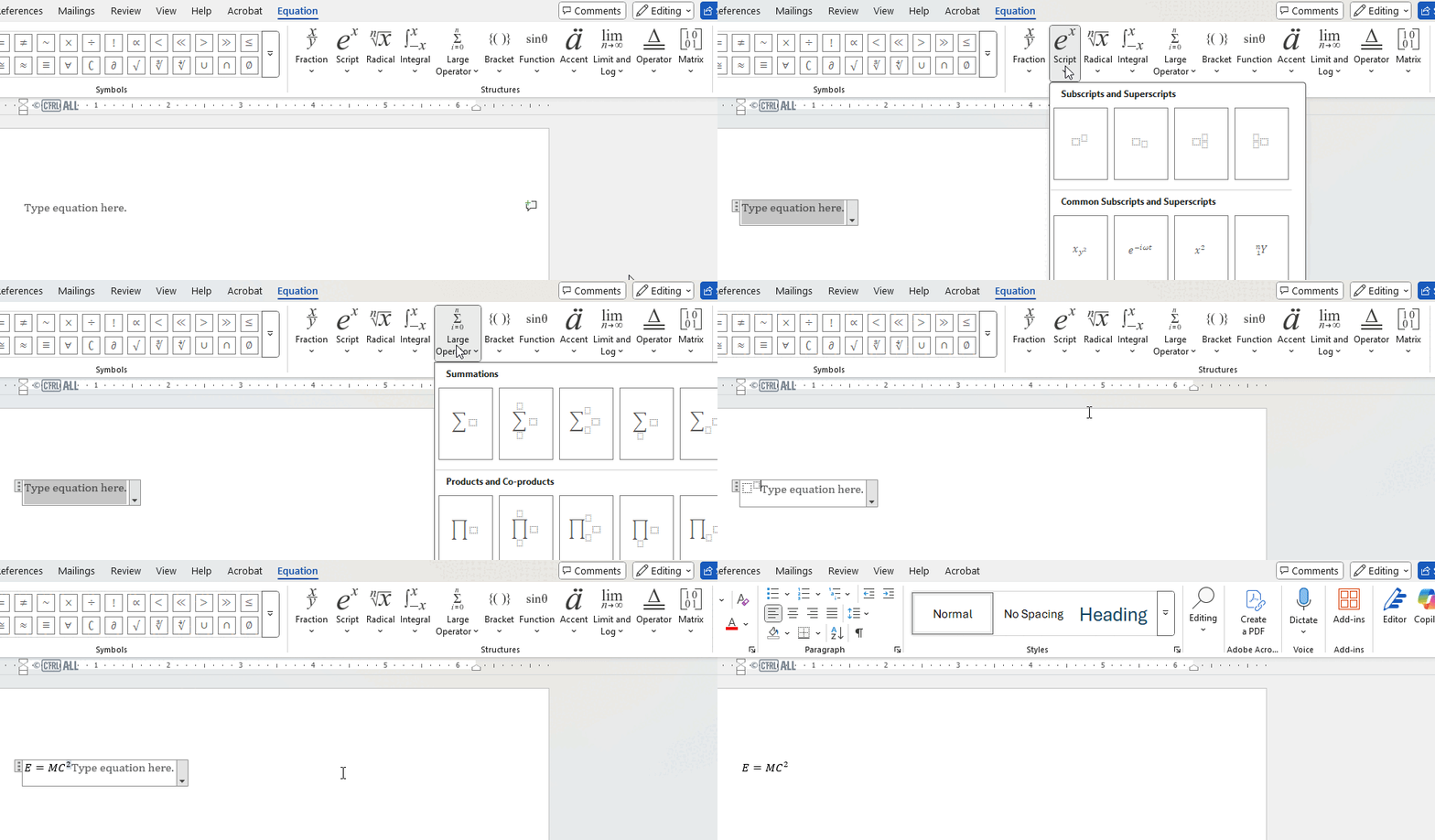
On the ribbon the Equation tab provides tools to build an equation.

Here's a simple demonstration:
Where to now?
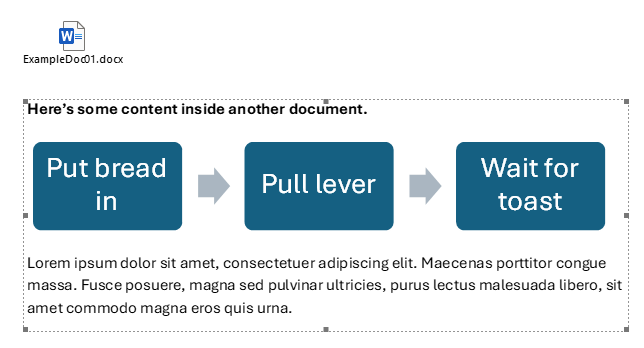
- Embedded files (OLE objects): Word lets you embedded other files into a Word document. These are known as OLE objects. You can essentially embed content from another file on the page or the file icon to be able to open it up. This is explored in the intermediate version of this article.
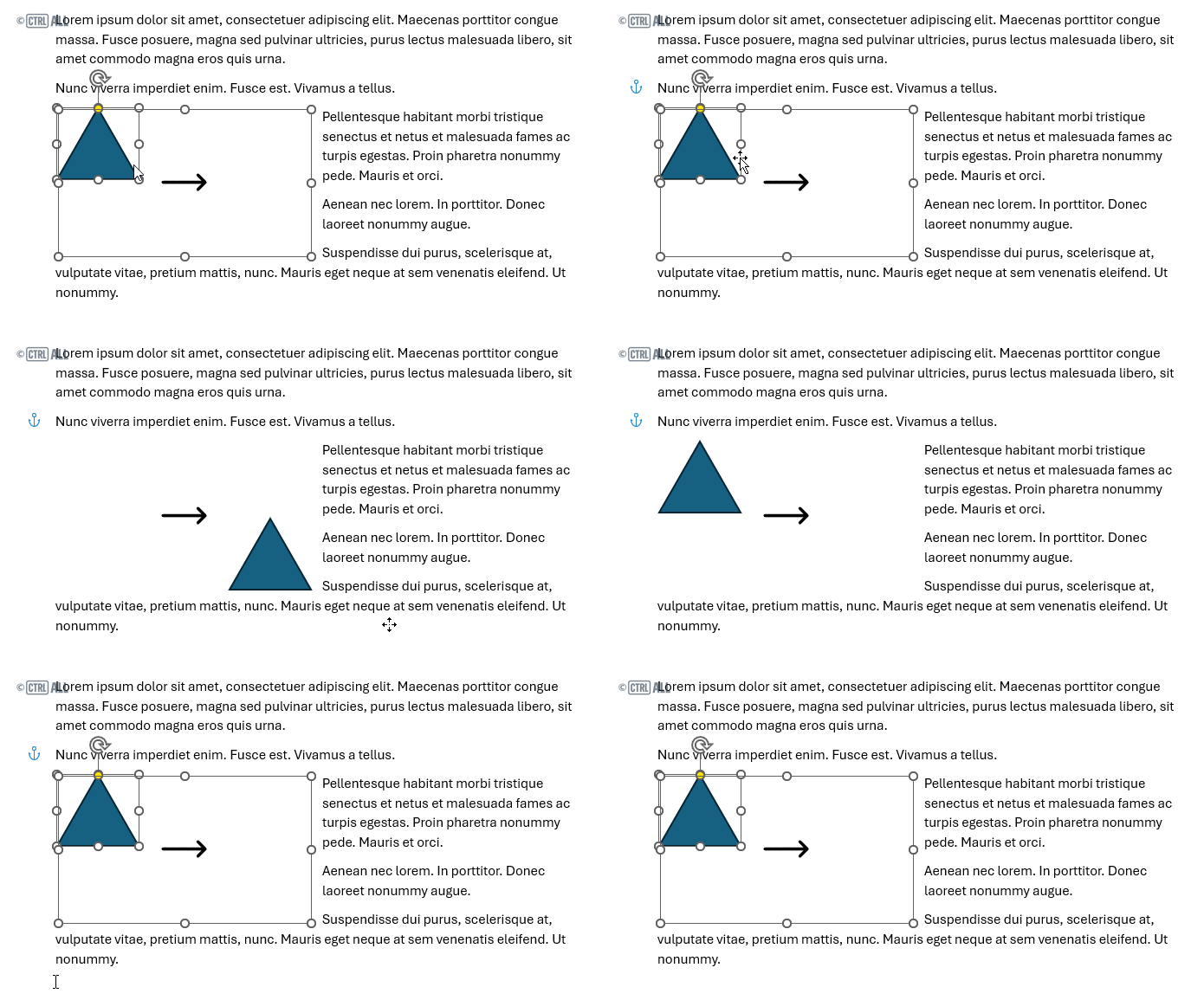
- Drawing canvas: A drawing canvas is a container which groups together images, graphic visuals and even text boxes in a locked area. This is also explored in the intermediate version of this article.