Saving your PowerPoint presentation lets you to keep your edits for next time. When you save, the next time you open your presentation those changes you made will be rememebered. Not saving means you will lose all the edits made last time. Here's how to save a PowerPoint presentation:
With the presentation open, you can save by doing one of the following:
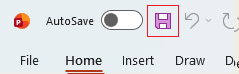
- Save the existing presentation (Note: if it has already been saved previously you ‘overwrite’ the file with changes made). Either press Ctrl + S on your keyboard or click the Save button at the top left of the Quick Access Toolbar.
- Save as a new presentation or a different file type (e.g. a template or PDF) using File > Save As.
OR
Select File
 Then Save As

This will then bring up options to choose where to save your PowerPoint presentation, what the name of the file should be (a.k.a the filename), and what file type to save it as. Double click This PC to browse a location.

A window appears which lets you decide on the file name, the file type (the dropdown menu gives a large list of options) and the location to save it.

Autosave
If you have a Microsoft Office 365 subscription you'll see an extra Autosave toggle at the top left of the screen on the Quick Access Toolbar. This is for when your files are stored on OneDrive or SharePoint. Autosave automatically saves your edits every few seconds, so you don't need to manually save.

If you're using PowerPoint on your mobile or the free version PowerPoint Online then your edits automatically save too, there just isn't a toggle to turn autosaving off.