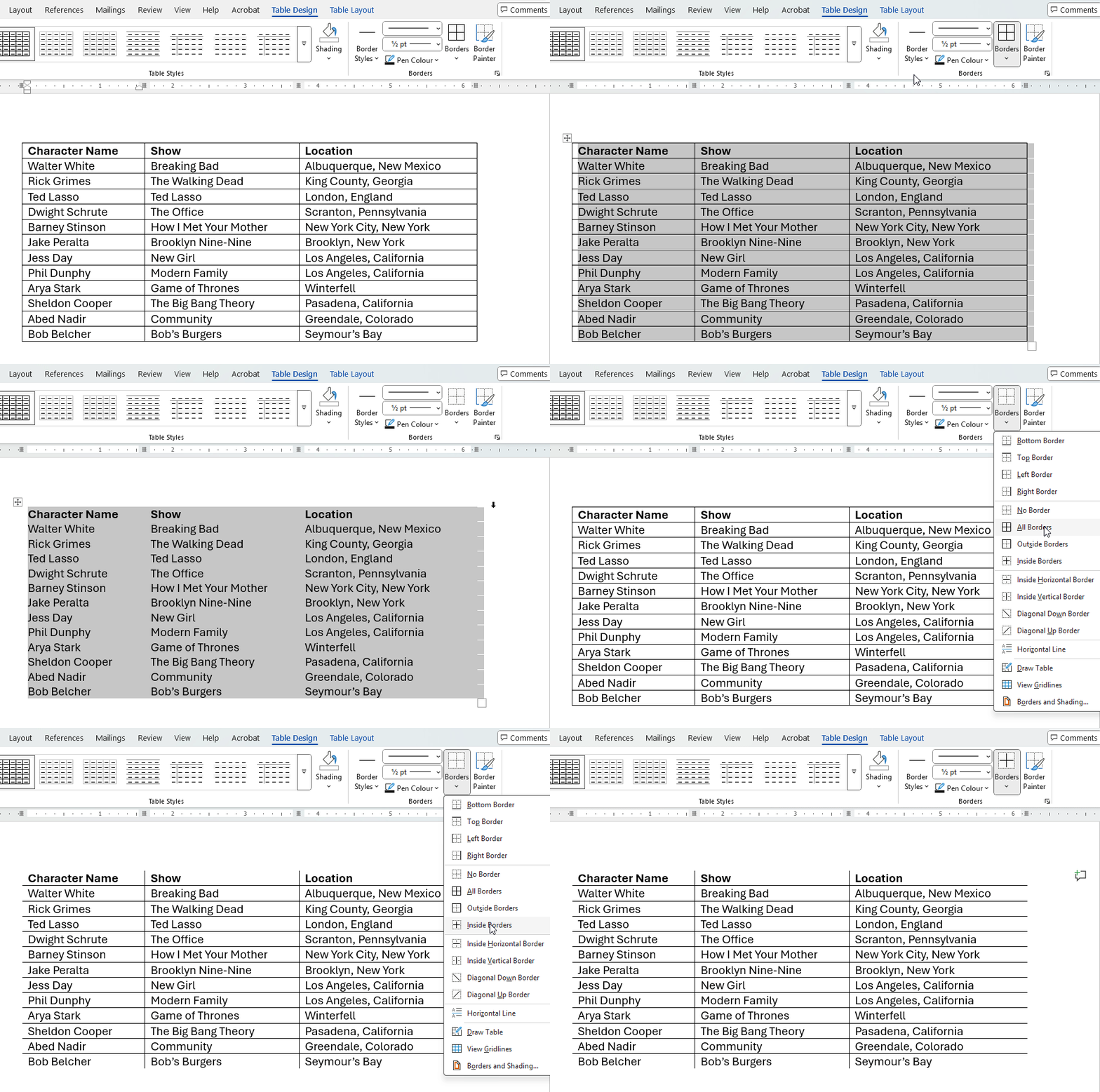
There's a few ways you can format (style) tables themselves, here's what this article explores:
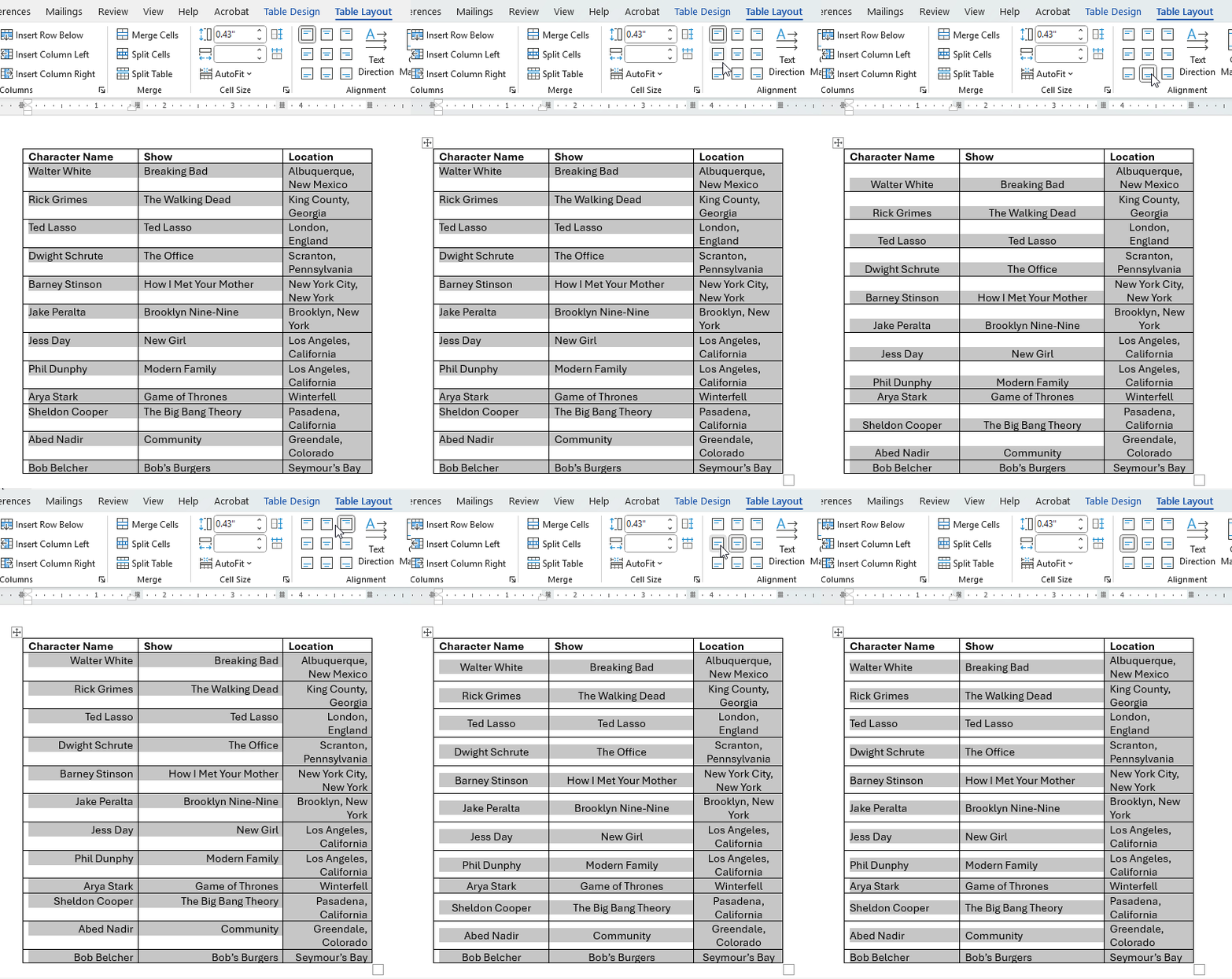
I want my content to be at the bottom or middle of cells, not fixed the top.
This is changed by altering the table cell alignment which is explored in the intermediate version of this article.
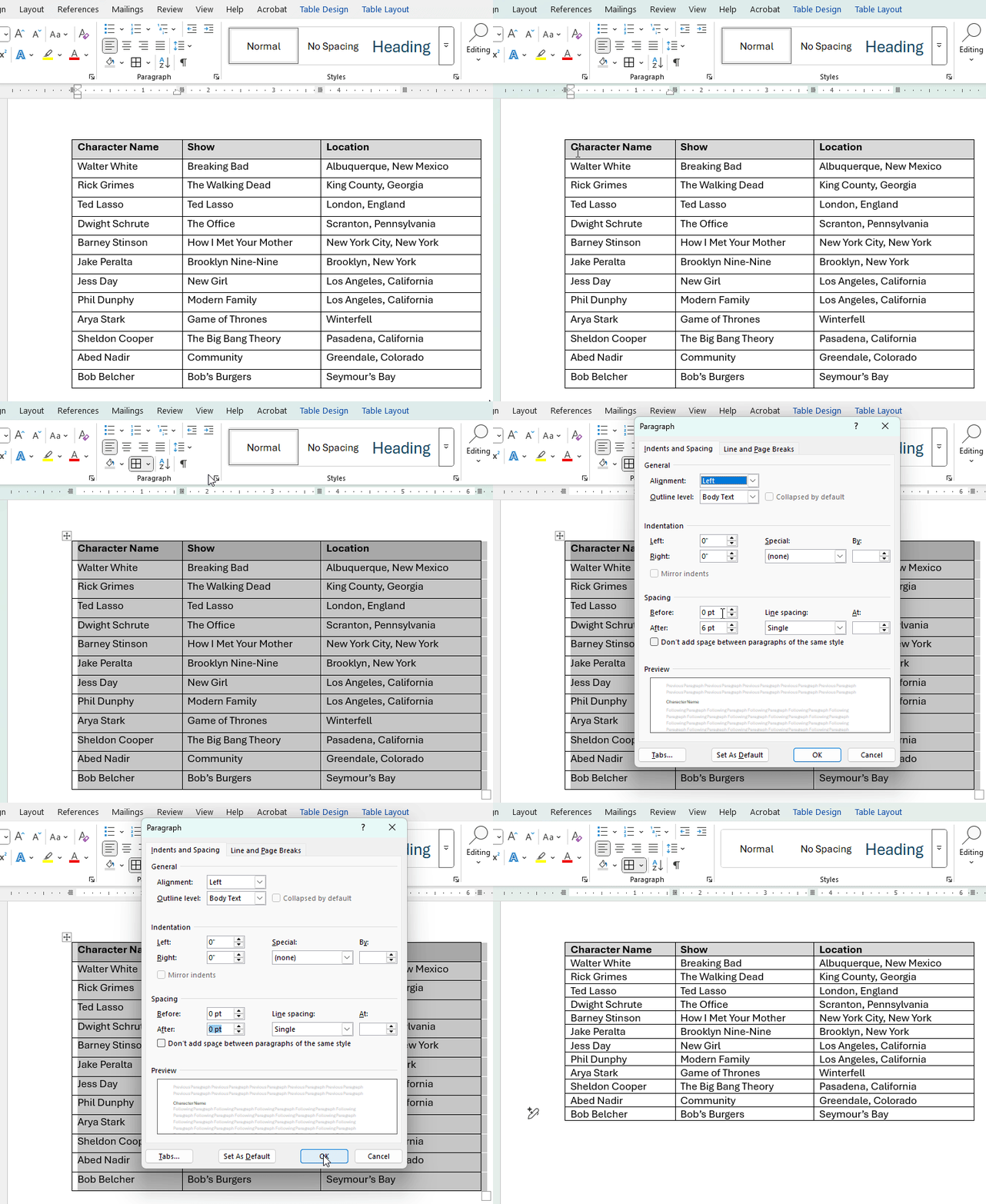
My copied text has line spacing I want to get rid of
Take a look at the intermediate version of this article in the section Remove Paragraph Spacing from Table.
Table shading
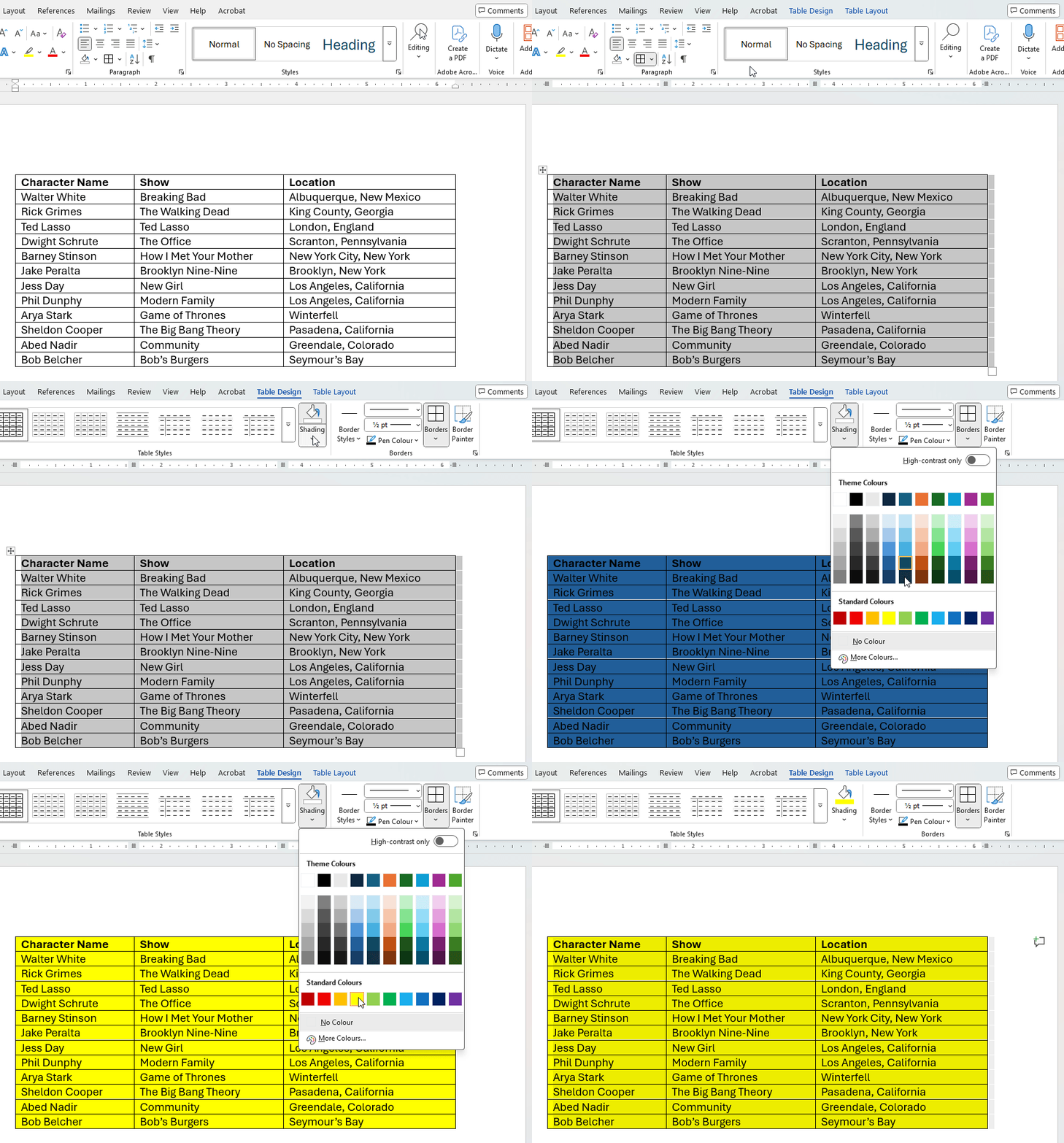
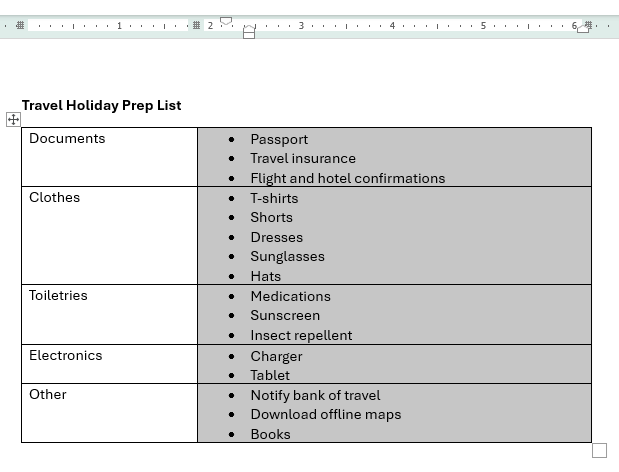
You can colour in the background of your table easily. First select the cells you want to colour by clicking and dragging on them. In this example I've selected the header row.
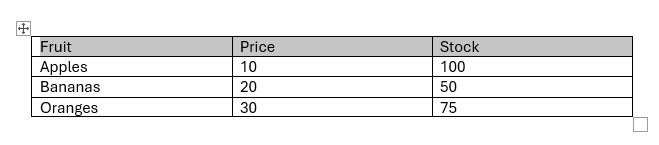
Next go to the Table Design tab on the ribbon and select Shading. This will bring up a menu colour palette to choose a colour from.
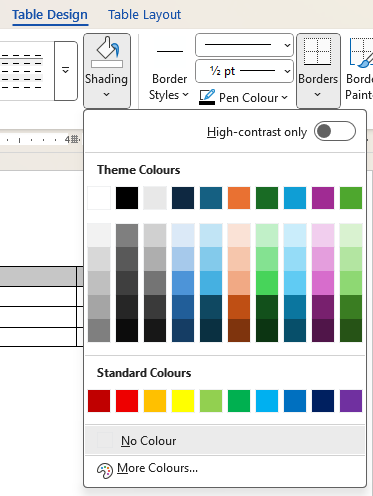
Select a colour from the palette and it will be applied to the table cells.

Note: If you need a particularly shade like your company brand's colour then from the Shading menu try seleting More Colours.... This up more detailed options to choose from including RGB and HEX values you can define if you have those:
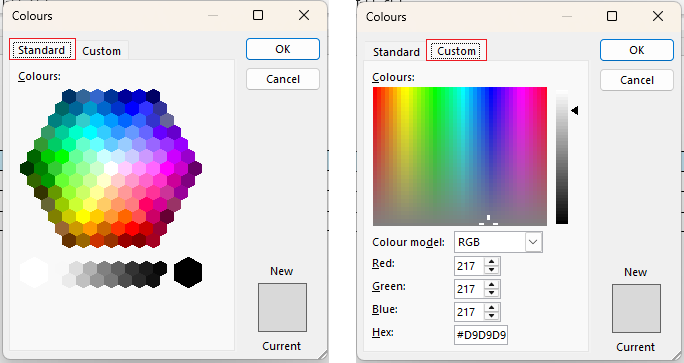
Table borders
Make borders visible/invisible
You can alter borders appearing in tables with a handy drop down menu. Typically you'll want to apply changes to the whole table, so first hover over the table or click into it, then select the top left square icon to select the whole table:
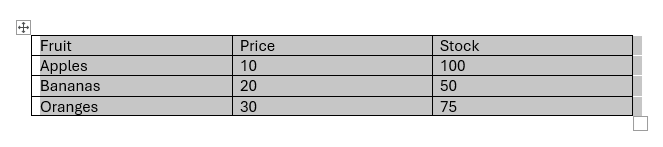
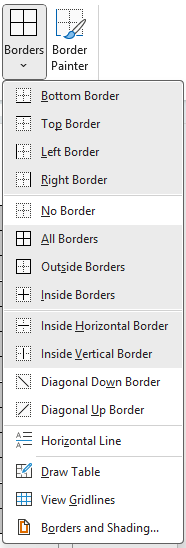
From the Table Design tab on the ribbon select the bottom half of the Borders button with the arrow:
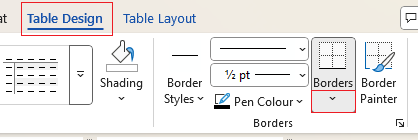
This will bring up a menu of different options to choose from.
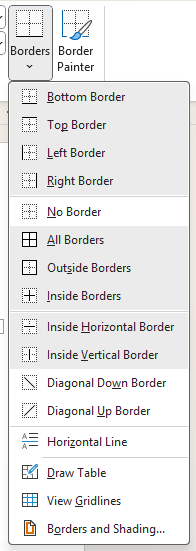
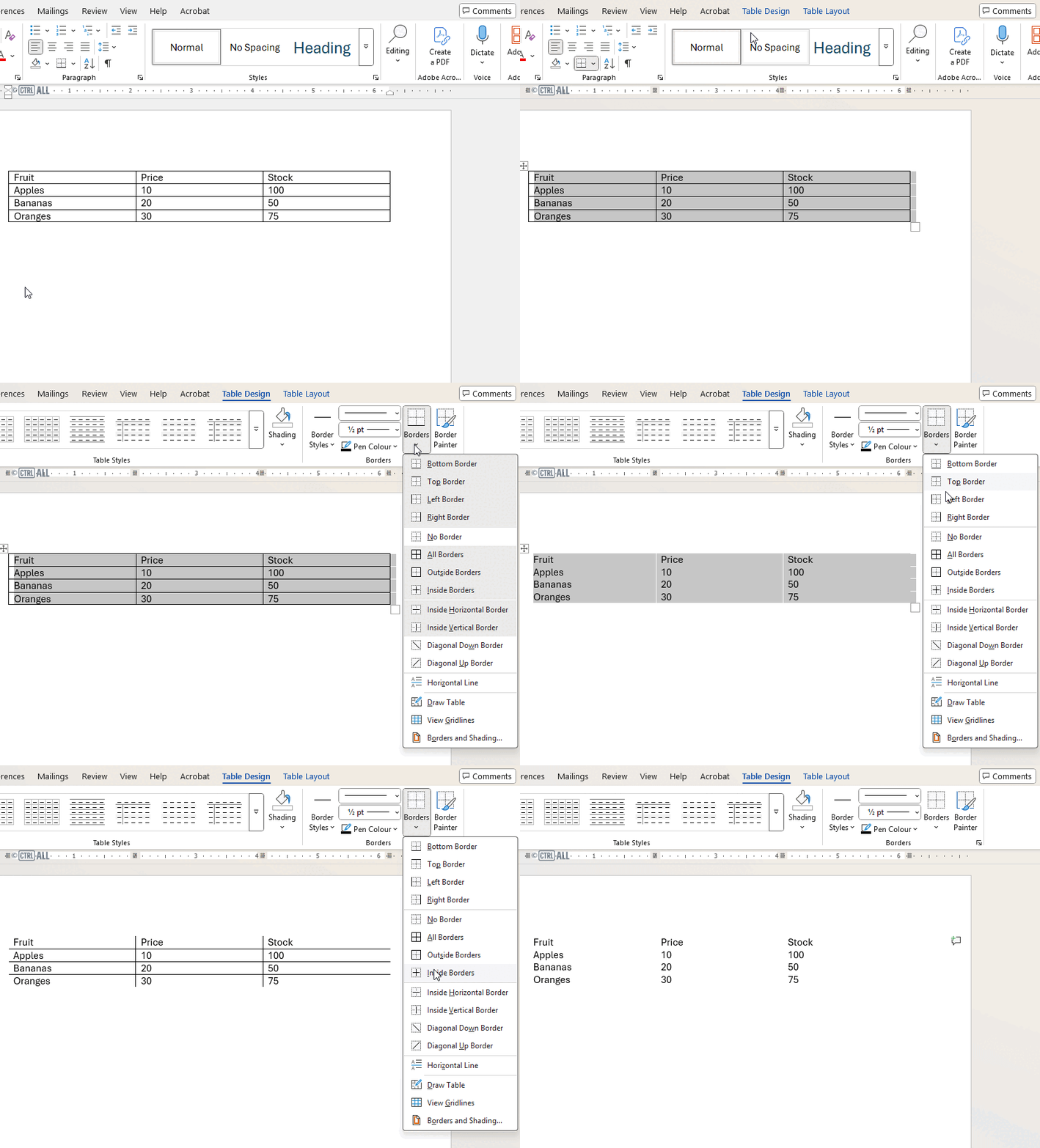
Try removing all borders first (No Borders), then applying what you want. Here's a demonstration:
Colour border lines
You can colour border lines by selecting cells or the whole table and going to Layout Design > Borders > Borders and Shading...:
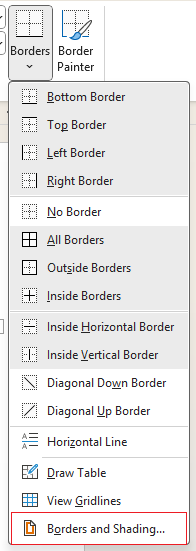
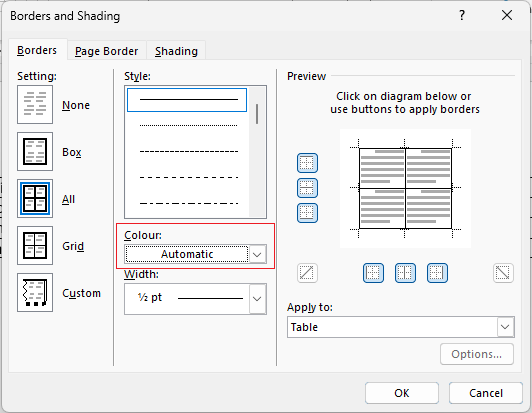
In the Borders and Shading window select the Colour drop down menu:
You can then select a colour for the border lines:
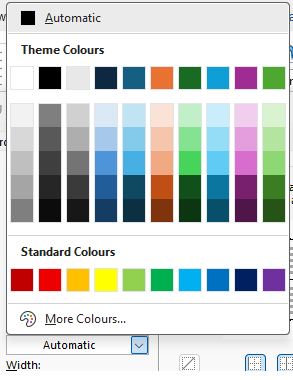
Note: If you want a more specific colour select More Colours....
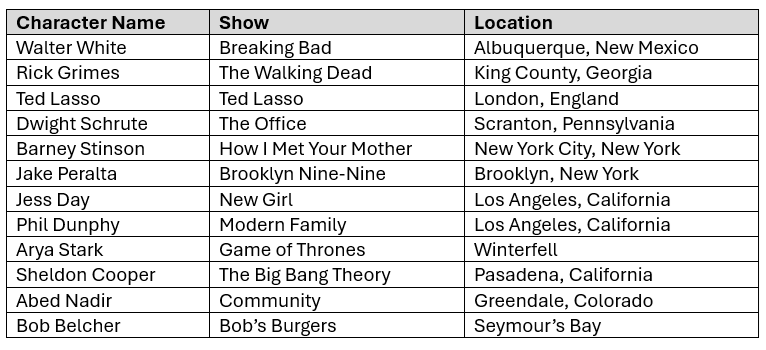
Once applied it'll look like this:
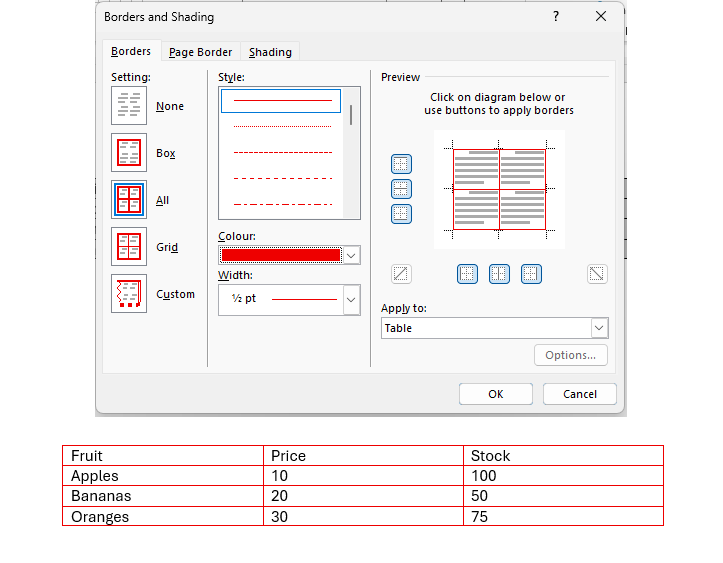
Table styles
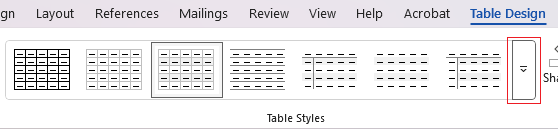
There are some preset table styles you can choose from to apply to your table. Just select the table (just click anywhere within it, you don't need to select the whole table), then under Table Design select a style from the Table Styles gallery on the ribbon. You can hover over the styles to see what your table will look like in that style. Click on a style to apply it.
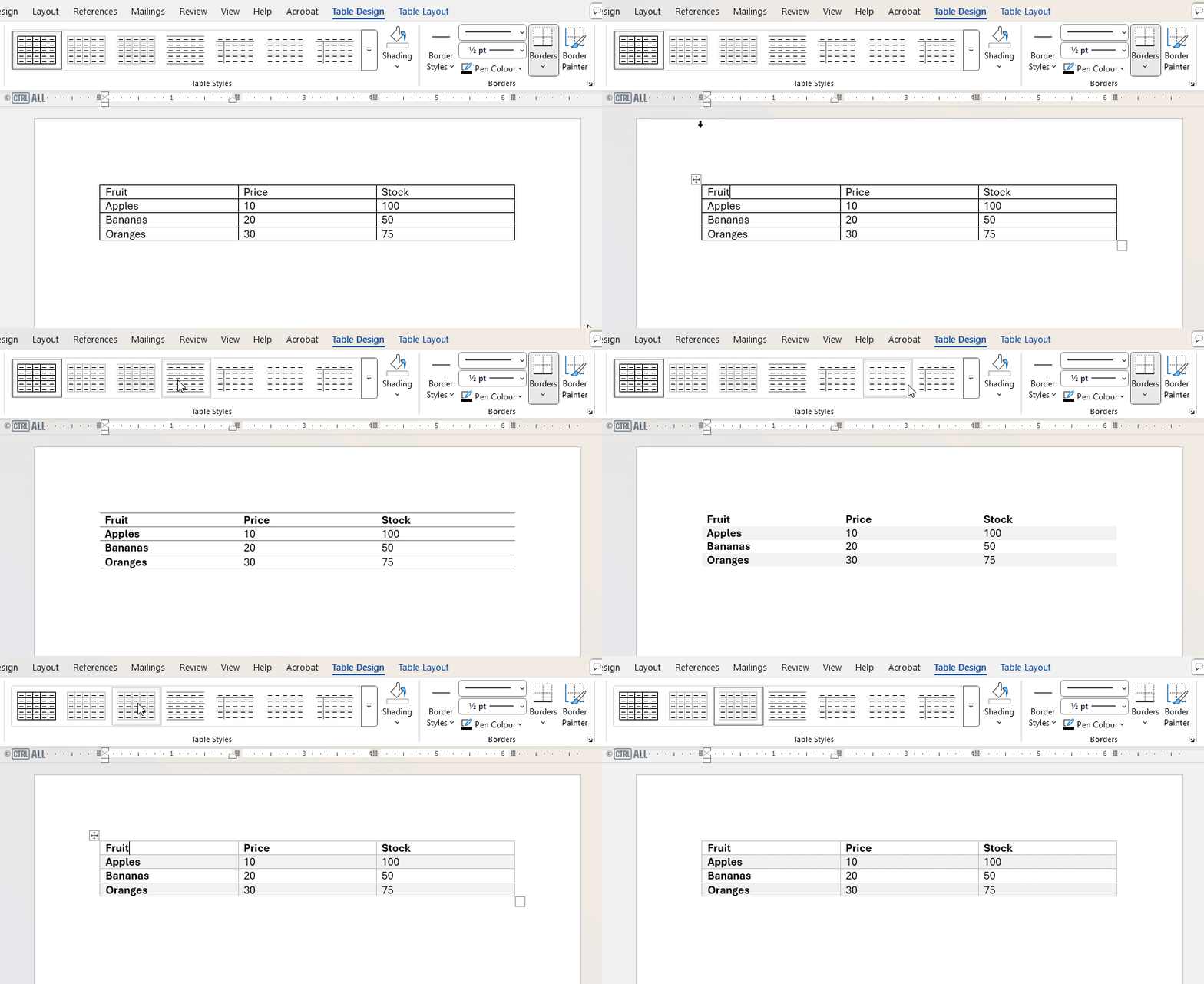
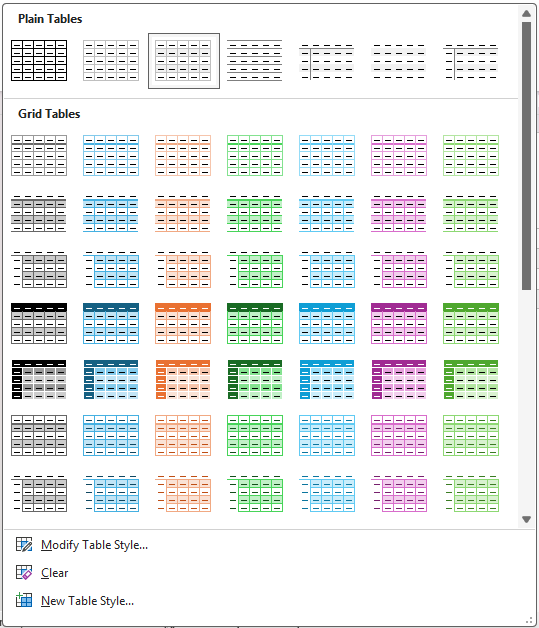
Note: If you click the arrow to the right of the Table Styles gallery it will show a menu with more options to choose from.