Fixing table image problems
Images and Microsoft Word tables are not friends. Here's a few fixes for common problems.
- Image has changed my cell size (column width / row height)
- Image doesn't fit inside the cell
- Image doesn't align properly in the cell
- Image pushes table across pages
Image has changed my cell size (column width / row height)
This is pretty normal. An image pasted into a table cell that's larger than the cell's width will expand it. Typically the cell's column expands the most and row height with it. This can leave your table looking a bit skewed.
When this happens you need to resize the image to be smaller using the sizing handles (white dots); the column border will adjust with it as you reduce the image's size. Take a look below. More on altering images can be found here: Altering images and objects.
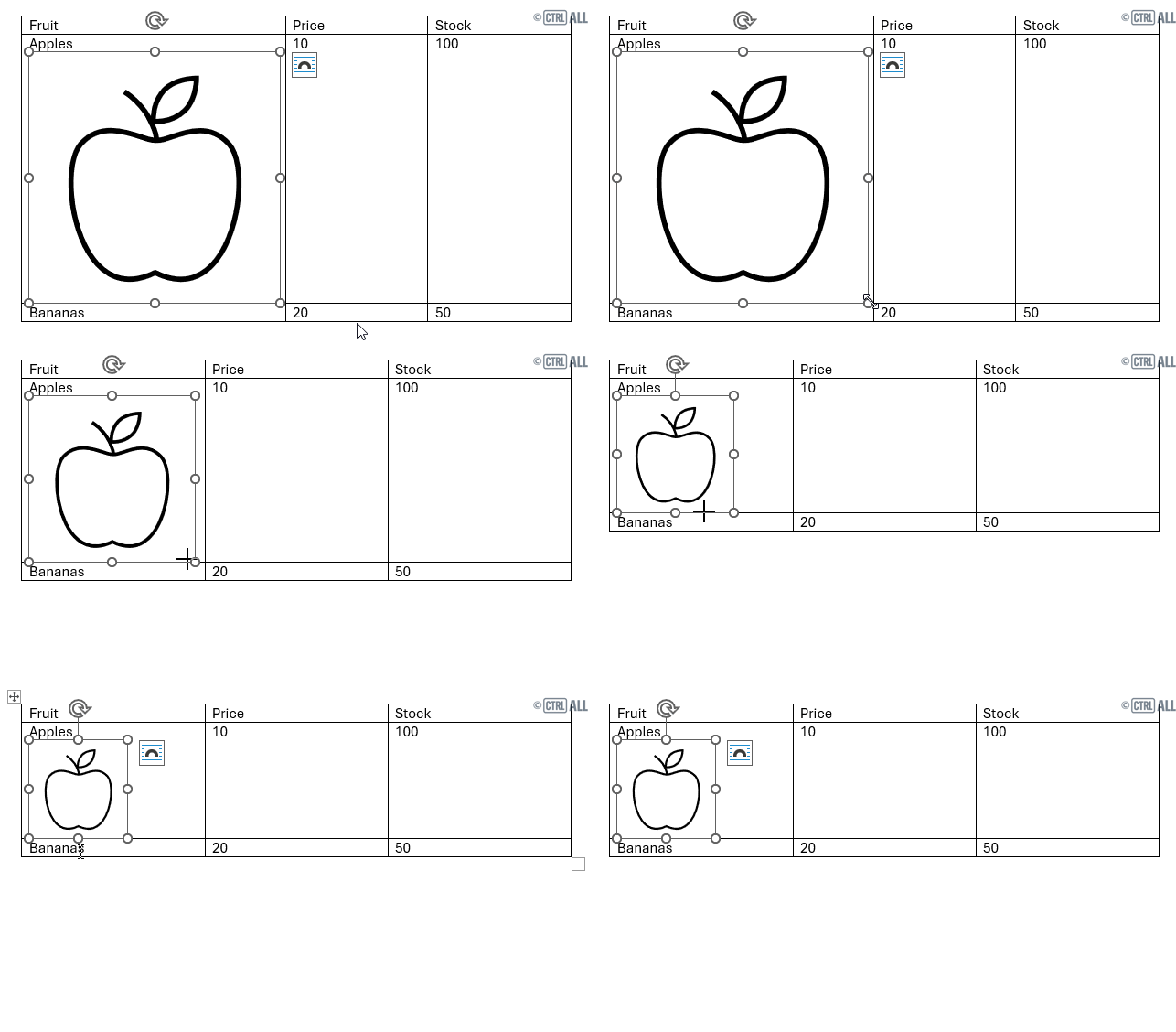
Image doesn't fit inside the cell
- image too large for cell - needs to be resizedPasted an image that is larger than the cell? Everything gets squashed and you can't see some of the image you've pasted. Here's an example:
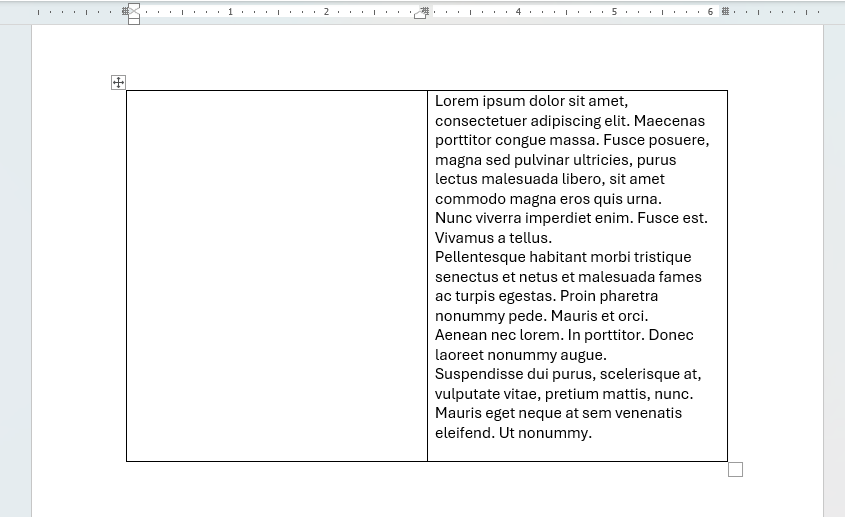
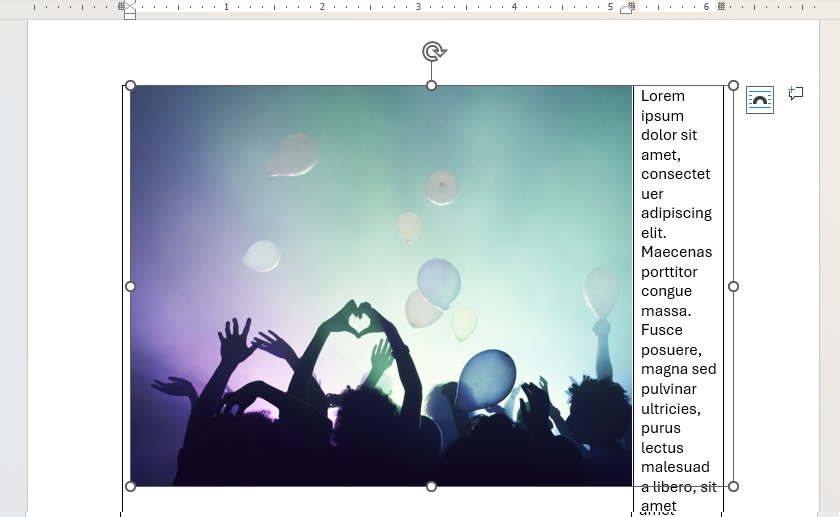
See how the image's selection frame is extended beyond the column but it's still visible? The solution is the same as the one above simply resize using the corner sizing handle to make the image smaller so it fits the cell; the column width will reduce with the image automatically.

Image doesn't align properly in the cell
Table cell alignment
When pasting an image into a table cell by default they'll have the wrap setting In line with Text so they sit on the same line as the text. The default cell alignment for content in table cells is Align Top Left. If you want to change this then select the table cell(s) and go to Table Layout > Alignment where you'll see a grid of cell horizontal and vertical cell alignment options.
Note: The alignment applies to all content in the cell.
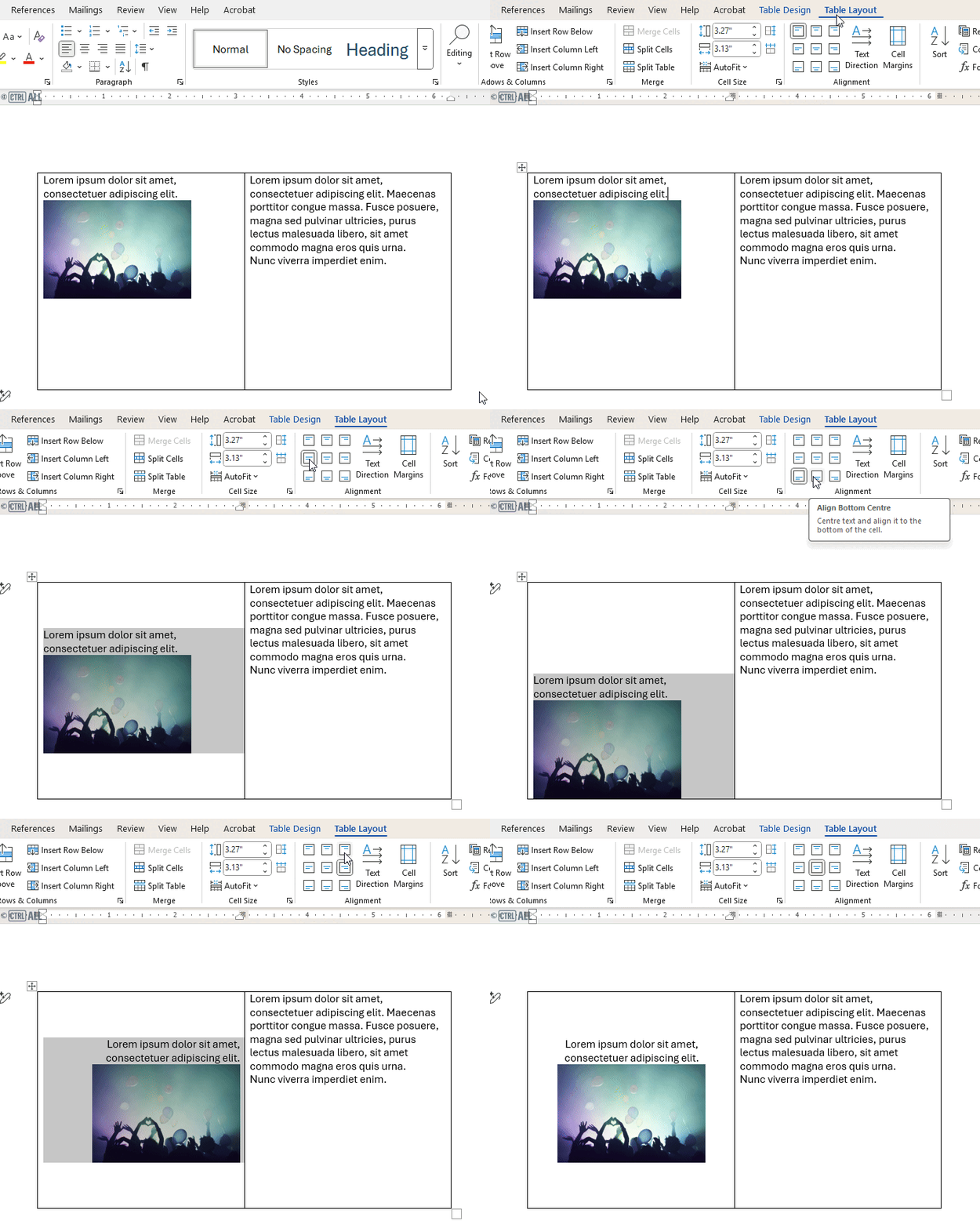
Table cell alignment with other wrap settings
If your table image's wrapping setting is not the default In line with Text then it will behave differently with the cell alignment options. You'll find that it only responds to changes to vertical alignment; it won't listen to any horizontal alignment. Any text in the cell will still respond as normal but your options with the image are limited.
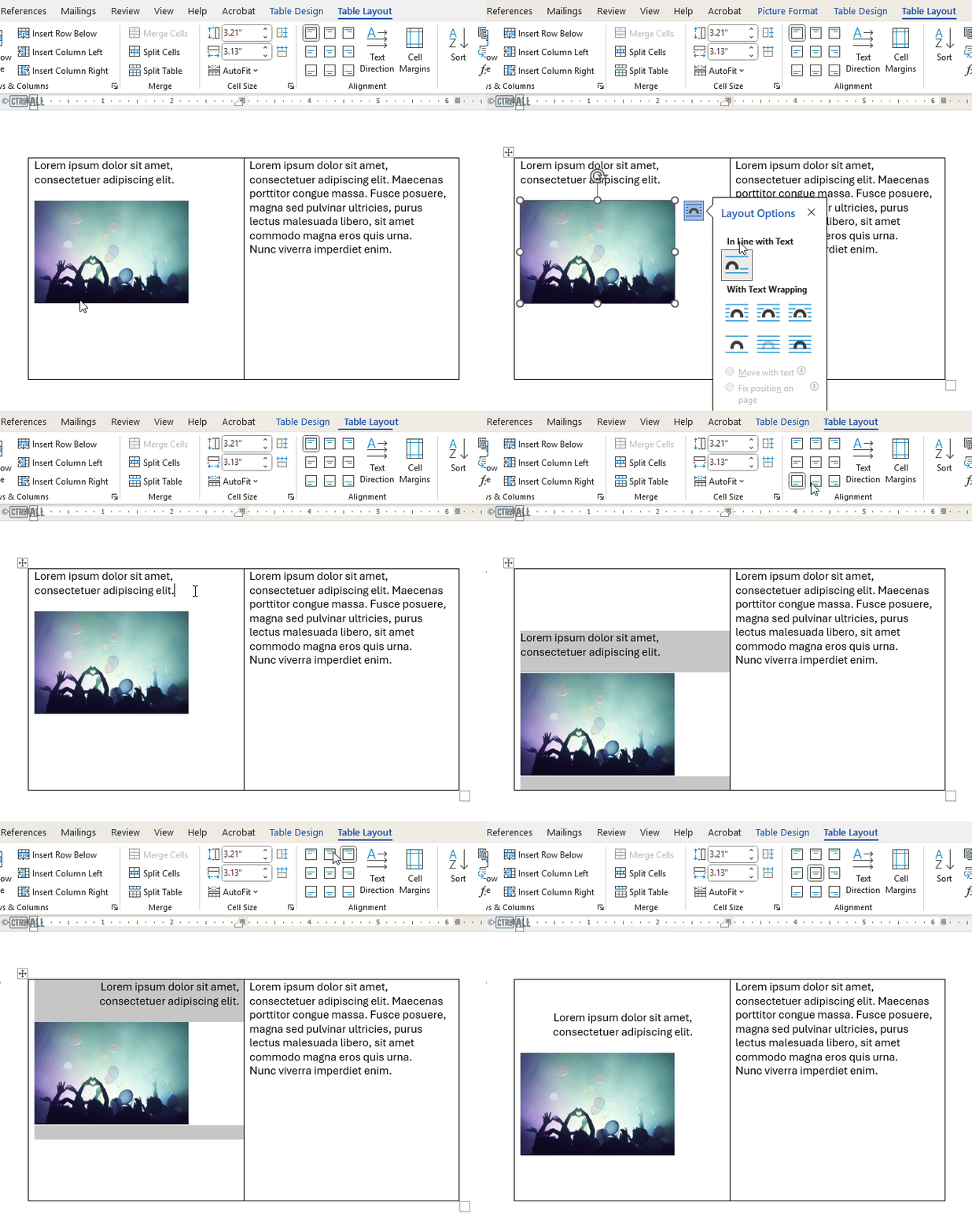
Image pushes table across pages
Some really large images can push a table over to another page. In these instances it can be difficult to select and drag the sizing handles of such large images; instead one way to reduce very large images is via the right click menu > Size and Position option.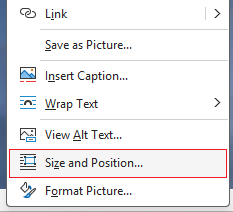
This brings up the Layout dialog. Under Scale you'll see the Height and Width of the selected image in percentages. By default these two are locked together so you can just lower the percentage of one and the other will recalculate accordingly. Reduce the scale to a lower number so the image fits in the cell or it's small enough to resize down some more via the sizing handles.
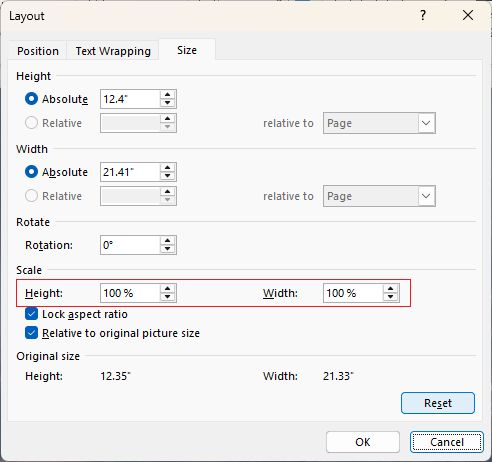
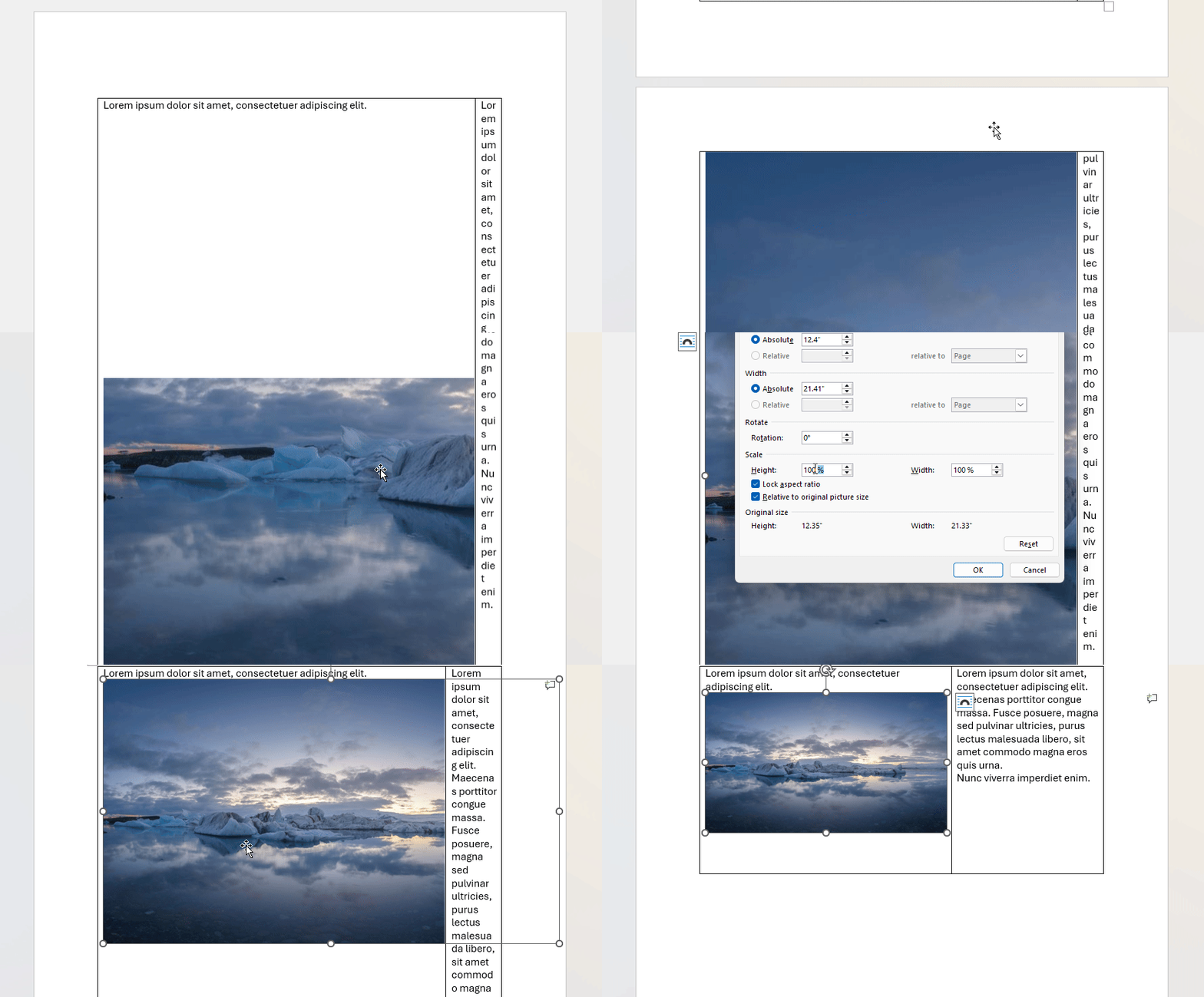
Image disappears behind/above the table
Got an image floating behind or above your table?
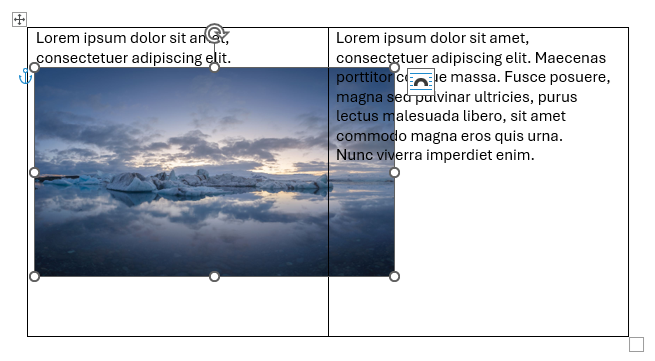
This is happening because you have a certain wrap setting for your image; either Behind Text or In Front of Text is selected. You need to change this to a different wrap type. Do this via the Layout Options with the image selected.
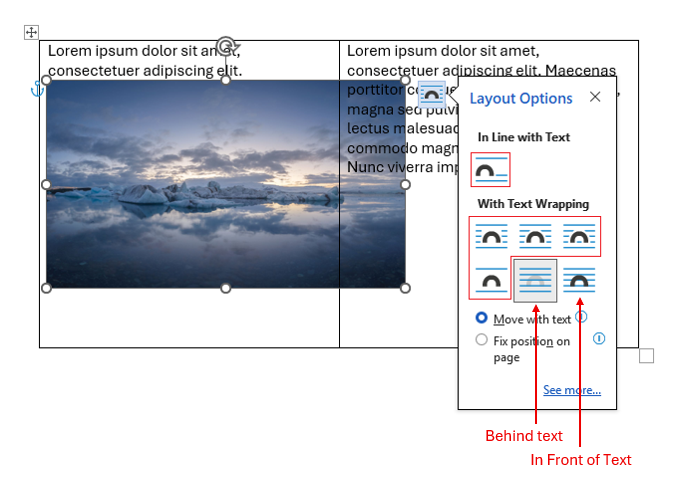
Note: Cell alignment works differently for wrap types that aren't In Line with Text, see here for more: Table cell alignment.
Found this useful? Share it with others.