Converting text to a table
Sometimes when copying tables from elsewhere only the table's content appears rather than a whole table with lines. Here's how to convert text into a table.
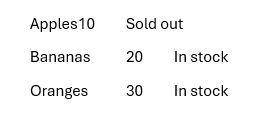
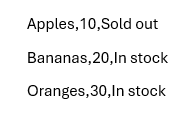
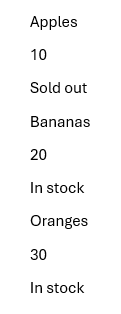
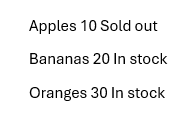
Here's a few simple examples of what you might find:
Text separated by tabs
Text separated by commas
Text separated by paragraph (new lines)
Text separated by spaces
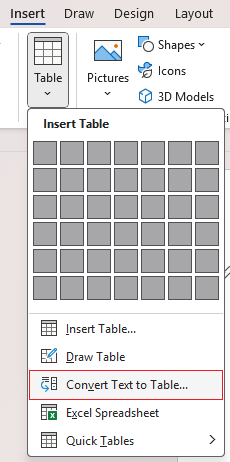
To convert text to tables in Word select the text in question then go to Insert > Tables > Convert Text to Table:
You'll see this dialog box appear to configure the table from the text. Hover over the red dots for what each option does:
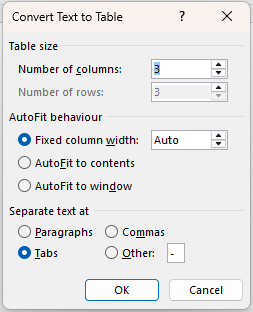
Select OK and the table will be created with content inside. It may take a bit of trial and error experimenting with the number of columns and reformatting the text so it fits.
Note: The examples above were simple. When you have table content pasting from a table elsewhere the text in that situation is usually a bit messy and may require some editing around the delimiters before it'll convert neatly. A successful conversion of the above examples would look to this:

Found this useful? Share it with others.