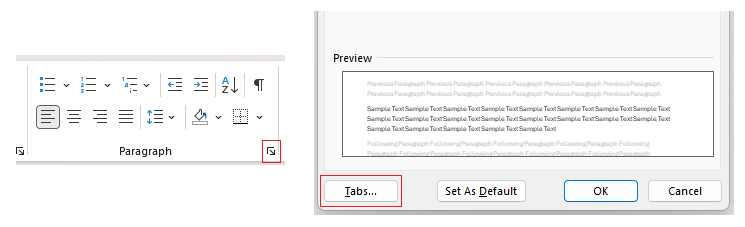
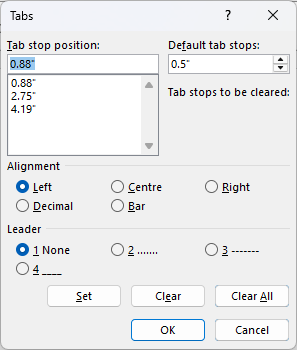
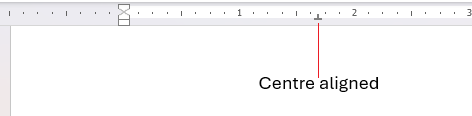
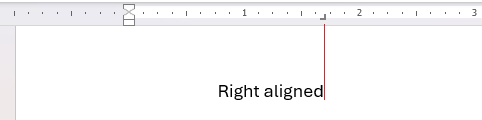
Text and other content in Word can be aligned to be left, right or centre but there are a few more things you can do with alignment using something called tab stops. More advanced featured with tab stops are explored in the intermediate version of this article, but here we'll stick with the basics.
What is a tab stop?
A tab stop is a horizontal location on the page you can move the insertion point to; this lets you add text or content from that point on the page. Word has default tab stops spaced at 0.5 inches apart but you can also create custom ones of your own.
How to insert a tab stop
Let's focus on the default Word tab stops first. These are easy, you can add a default tab stop by pressing the Tab key:
This moves the insertion point 0.5 inches to the right. So if you're at 0", pressing Tab jumps to 0.5". Press it again and it jumps to 1.0".
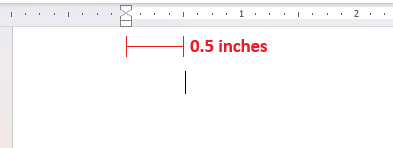
From here you can continue to type further away from the margin. Tab across as far as you need to then type.
Custom tab stops
If you want to set the alignment yourself rather than be locked to Word's default tab stops then you can do this by inserting your own tab stop on the horizontal ruler above the page.
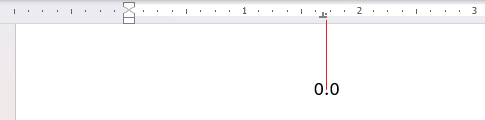
To do this simply left click once on the horizontal ruler where you want text to start from. You'll see two things happen.
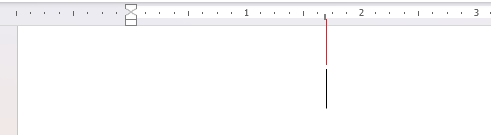
A small grey 'L' shape will appear on the bottom of the ruler where you clicked:

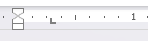
The insertion point jumps to that point accordingly. Now text will type left aligned from where you've inserted the tab stop:
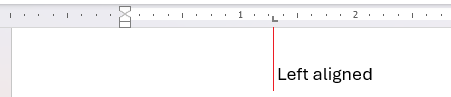
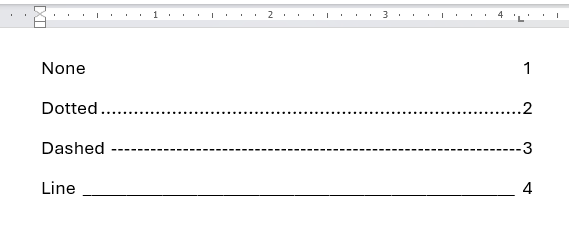
You can do more with Tab stops like change their alignment and custom spacing for specific measurement. This is all explored in the intermediate version of this article.