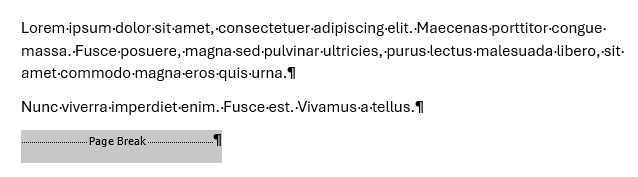
Page breaks are useful for organising the layout and flow of your document. They are a formatting marker where all content after them shifts onto the following page, ‘breaking’ from content onto the next page.
Word has automatic page breaks at the bottom of each page for when your content exceeds the bottom margin; at that point content is pushed to the next page. Page breaks become useful when manually added; you can add them on any line in a Word document.
Unwanted page breaks however can be annoying if you're unfamiliar with them or you have lots of them in a document. If you need to get rid of page breaks see this section: How do I remove a page break?
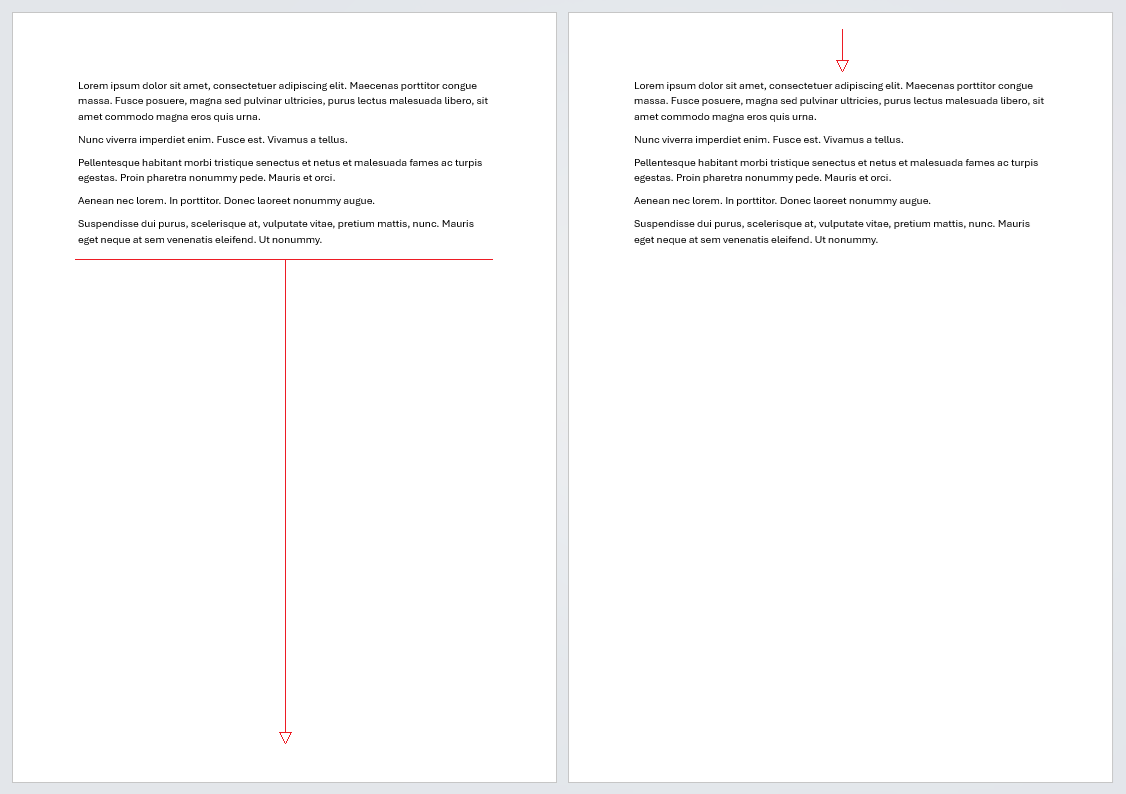
So why would you want to have a page break? Or why does the document you’re working with have them?
It could one of a few reasons: a way of structuring content in terms of topics or sections/units/chapters; to avoiding awkward orphan/widow splits or headings separated from content that follows after; as a means to keep certain content on one page like an image or table; for printing purposes; or maybe just sheer aesthetic preference.
However if a document is edited they can become an unwanted problem that needs removing. If you need to remove them see: How do you remove a page break?
I can’t find the page break
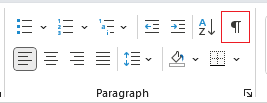
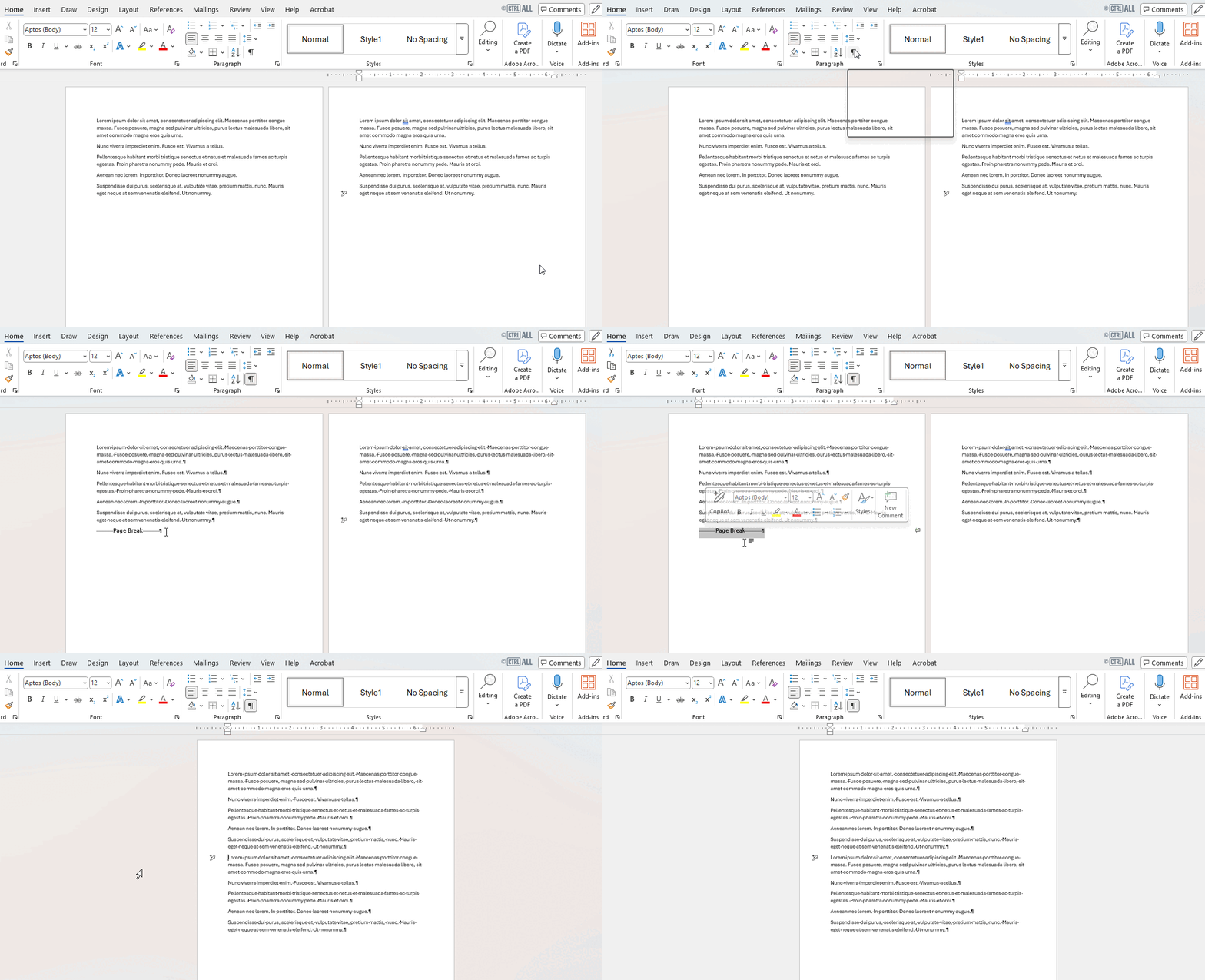
That’s because they’re invisible by default. In order to see them you need to turn on formatting marks (also known as non-printing characters) which you can do via Home > Show/Hide ¶:
How do you add a page break?
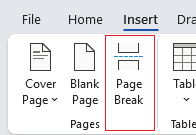
On the ribbon: Insert > Page Break
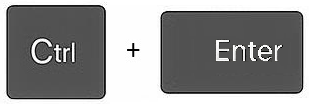
or using keyboard shortcut: Ctrl + Enter.
How do you remove a page break?
If you know where the page break is you can just simply select a line roughly after it and press Backspace until you delete it, but since it's invisible by default you will be doing this blind until you see the content jump up.
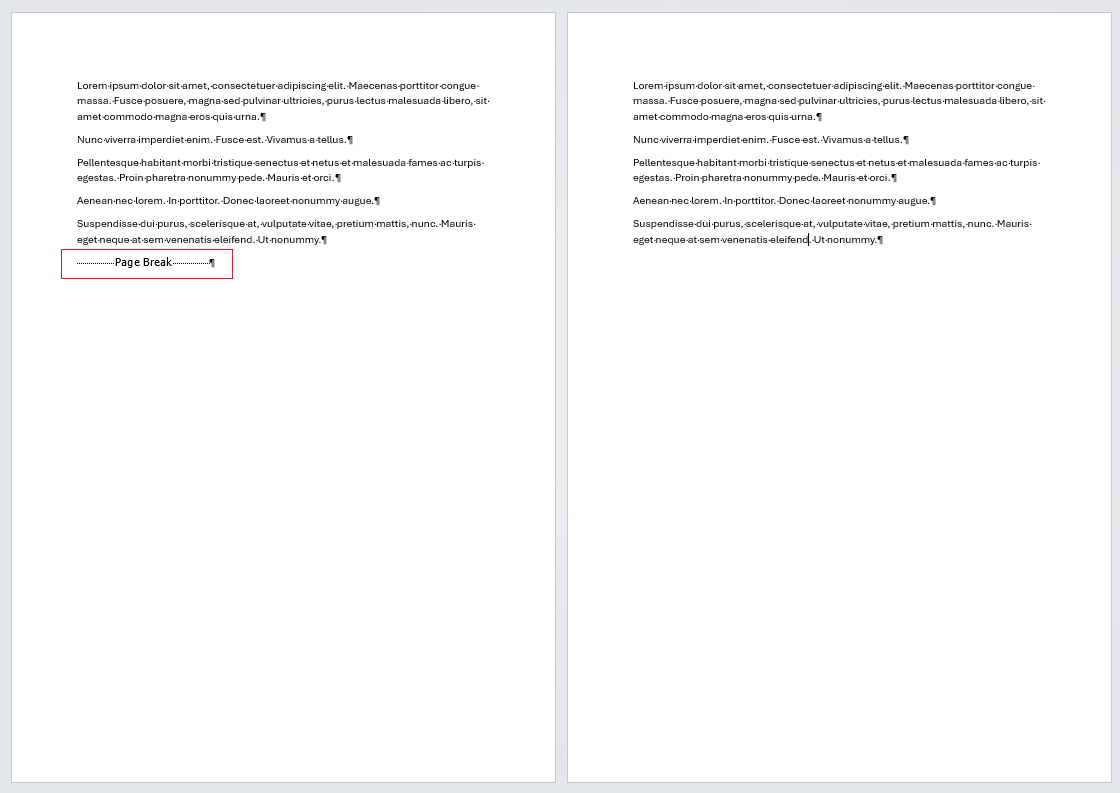
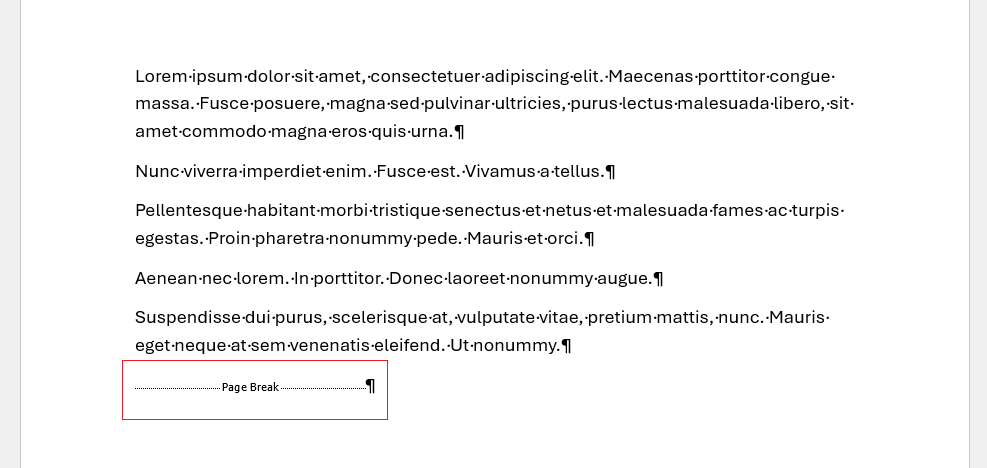
It’s much easier to turn on formatting marks (Home > Show/Hide ¶) and then you’ll see page break appear like this:
Now you can specifically select the page break and delete it like regular text. Once deleted content will jump up to that page like this:
Other kinds of breaks in Word
- Section breaks – Break a document up into sections in which you can apply different formatting, styles, headers and footers, page size and orientation, without affecting the rest of the document. For more see Section breaks.
- Line breaks (soft return) – Moves text to the next line without start a new paragraph.
- Column breaks – These are used in multi-column layouts to shift content to the next column.