Images and graphic visuals
Types of Images/Graphic visuals in Word
Under the Insert tab on the ribbon are options to add images and graphic visuals into your document. Here's a quick gloss over what each of them are. Click the links to see how to insert them.
| Image/Visual graphic type |
Definition | Examples/Types/Categories |
|---|---|---|
| Pictures/images | Standard image files inserted from your device or online. | .JPG, .PNG, .BMP, .GIF, etc |
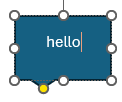
| Shapes | Shapes from Word's built-in library that can be edited and customised, and some typed into. | Lines, arrows, rectangles, basic shapes, flowchart shapes and callouts (speech/thought bubbles) |
| Icons | Scalable and editable vector icons from Word’s built-in Stock Images library. | A huge range of categories, to name a few (this is not exhaustive): Process, Communication, Business, Medical, Commerce, Tools and Building, Analytics; Education, Security and Justice, Signs and Symbols, Accessibility, Music...there's a lot. |
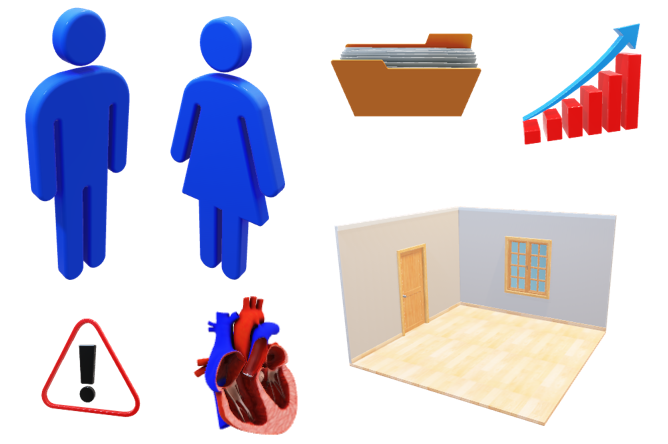
| 3D Models | 3D models inserted from Word’s 3D model feature or imported from your device | Another huge range of categories to search/choose from, e.g. avatars, characters, industrial, medical, tools, landscaping, animals, 3D shapes and icons, animated models and more. |
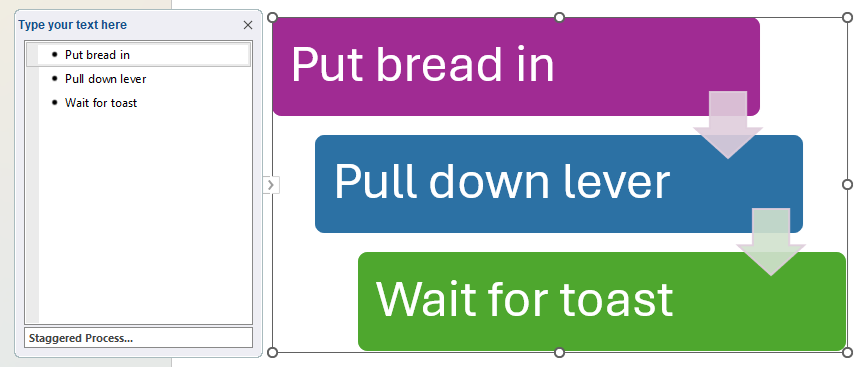
| SmartArt | Diagrammatic visuals with editable text | Various different types of editable diagrams including lists, Processes, Cycles, Hierarchies, Relationships, Matrices, Pyramids and Pictures. |
| Charts | Inserted via Word or linked from a chart in Excel. | Several different chart varieties e.g column, line, pie, bar, area, scatter, radar, treemap, histogram, box and whisker, waterfall, funnel and more. |
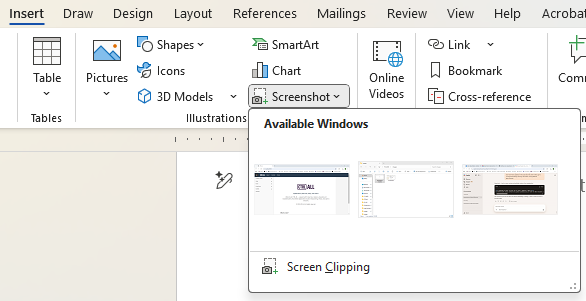
| Screenshots | Inserts a screenshot of a current application window or alternatively take a screen clip. | Word gives you the option to insert a screenshot of any open window (i.e. one that is not minimised). Alternatively you can choose to take a screen clip to screenshot a selected area. |
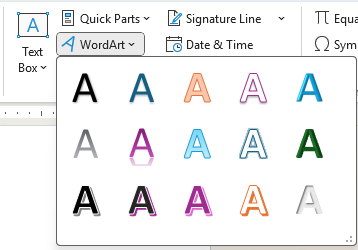
| WordArt | Stylised text treated as a visual object. This is an old feature of Word Gen X and Millennials will remember well from the 90s. | Multiple choices from a modest gallery of styles. |
| Grouped visuals | Any combination of the above grouped together. | Take your pick. |
Inserting pictures/images
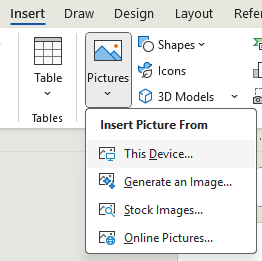
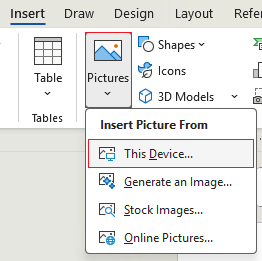
You can insert images into a document from different sources via Insert > Pictures:

- From Device - choose from local image files stored on your computer.
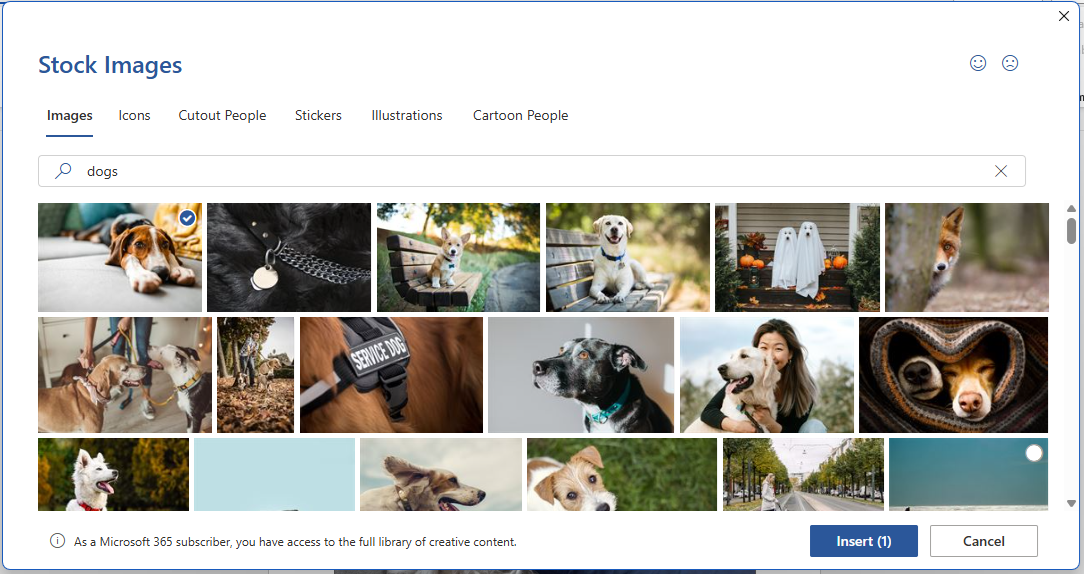
- Stock Images - choose from online images part of Microsoft's curated royalty-free images.
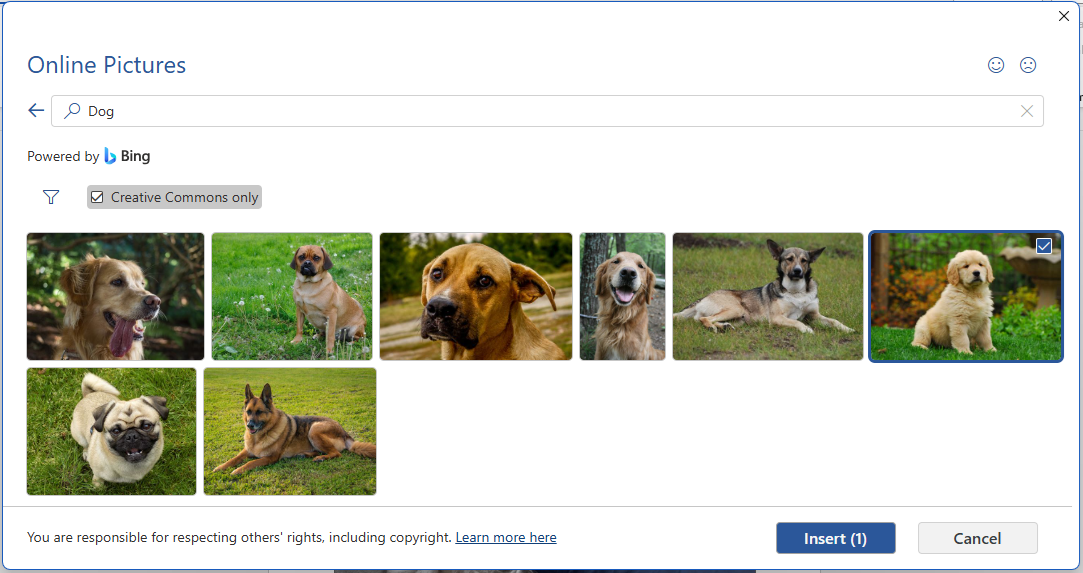
- Online Pictures - search and select images found online via Bing image search online. Keep in mind that licensing usage for these images may vary.
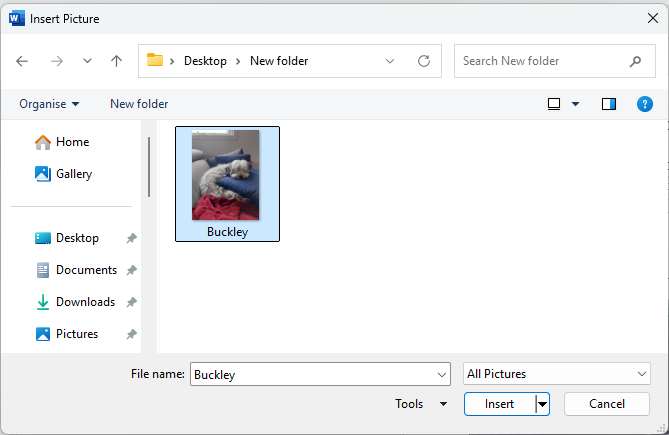
Depending on which you choose you'll get either a window to browse your computer for an image, or a gallery to search and choose an image from:
| From Device | ![]() |
| Stock Images | ![]() |
| Online Pictures | ![]() |
After you've selected an image and pressed Insert it will appear on the page. Where it appears on the page is determined by where you had the insertion point and how large the image is.
In the example below I've selected and inserted a photo from my laptop of my dog. As you can see, due to the high resolution (detail) of the photo it's quite large and takes up most of the A4 page, so I'll want to resize it to be smaller. Everything on how to alter images can be found in this article: Altering images and objects.
Inserting shapes, icons and 3D models
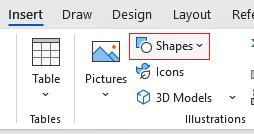
Alongside images you can also insert shapes, icons and 3D models into a document.
| Shapes | Icons | 3D models |
|---|---|---|
![]() |
![]() |
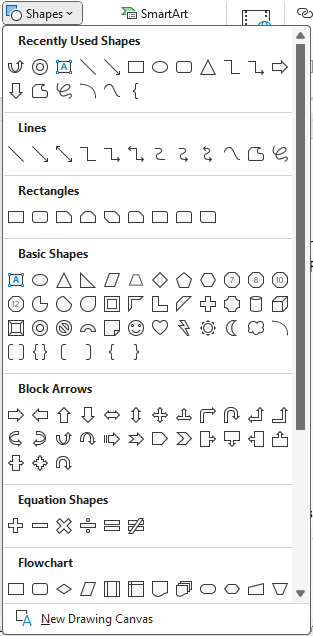
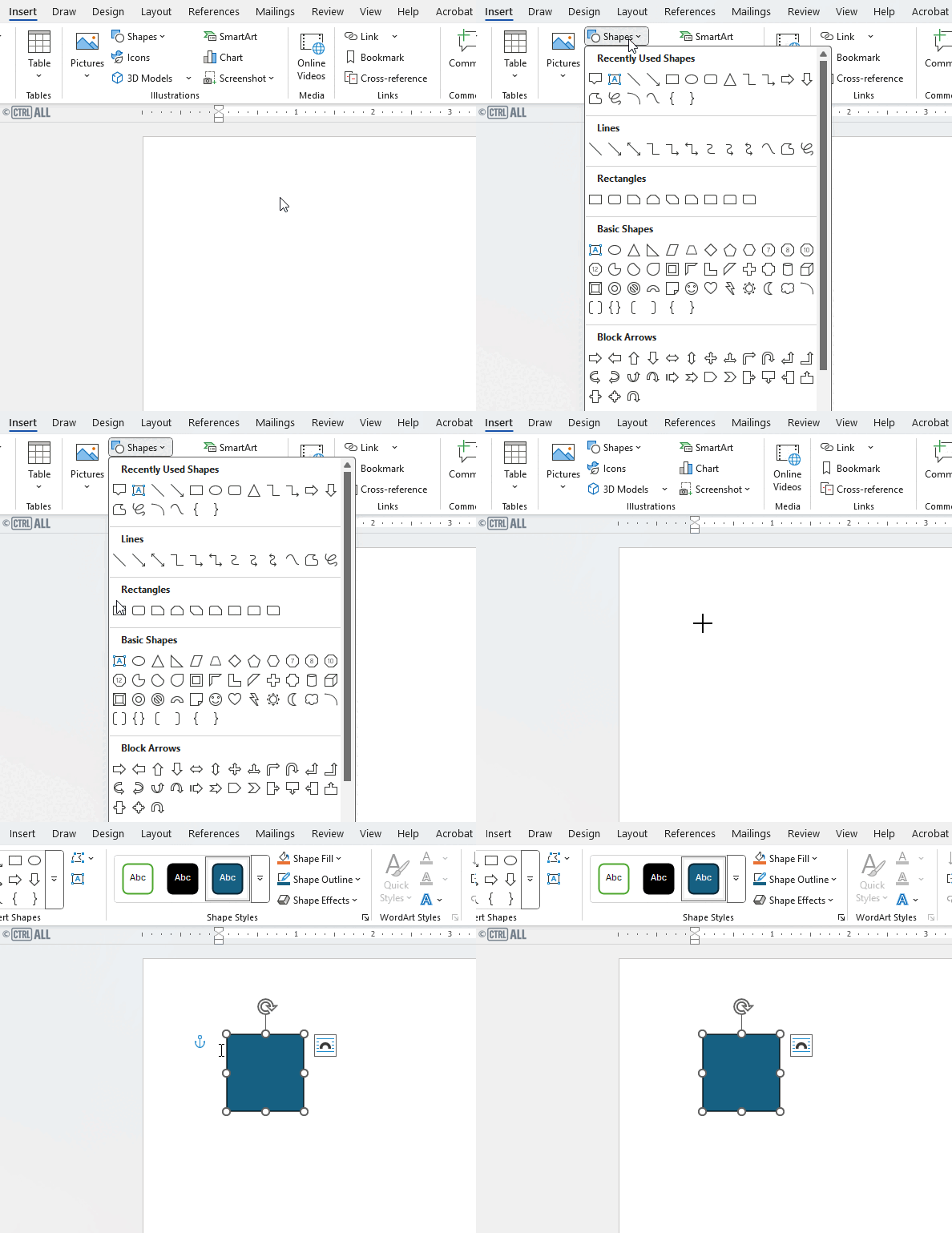
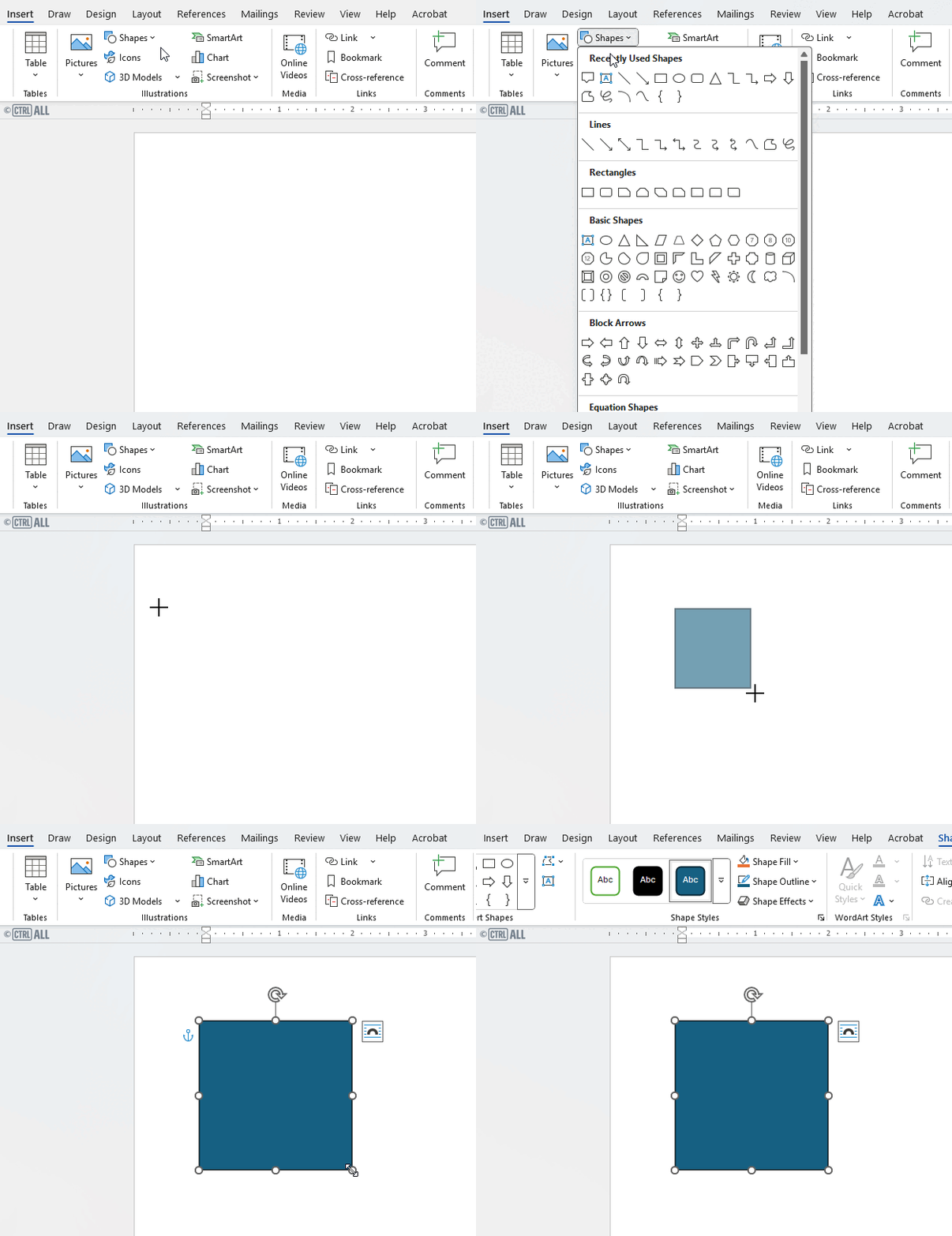
Shapes
There is a huge library of shapes to choose from.

Once inserted you can alter shapes in their position, colour, size and some let you type inside them. To edit and alter shapes see this article: Altering images and objects.
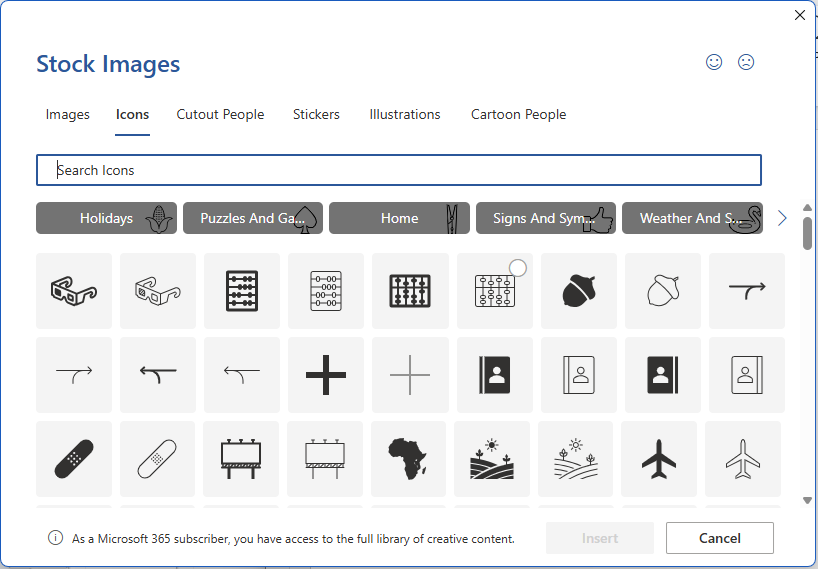
Icons
Word has a library of useful royalty-free icons you can insert, colour and resize. To alter icons see this article: Altering images and objects.
![]()
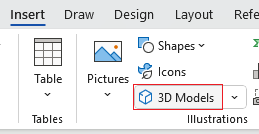
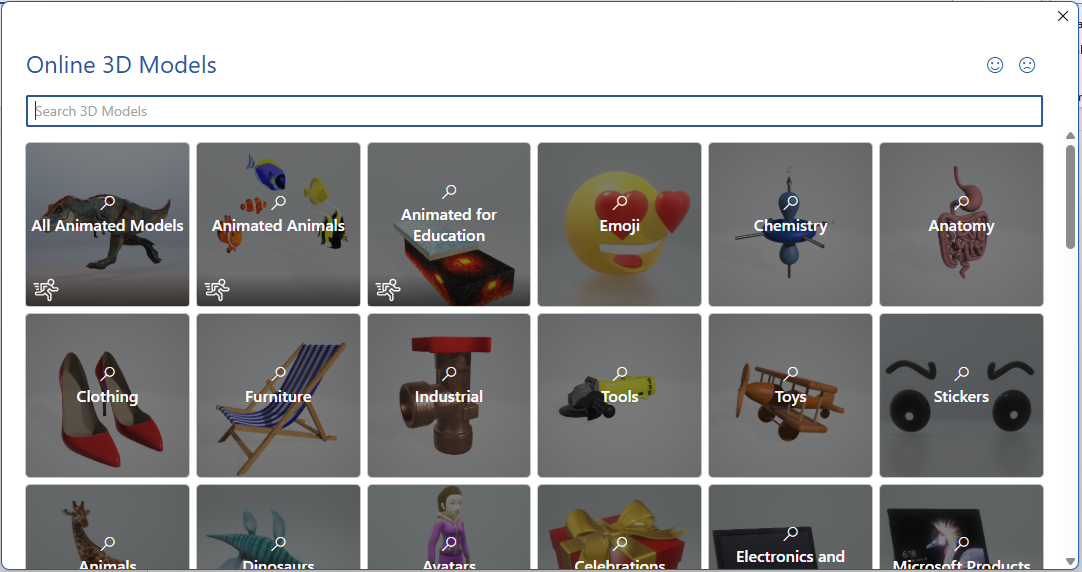
3D models
3D models are a hidden gem not commonly known to many but can be useful for attention grabbing illustrative purposes and avatars, some of them are animated as well. You can move, resize and rotate them, as well as rotate some on an X-axis (left/right) and Y-axis (up/down). To alter 3D models see this article: Altering images and objects.

Inserting SmartArt
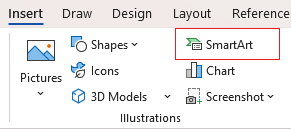
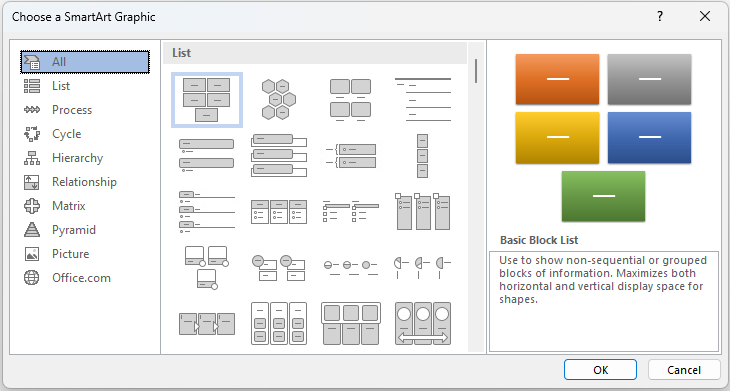
SmartArt produces linked text containers arranged in visual layouts that are very useful to illustrate points, processes and structures for a report or guide. This feature is especially useful in PowerPoint presentations. Under Insert select SmartArt, once you've chosen the option you need, select OK and you can then type into the visual as needed, as well as edit and style using the SmartArt Design and Format tabs on the ribbon.


Inserting charts
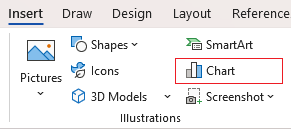
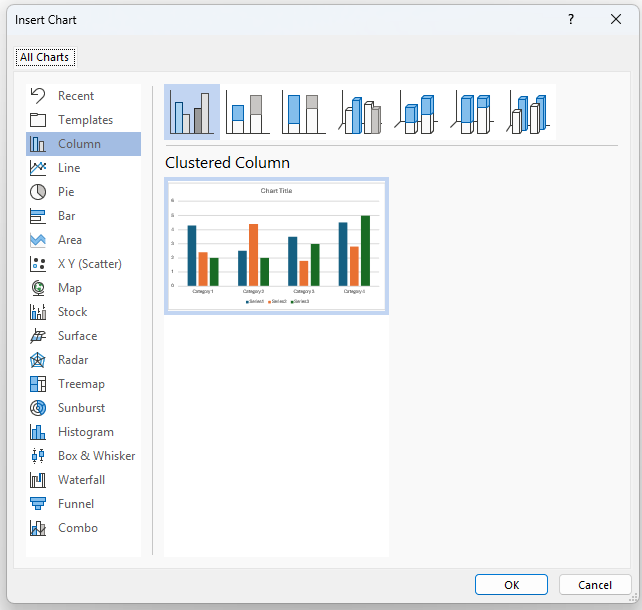
Via Insert > Chart, Word gives you several chart types to create one from:

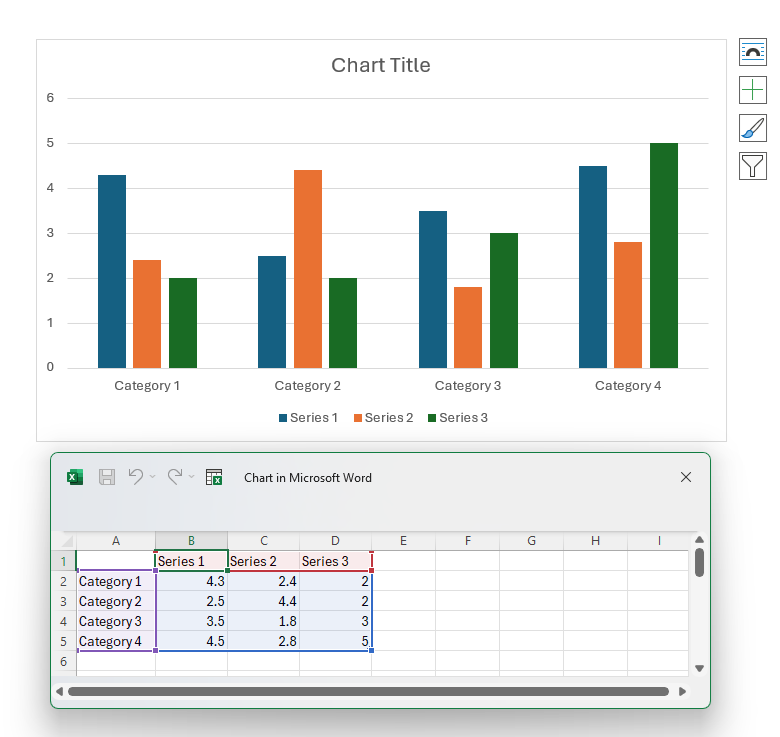
Inserting a chart will also provide you with an Excel window which will initially have placeholder data that the chart is based on. From here you can replace and alter that data to modify the chart as needed.
More on editing charts here: Editing charts.

How to import charts from Excel into Word
Importing charts from Excel into Word is done by simply copy and pasting it from the Excel app into Word. Once pasted you can format and style the chart as needed and edit the data within Word.
More on editing charts here: Editing charts.

Inserting Screenshots
Select Insert > Screenshot to see a thumbnail gallery of windows that you have open. (Note: it won't show any minimised windows.)

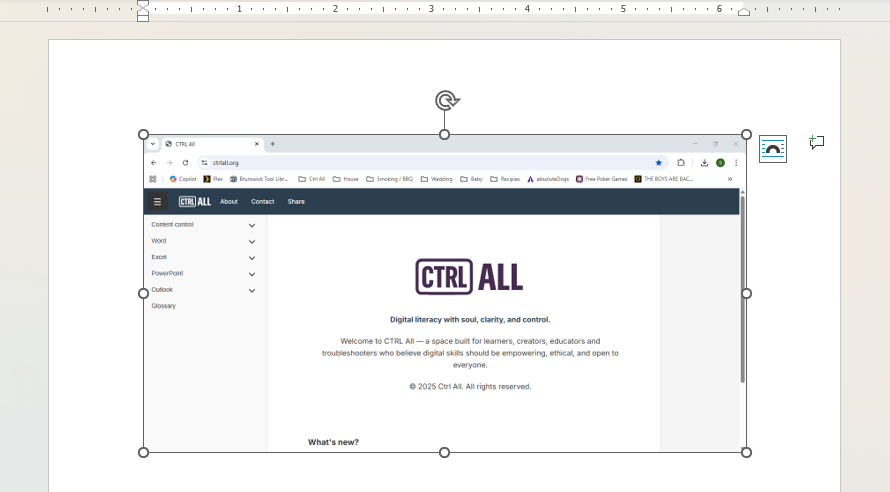
Click on one and a screenshot of it will be inserted into your document wherever your insertion point was:

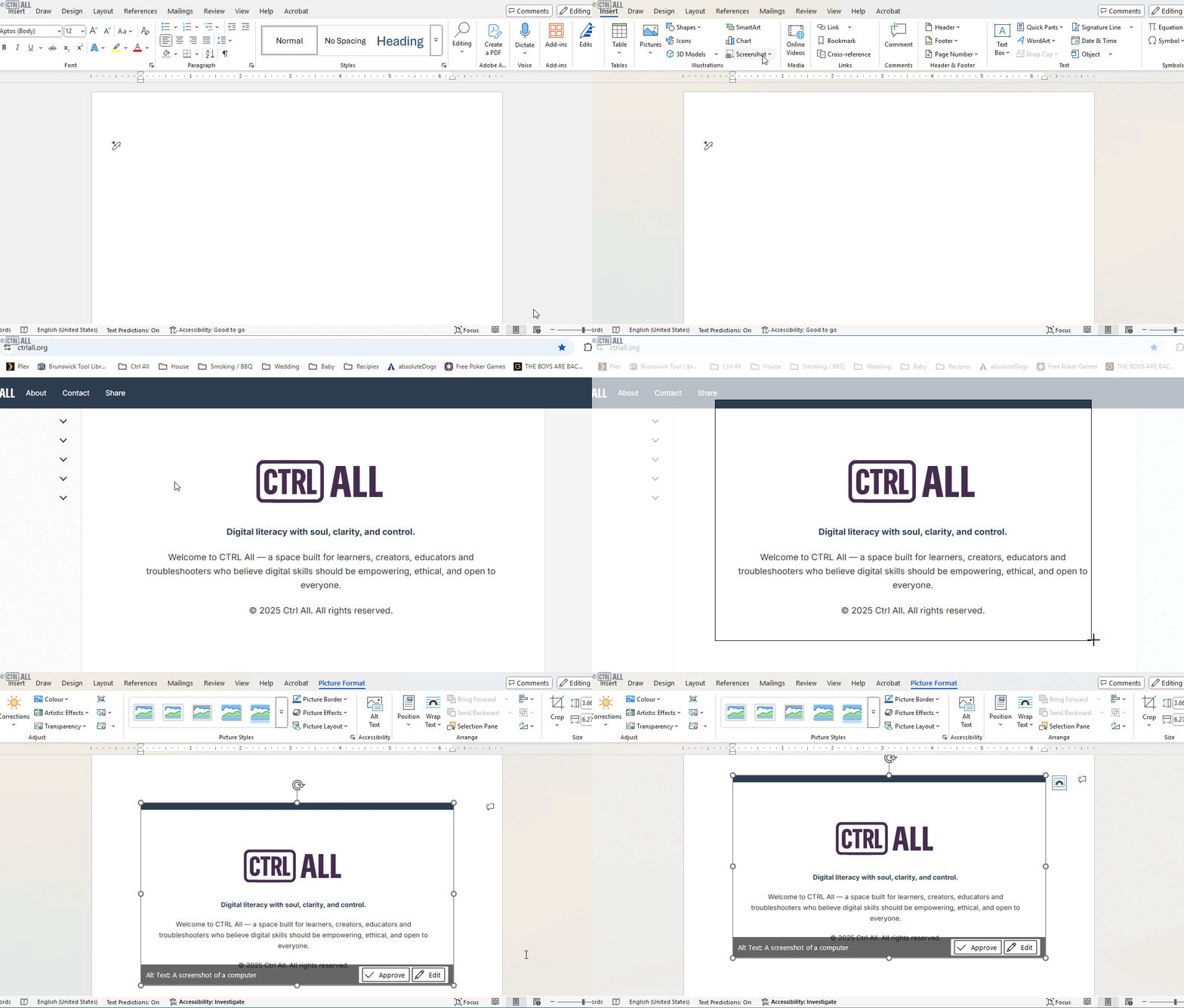
Alternatively you can choose screen clip which allows you to drag and select a certain area of the screen to screenshot, this will then appear in the document for you.

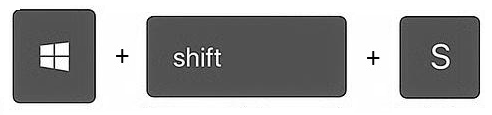
Note: A quicker way to take a screen clip anytime in Windows is with the keyboard shortcut Windows + Shift + S.

Inserting WordArt
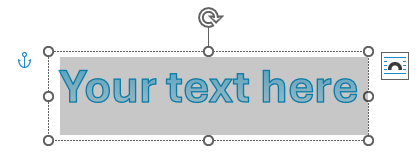
WordArt was all the rage in the 90s, every printed poster and PowerPoint presentation used them to make words stand out in a stylised way. The modern version is limited but offers the same function. Select Insert > WordArt to choose from a gallery of typographic styles; you can then type and further edit that style if you want via the Shape Format tools on the ribbon.