If you’re new to PowerPoint read on. If you're already a little familiar with PowerPoint try the intermediate version of this article.
Microsoft Powerpoint is slideshow presentation application used worldwide for professional and educational presentation. It comes as part of the Microsoft Office suite, a package of several Microsoft applications like PowerPoint for creating and presenting slideshows, Outlook for emails and Excel for spreadsheets.
If you're new to Microsoft PowerPoint ('PowerPoint' for short, slideshow presentations made are commonly just referred to as 'PowerPoints' / 'PPTs' as well) this article starts from the ground up. In this article we'll explore:
- How to open Microsoft Powerpoint
- How to create a new PowerPoint presentation
- How to open a PowerPoint file
- The main interface
- Closing a PowerPoint presentation
- How to close the PowerPoint application
- What version of Powerpoint do I have?
How to open Microsoft Powerpoint
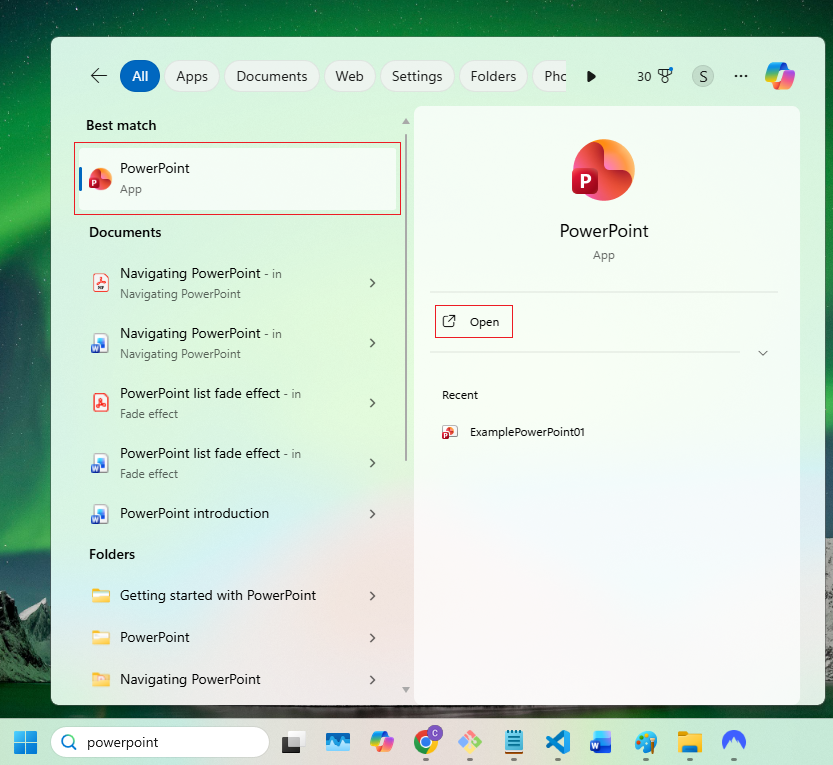
To find the PowerPoint application ('app' for short), search on your taskbar at the bottom of your screen:

This brings up two buttons to open PowerPoint with:
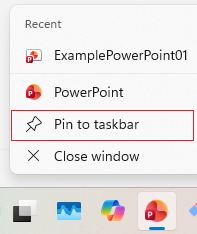
Tip: Once you've opened the app, right click on the app icon, then select Pin to taskbar from the menu. Pinning an app to the taskbar will keep it there after you close it so you can access it quicker next time:
How to create a new PowerPoint presentation
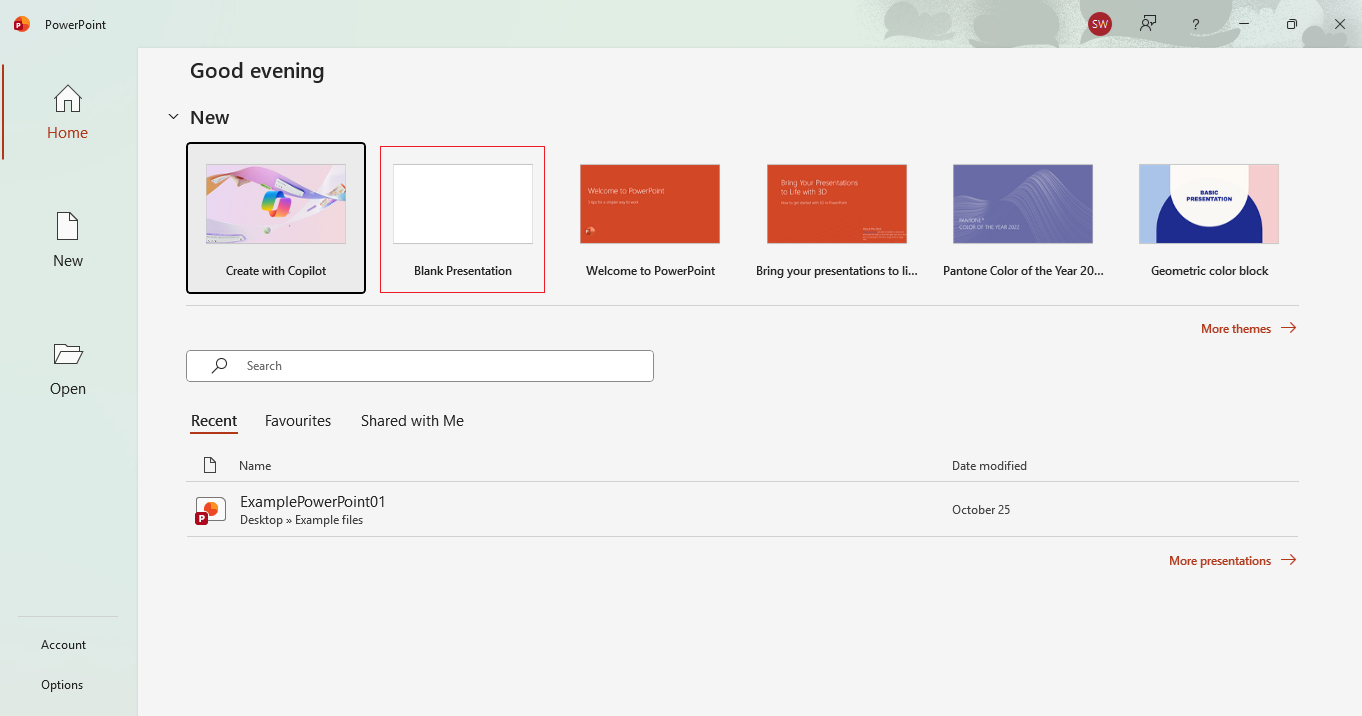
When the PowerPoint app loads up you get the screen shown below. Click Blank Presentation up the top to get started. This will create a brand new blank presentation for you to edit.
How to open a PowerPoint file
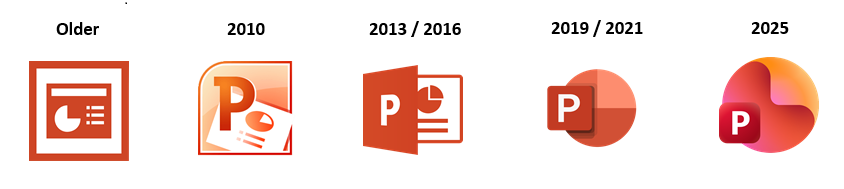
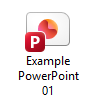
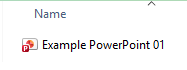
PowerPoint files will have the PowerPoint app icon with a 'P' which looks like this depending on the folder view.
First, find the file you need then double click on it. If you find double clicking tricky try clicking on the file once to select it, then press the Enter key on your keyboard instead. This will open it in the app.
The main interface
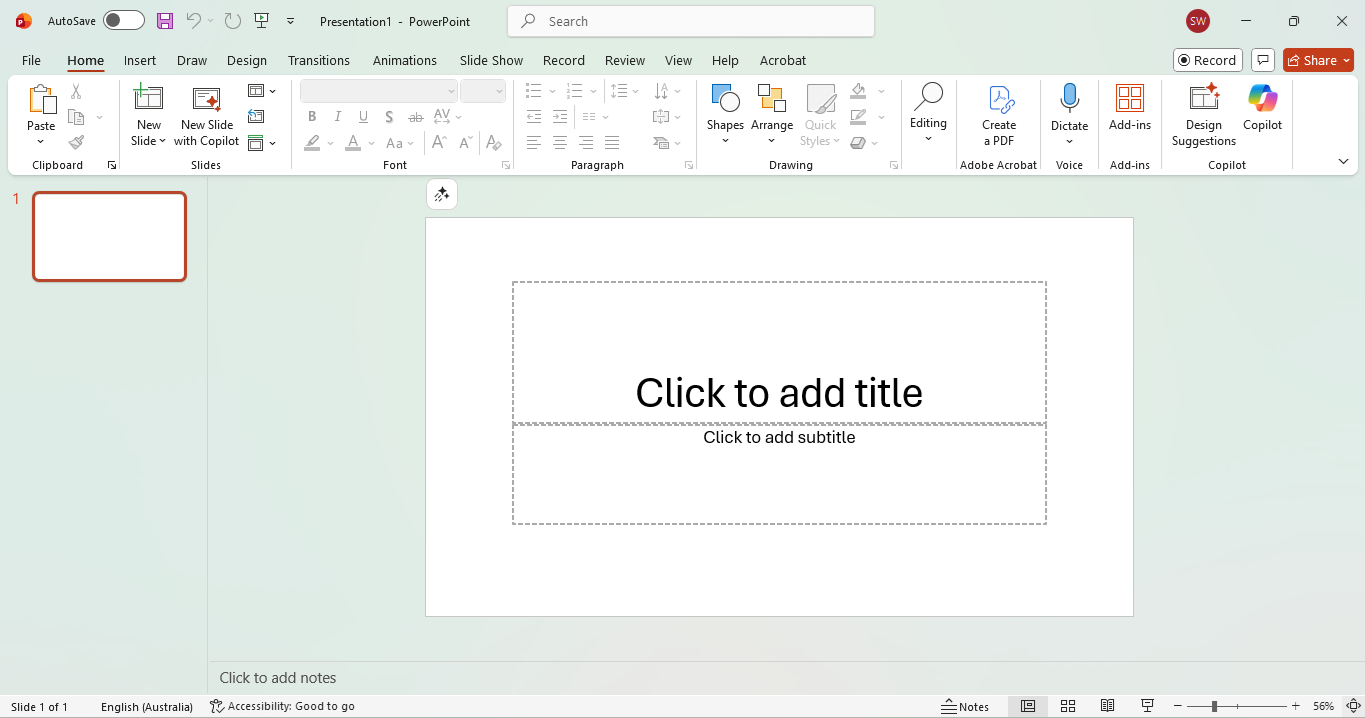
This is the main interface of the PowerPoint app. Let's break it down in sections top to bottom.
Quick Access Toolbar
At the very top of the app is the Quick Access Toolbar; this has options that are always visible wherever you are in the app. On the left you'll find options to save, undo, redo and to view the presentation; in the centre is a search bar to search for tools and options; on the right are options to minimise screen (hide the application, you can open it again from the taskbar), maximise screen (to take up the full screen) and to close the application.
If you're using Microsoft Office 365 then you'll also see a toggle for Autosave to the far left.

The Ribbon
Below is what is known as 'the ribbon'. The ribbon is a series of tabs with tools and options in each which help you edit the presentation. The most common one is Home which has tools for content control (Clipboard), Font and Paragraph and Styles for formatting text.
As you work through building your presentation you'll likely come to use other tabs such as Insert to add images and text boxes, Animations to animate objects on your slide or Review for spell checking, among others.

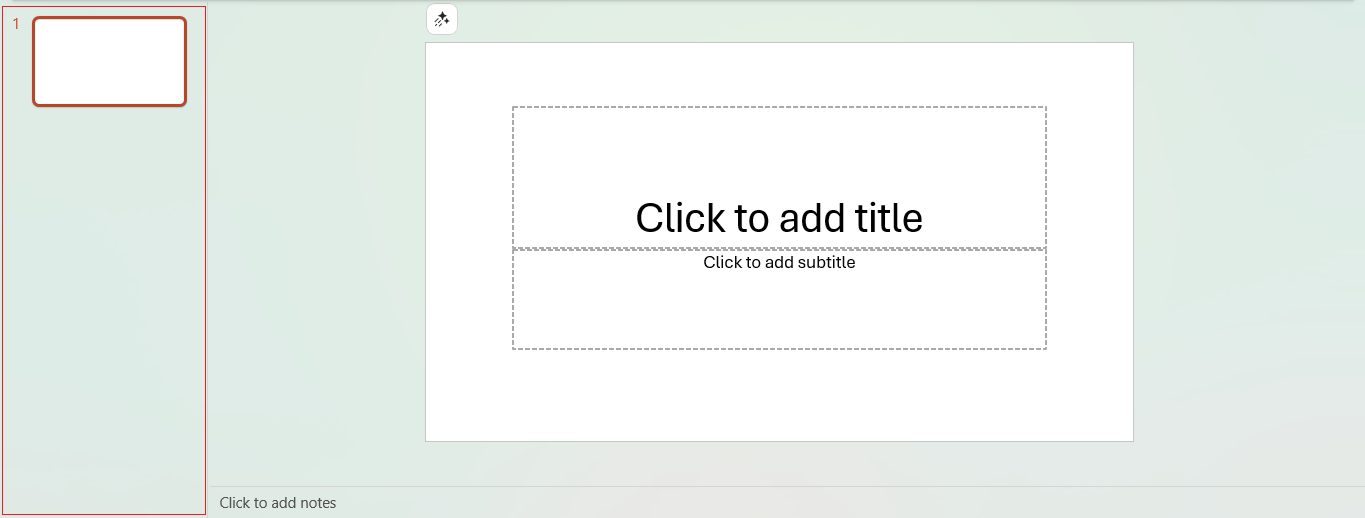
Slides Pane
To the left is the slides pane which shows all your presentation's slide in order. Here you can add, delete, cut, copy and paste slides in your presentation.
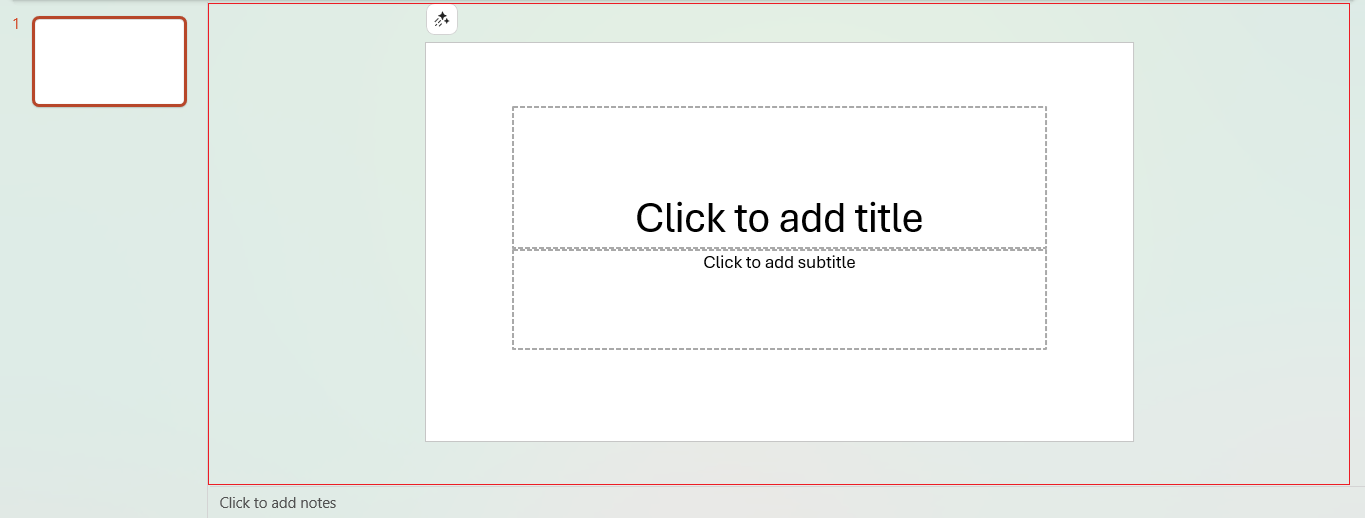
Slide canvas
This is the main area where you design and edit each slide, adding, editing and/or deleting content on it. Only content within the white area appears in the presentation.
Status bar
The bar at the bottom of the application is the status bar which shows details about your PowerPoint presentation such as the slide number, total slides, current language setting, notes for the slide, view options and the zoom tool.

Closing a PowerPoint presentation
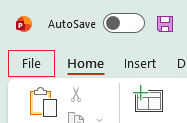
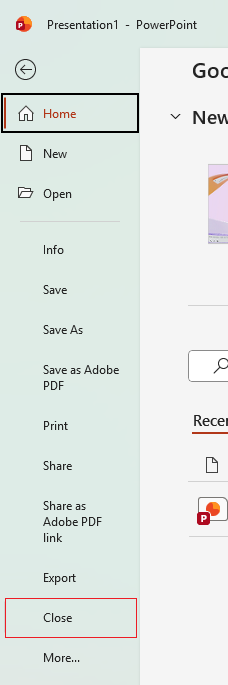
You can close the current document but still keep the PowerPoint application open by clicking File > Close.
How to close the PowerPoint application
You can close the PowerPoint application by pressing the ✖ button in the far right corner on the Quick Access Toolbar. If you have made any unsaved edits PowerPoint will prompt you to save before closing.
What version of Powerpoint do I have?
| PowerPoint version | Description |
|---|---|
| PowerPoint for Microsoft 365 | A subscription-based version with continuous updates and cloud integration. It includes premium features like Designer (AI slide layouts), morph transitions, and real-time collaboration. |
| PowerPoint 2021 | One-time purchase version included in Office 2021 suite, doesn't include continuous updates. |
| PowerPoint 2019 | Predecessor to PowerPoint 2021, also a one-time purchase. |
| PowerPoint 2016 / 2013 / 2010 | Older standalone versions with fewer features and no cloud sync. |
| PowerPoint Online | Free web-based version with basic features, accessible via your web browser. Supports basic slide editing and collaboration, but lacks advanced features like Slide Master editing. |
| PowerPoint for Mac | Mac-specific versions released alongside Windows editions. Some advanced features (e.g., certain add-ins or shortcut customizations) may differ. |
| PowerPoint Mobile | A lightweight version of PowerPoint for mobile devices, optimized for touch, viewing and light editing. Advanced features are limited. |
To find out what version of Microsoft PowerPoint you're using, try these steps:
-
If you have PowerPoint installed on your computer (Windows or Mac)
In PowerPoint click on the File button in the top left of your screen:
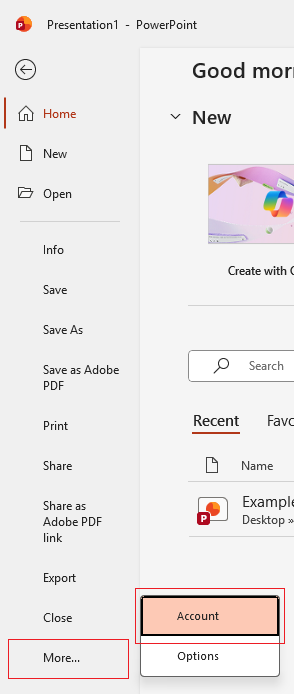
On the next screen that appears, click on Account (it may be under More...). For older versions click on Help.
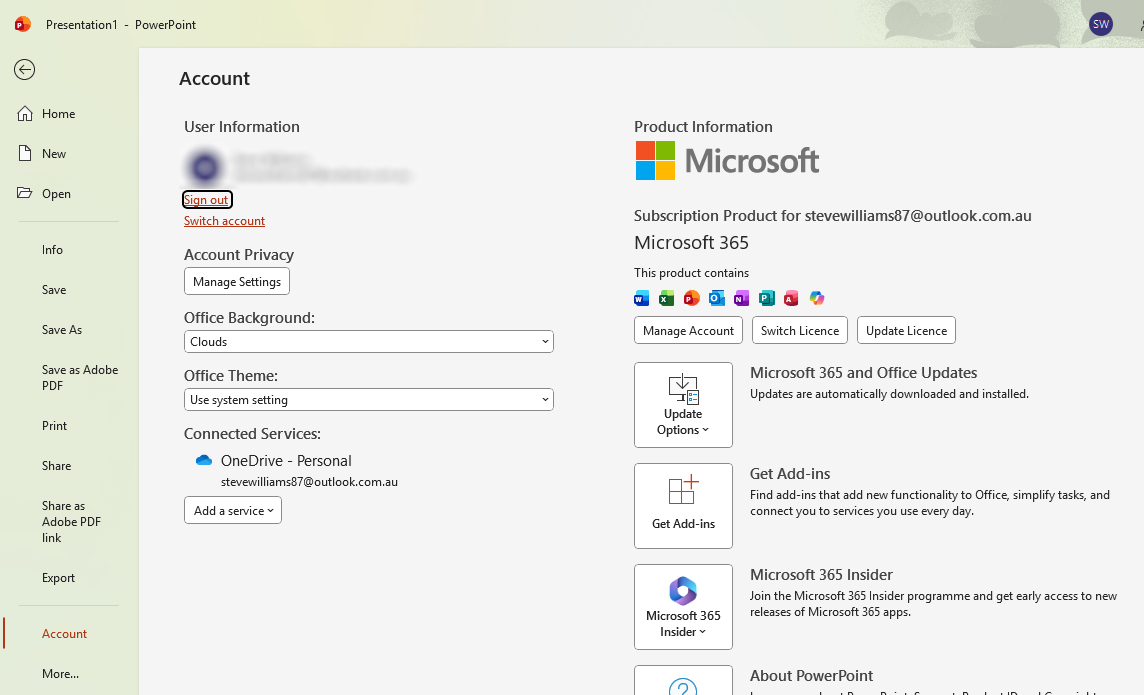
PowerPoint now shows you information about the version of PowerPoint you're running. Look under Product Information on the right or click About PowerPoint. Here in this example it's showing my version of PowerPoint is Microsoft 365 but this could say PowerPoint 2021 for example.
-
If you're using PowerPoint online in a web browser
If you can see 'Copilot' above the page you're using Microsoft PowerPoint 365 in your browser.

If you don't see it then you're likely using PowerPoint for the web version (formerly known as PowerPoint Online). The difference here is the free version has a few limitations compared to the Microsoft 365 subscription.
- Mobile/Tablet – If you're using the PowerPoint app on a phone or tablet, you're using PowerPoint Mobile.
Note: For the purpose of demonstration here all the examples are using Microsoft Office 365.
Where to now?
That's a basic overview of PowerPoint for you. Now you understand its interface a little more and know how to open and close it, try the following articles:
- How to save
- More articles on PowerPoint to come